> For the complete documentation index, see [llms.txt](https://docs.opsmx.com/llms.txt). Markdown versions of documentation pages are available by appending `.md` to page URLs; this page is available as [Markdown](https://docs.opsmx.com/ssd/security-risk-and-prioritization/user-guide/view-security-posture/application-security-posture/policies.md).
# Policies
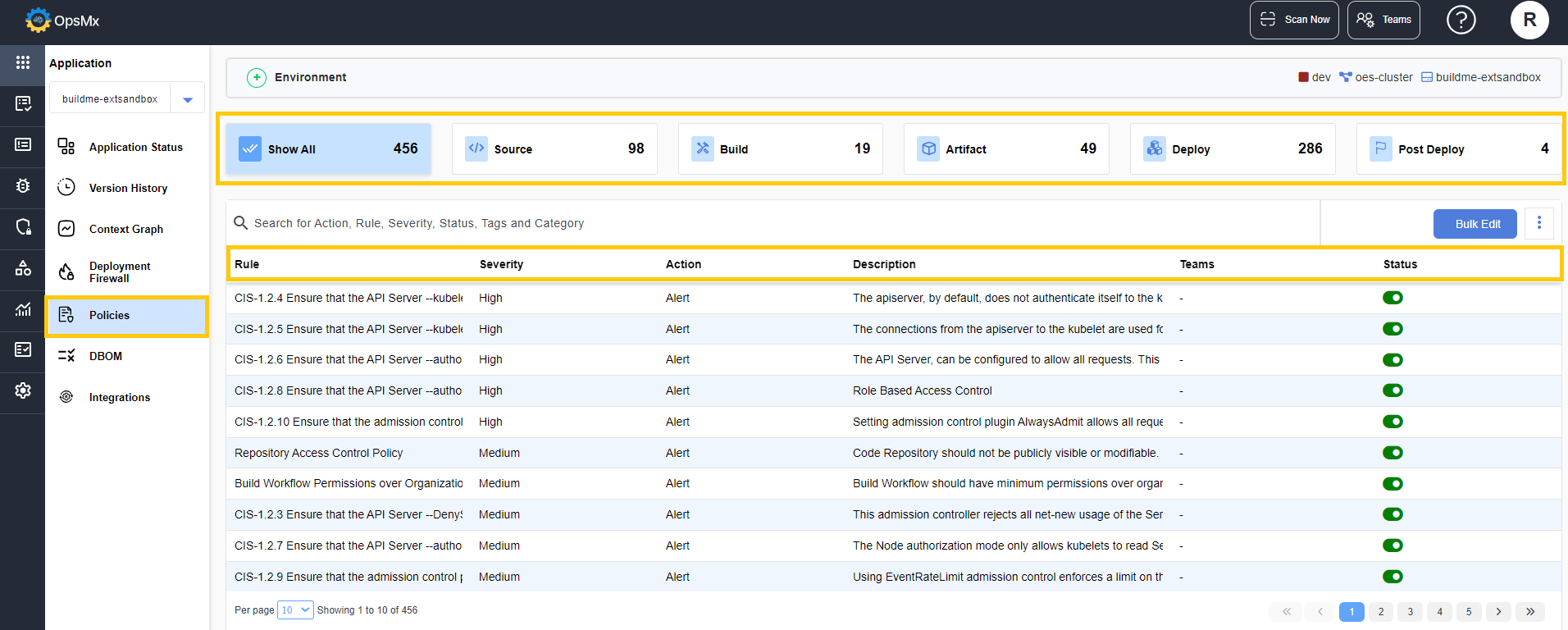
The policies page displays all the rules related to the application. You can view the list of rules for any given environment. The environment of the selected application is displayed on the top.
The following details of the policies are displayed:
* **Rule :** Displays the name of the rule.
* **Tag :** Displays the related tags for the rule. The tags indicate to which security the rules are complied with.
* **Category :** Displays the category of the rule.
* **Severity :** Displays the severity or impact of the rule namely **Major**, **Critical** or **Normal.**
* **Action :** Displays whether the rule displayed is an **Alert** or **Prevent.** When the rule fails; if the deployment passes and an alert is generated it is termed as **Alert**. If the deployment is blocked and an alert is generated then it is termed as **Prevent**.
* **Description :** Displays the description of the rule.
* **Teams :** Displays the team or group to which the application belongs to.
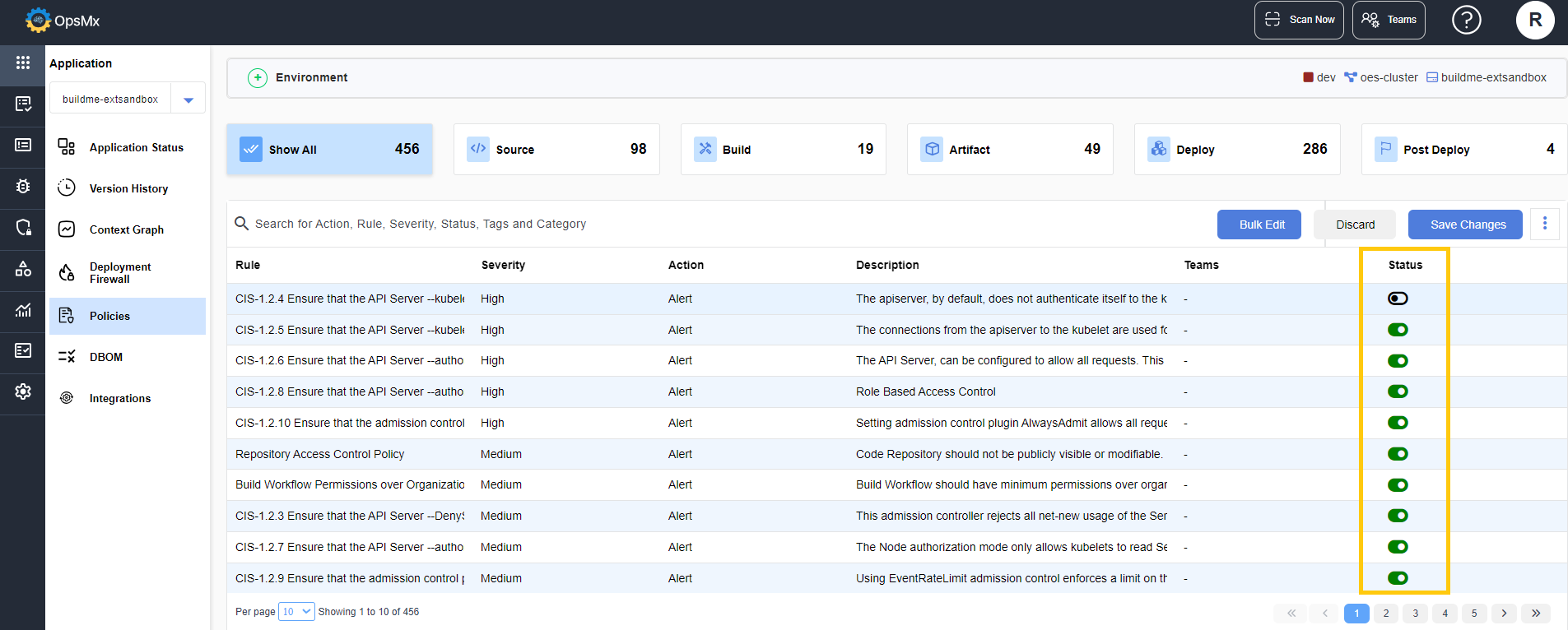
* **Status :** Displays whether the rule is enabled or disabled. You can **Enable** or **Disable** the rule for the selected application by clicking the **Status** radio button. If the rule is enabled, the status button is green in color.
### To Enable / Disable Rules:
* Select the rule that you want to disable or enable for the application and click the **Status** button. A popup appears showing the options **Save Changes** and **Discard**.
* Click **Save** to save the changes or **Discard** to omit the changes.
### Bulk Edit
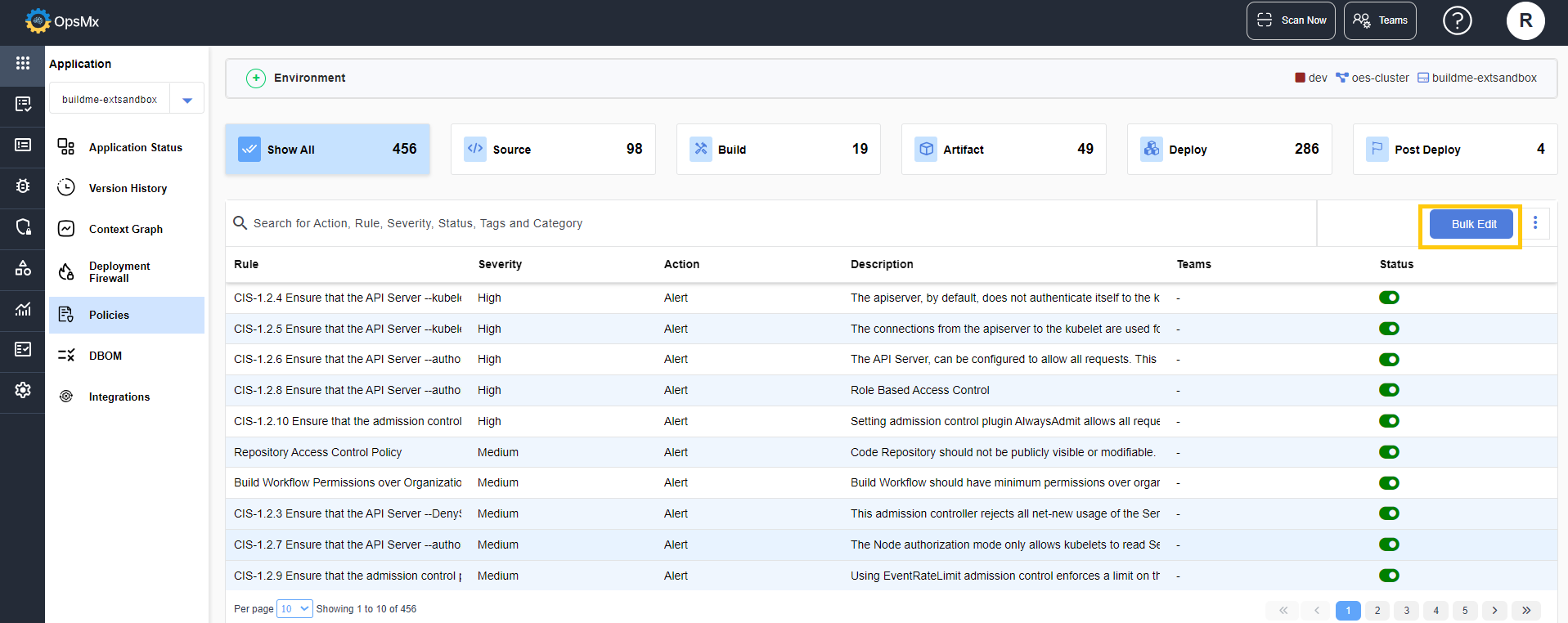
You can enable or disable multiple policies at the same time using the **Bulk Edit** option.
* Select **Bulk Edit**.
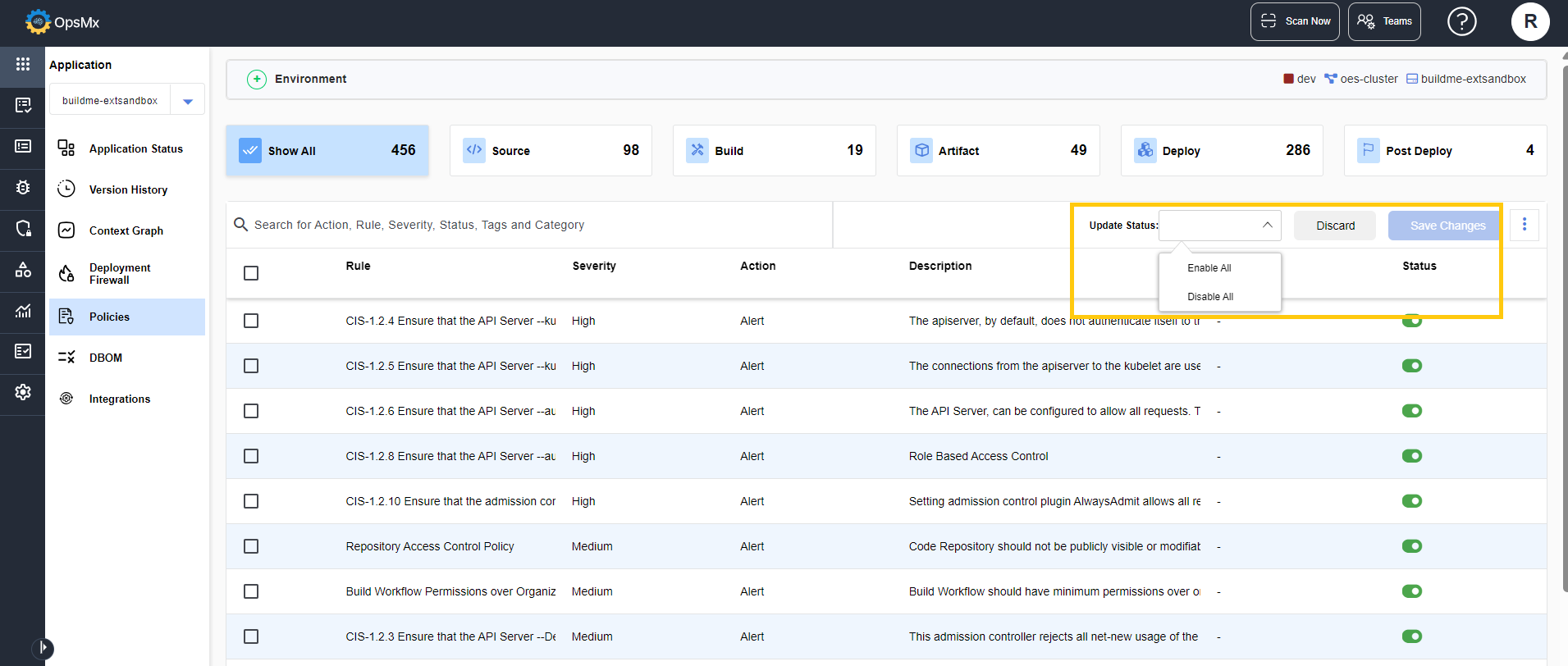
* Choose the rules for which you want to perform the action.
* Select **Enable All** or **Disable All**.
* Click **Save Changes**.
The changes gets applied for all the selected policies.
{% hint style="info" %}
The **Severity** and **Action** fields can only be changed at the global level. Only application owners can disable the rules from this screen if required.
{% endhint %}