> For the complete documentation index, see [llms.txt](https://docs.opsmx.com/llms.txt). Markdown versions of documentation pages are available by appending `.md` to page URLs; this page is available as [Markdown](https://docs.opsmx.com/ssd/security-risk-and-prioritization/user-guide/artifact-security/mobile-artifacts.md).
# Mobile Artifacts
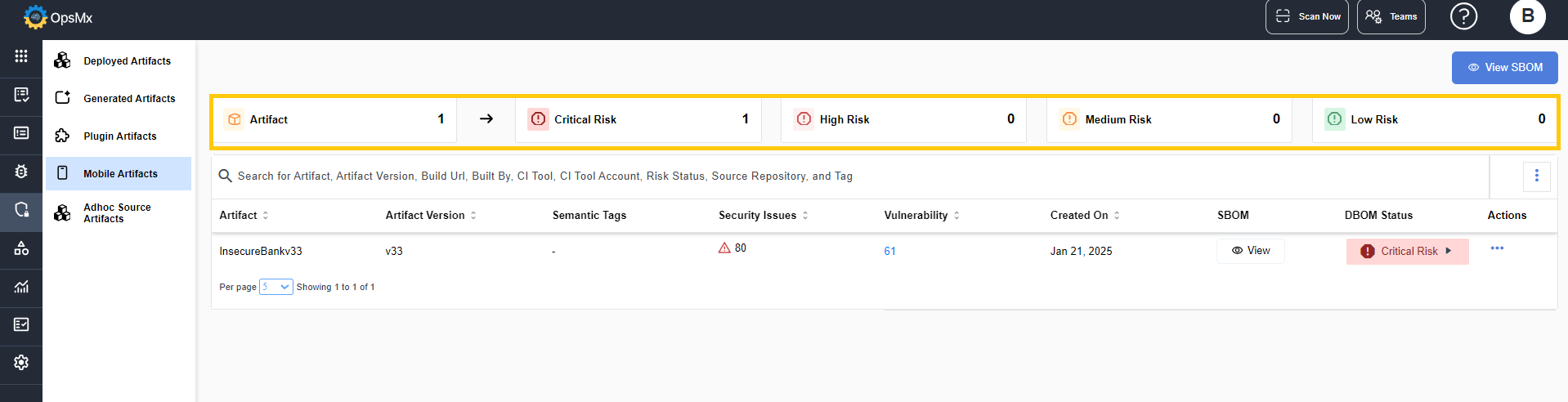
The Mobile Artifacts page displays the artifact status of all the mobile application artifacts stored in the repositories.
* The panel at the top displays the total number of mobile artifacts in the repositories, and the risk status of them.
* The following risk status are displayed:
* **Critical Risk** - The artifacts that are of critical risk.
* **High Risk** - The artifacts that are of high risk.
* **Medium Risk** - The artifacts that are of medium risk.
* **Low Risk** - The artifacts that are of low risk.
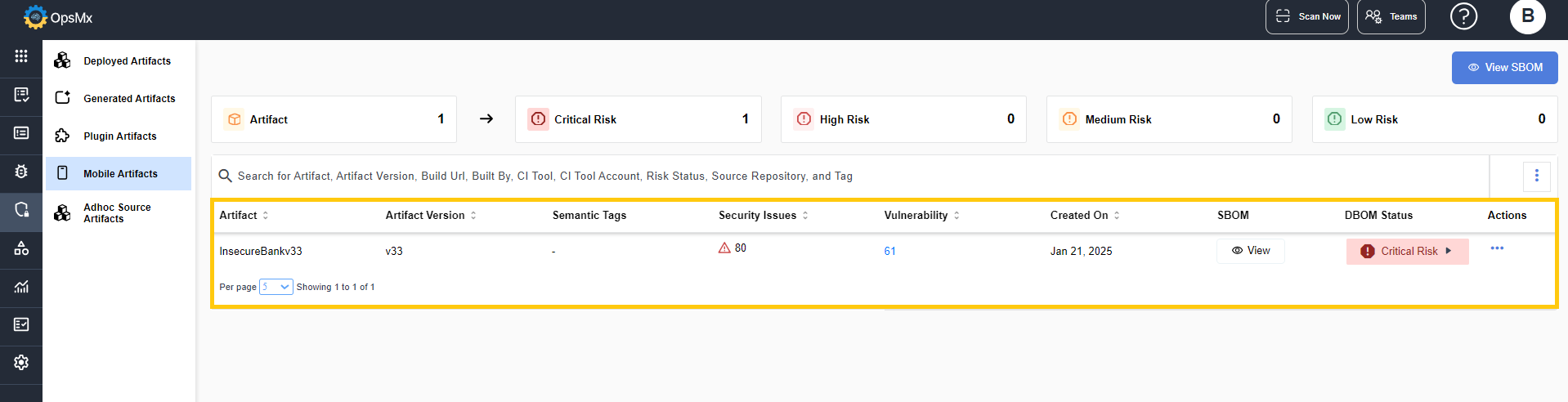
The panel below displays the details of the artifacts:
* **Artifact** - Displays the name of the artifact.
* **Artifact Version** - Displays the artifact version of the artifact.
* **Semantic Tags** - Displays the semantic tags of the repositories.
* **Vulnerability** - Displays the number of vulnerabilities identified for the given artifact. On clicking it, the [Vulnerabilities Management](https://docs.opsmx.com/opsmx-delivery-shield-platform/user-guide/vulnerability-management) details page is displayed.
* **Security Issues** - Displays the number of open security issues (alerts) identified for the given artifact.
* **Created on** - Displays the date when the artifact was created.
* **SBOM** - On clicking View, the SBOM page for the related artifact is displayed.
* **DBOM** - On clicking View, the DBOM page for the related artifact is displayed.
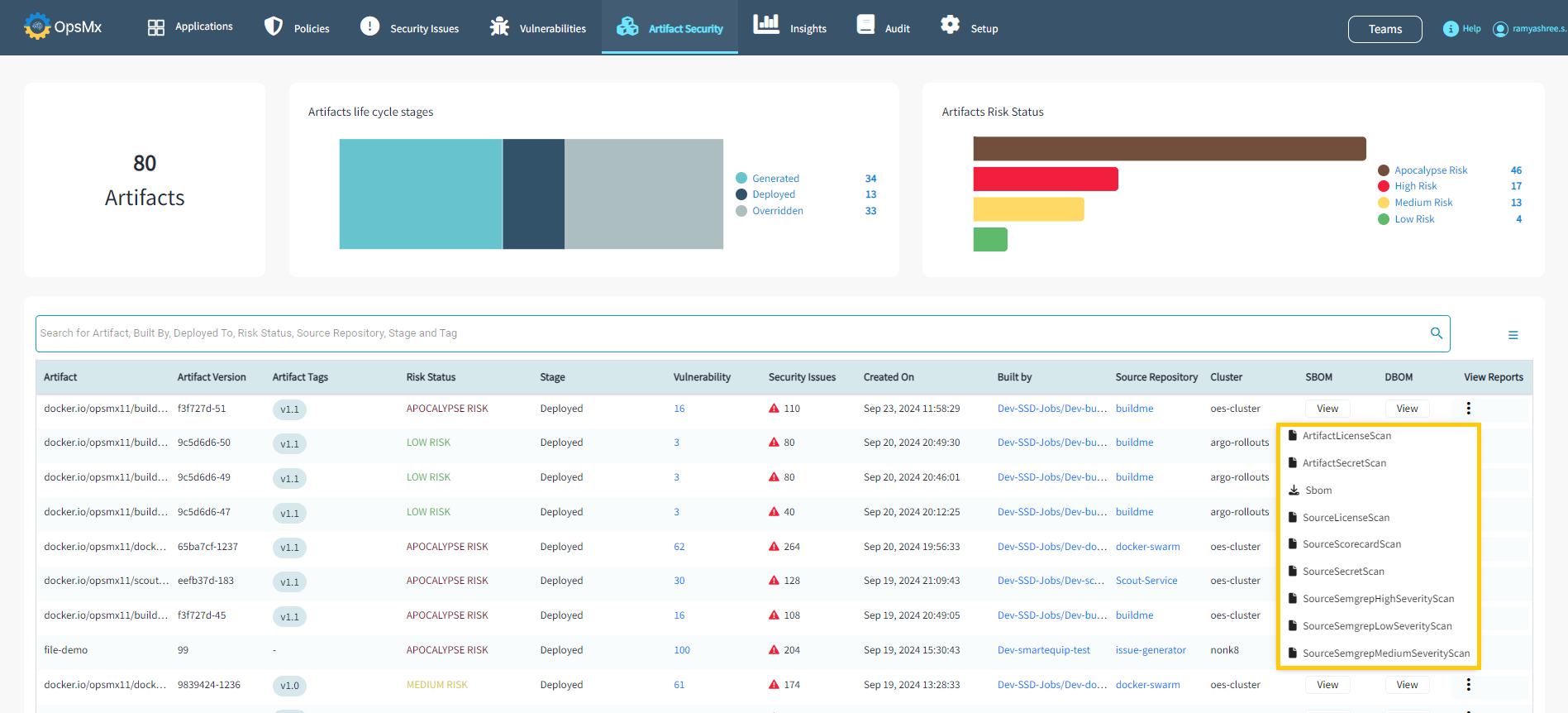
* **View Reports** - On clicking the three dots, you can view the list of scans run on the artifact as shown below:
You can download the scan results by clicking on it.
### View SBOM
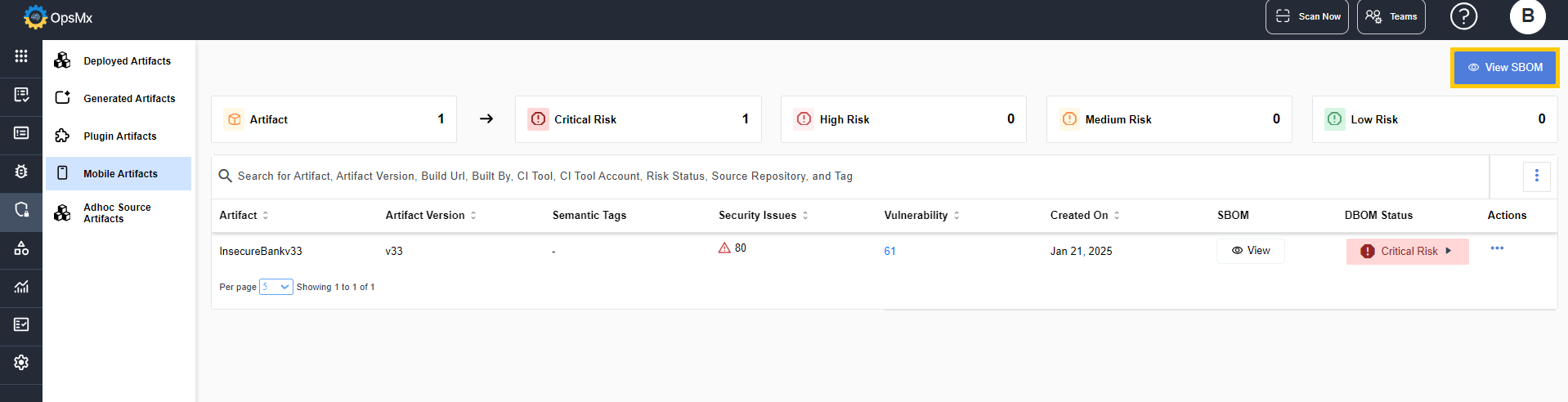
The SBOM for the artifacts can be viewed by clicking the **View SBOM** option displayed in the page.
On clicking **View SBOM**, the SBOM page is displayed.
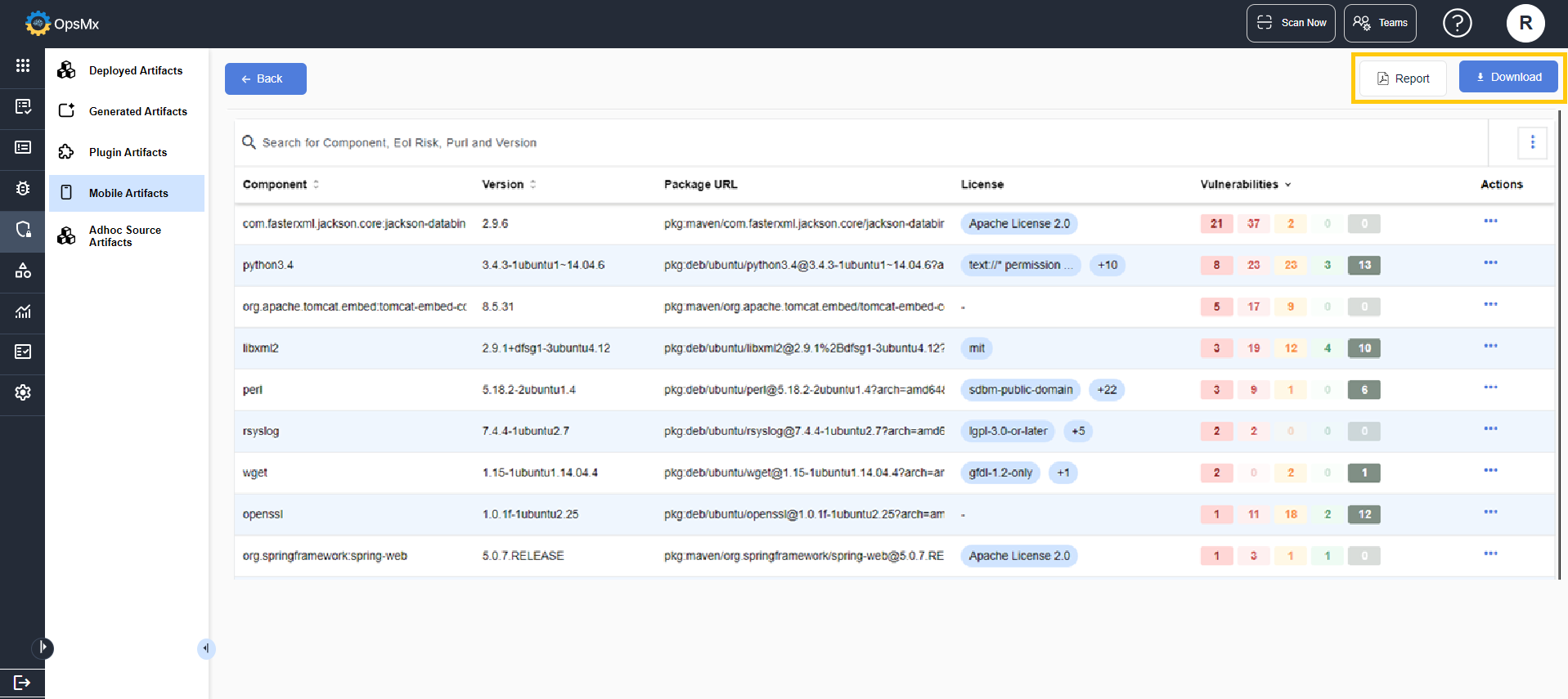
It displays the various components and related details of the components as shown below:
* **Component** - Displays the components of the artifact.
* **Version** - Displays the components version.
* **Package URL** - Displays the package URL of the component.
* **License** - Displays the list of licenses that are available for the component.
* **Vulnerabilities** - Displays the count of vulnerabilities related to the component.
* **EOL Risk** - Displays the score of how close the OSS packages used in their project are towards End-of-Life (EOL).
* **Dependency** -
* **OSS Risk** - By clicking **View**, you can view the artifact details of the component.
* **Actions** - By clicking **Edit License**, you can edit the license type.
{% hint style="info" %}
* You can view the vulnerabilities of the components by clicking the **Vulnerabilities** column.
{% endhint %}
### View Report
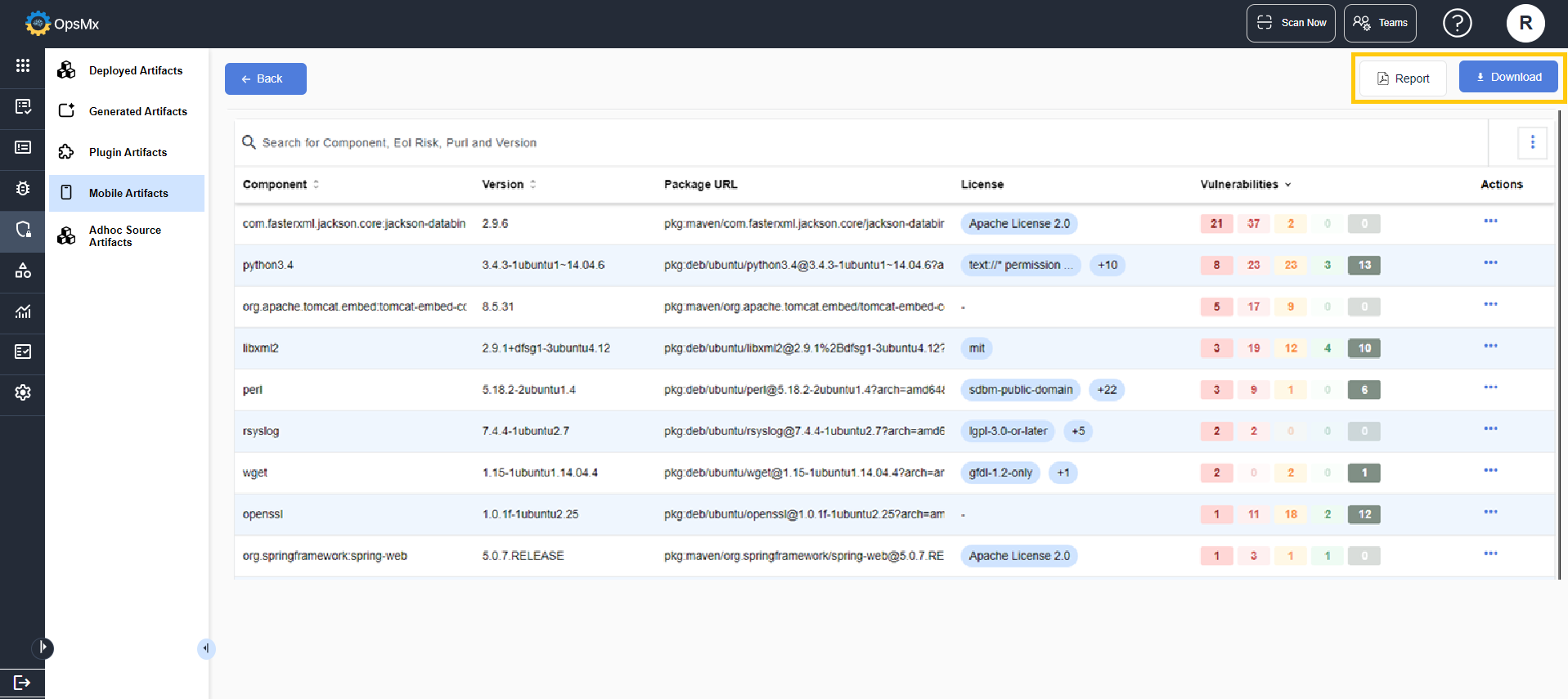
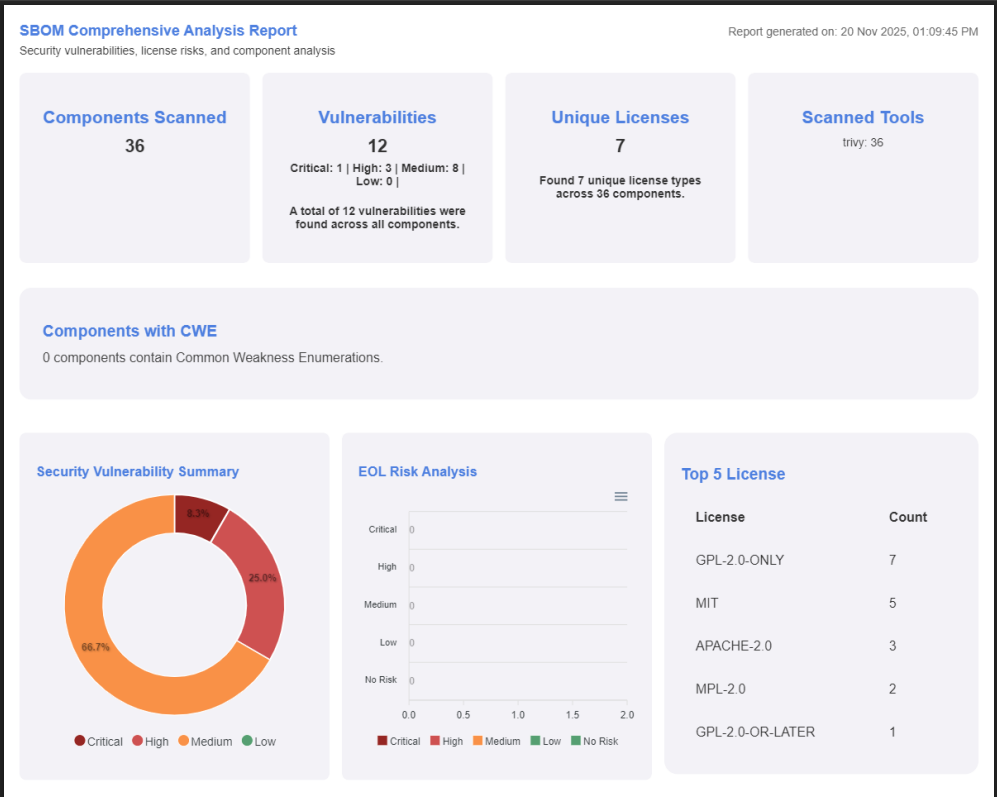
The SBOM details can be downloaded in PDF format.
* Navigate to the top right corner and click **Report**.
* The page details is consolidated as a report and downloaded in PDF format as shown below:
{% hint style="info" %}
You can also download the SBOM details in Json or .CSV file format by clicking the **Download** button.
{% endhint %}