> For the complete documentation index, see [llms.txt](https://docs.opsmx.com/llms.txt). Markdown versions of documentation pages are available by appending `.md` to page URLs; this page is available as [Markdown](https://docs.opsmx.com/ssd/security-risk-and-prioritization/getting-started/integrating-cloud-service-providers-in-delivery-shield/aws.md).
# AWS
Amazon Web Services (AWS) is a service provider.
### Usage of AWS in Delivery Shield
* Delivery Shield mandates
### To Manage AWS:
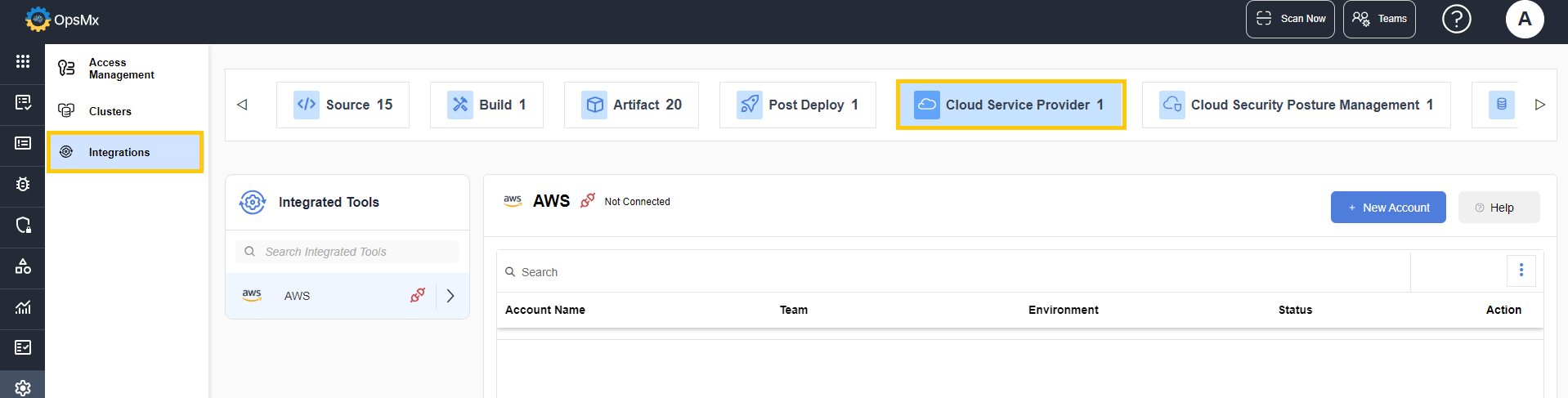
1. Navigate to **Setup** > **Integrations**.
2. In the **Cloud Service Provider** panel, click **AWS**.
3. The AWS integration page is displayed. Click **+New Account**.
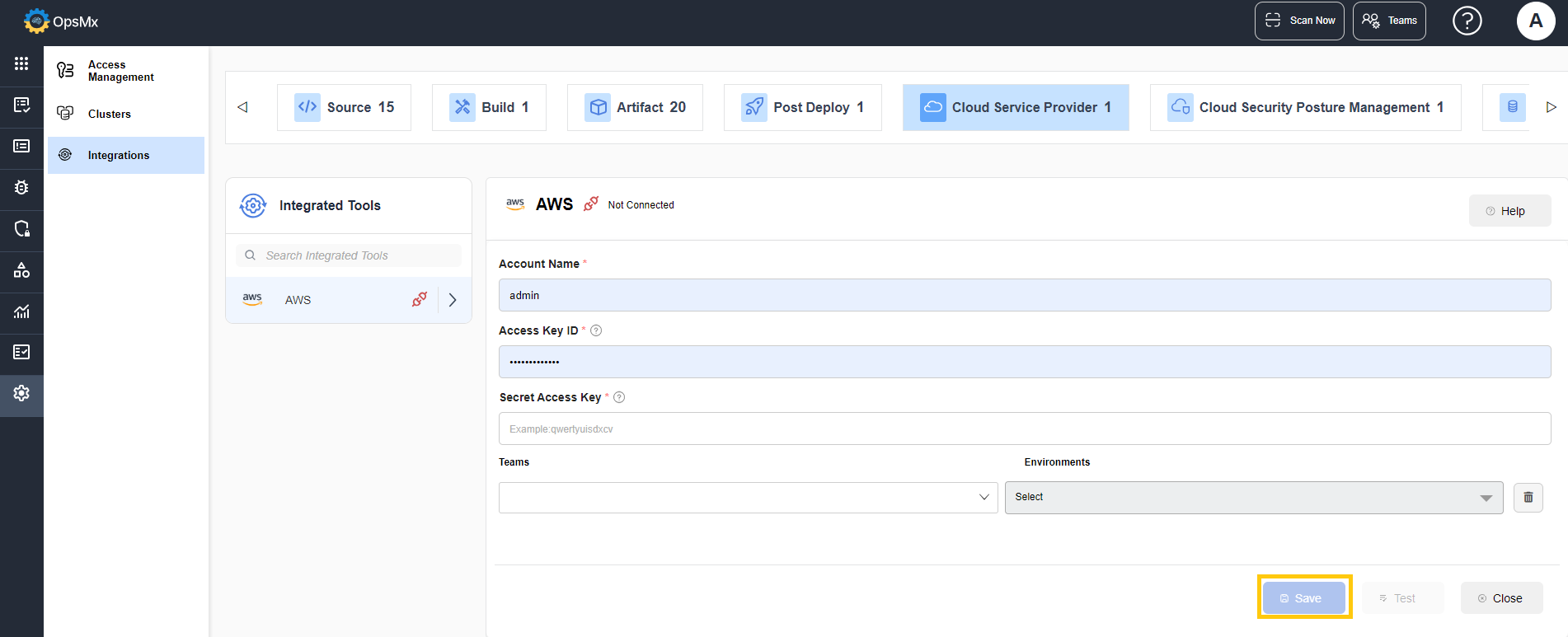
4. In the popup that appears, enter the following details:
3. Enter the Account Name, Access Key ID and Secret Access Key.
4. Select the **Teams** and the corresponding **Environments** from the dropdown for which you want the integration to be available. The integration will be available for the selected teams and environment only.
{% hint style="info" %}
You can select up to 5 teams for the integration to be displayed.
{% endhint %}
* An example is given below for reference:
* In the example above,
* if **Team 1**, **Team 2**, and **Team 3** are selected, only applications associated with these teams can access the integration. Any applications belonging to other teams, such as **Team 4**, will not have access to this account.
* Even if the user who created this account is also an admin for **Team 4**, the integration account remains restricted and is not available for **Team 4**.
* Access to the account is strictly limited to the specified **Teams** and **Environments** selected during account creation.
* **For Organization Admins:**
* When an **Organization Admin** creates an account without selecting specific **Teams** and **Environments**, the account will be universally applicable, granting access to **all teams** and **all environments** by default.
* **For Team Admins with Multiple Teams:**
* If a **Team Admin** who manages multiple teams creates an account without specifying particular **Teams** and **Environments**, the account will only be accessible to the teams for which the logged-in user holds admin privileges.
7. Click **Save**. The tool is connected.
8. To edit the entered values, click on the three dots provided in the **Actions** column. In the dropdown select **Edit**.
9. Re-enter the new values and click Update.
The new values get updated.