# Active Exception
### Exceptions
The Exceptions page displays the list of exceptions that have been created at the application, service and team level. Whenever a vulnerability or alert needs to be ignored, as it is not required to be addressed or it doesn't impact the workflow or simply it need not be considered, then that vulnerability or alert can be marked as an exception.
{% hint style="info" %}
The users should have admin access at team level to add exceptions.
{% endhint %}
The Active Exceptions page displays the list of all the exceptions that are currently active.
### To View Active Exceptions
* Navigate to **Audit -> Active Exceptions**. The Active Exceptions page is displayed as shown below:
The the following details related to the active exceptions are displayed.
* **Name** - Displays the name of the vulnerability that is marked as an exception.
* **Type** - Displays the type of the vulnerability.
* **Application** - Displays the name of the application that has the specified vulnerability.
* **Service** - Displays the name of the service that has the specified vulnerability.
* **Approved By** - Displays the name of the person by whom the exception was approved.
* **Description** - Displays the reason added by the user to mark the vulnerability as an exception.
* **Valid Till** - Displays the date and time until when the exceptions will be active.
* **Action** - Click the three dots displayed in the **Action column > Revoke**, to revoke the created exception.
### Upload CVE Suppression List
When the user is migrating from another system with an existing suppressed exceptions list, users can bulk upload their suppression list using this option.
You can upload a file in code format containing the list of vulnerabilities to be added as exceptions. Include the CVE IDs to be marked as exceptions in the code before uploading the file.
{% hint style="info" %}
Uploading the suppression list is team specific. The exception is applied for all the applications and services for the selected team. It cannot be applied to an application or service specifically.
{% endhint %}
### To Add a CVE Suppression List
1. In the **Active Exceptions** page, click **Upload CVE Suppression List**.
2. Click **Upload File** and select the file to be uploaded.
3. Click **Save**.
### To Add a CVE Suppression List in Code Format
An example code format is shown below:
```
{
"bomFormat": "CycloneDX",
"specVersion": "1.5",
"version": 1,
"vulnerabilities": [
{
"id": "CVE-2023-46589",
"analysis": {
"state": "not_affected",
"justification": "code_not_reachable",
"response": ["will_not_fix", "update"],
"detail": "The vulnerable function is not called"
},
"affects": [
{
"ref": "pkg:npm/minimatch@0.3.0?file_path=app%2Fnode_modules%2Fmocha%2Fnode_modules%2Fminimatch%2Fpackage.json"
}
]
}
]
}
```
### To Add a Vulnerability as an Exception (For Service / Application)
Navigate to the **Vulnerabilities** tab. In the vulnerabilities details panel, click on the vulnerability that you want to mark as an exception.
* A popup is displayed with the details as shown below:
* Expand the **Show Impacted Components** section. The application and services that are impacted by this vulnerability and their details are displayed.
* Click the **three dots** and select **Provide Exception**.
* The **Provide Exception** dialog box is displayed as shown below:
* Enter your reason for marking this as an exception in the **Please provide your comments to approve exception** box.
* Select the time range up to what date and time you want the exception to be active in the **Exception Valid Upto** drop down. The time range can be One Day, 7 Days, One Month, 6 Months or you can customize the date range by electing the Custom range option.
* You can select if the exception needs to be applied for the entire application or only the particular service from the Exception Applicable to drop down.
* Select **Impacted Application** if the exception needs to be applied for all the services in the application.
* Select **Impacted Service** if the exception needs to be applied for the particular service in an application.
* Click **Approve**.
The Vulnerability gets added as an exception.
### To Add an Alert as an Exception (For Service / Application)
Navigate to the **Security Issues** tab. In the alert details panel, click on the alert that you want to mark as an exception.
* A popup is displayed with the details of the alert as shown below:
* Expand the **Show Impacted Components** section. The application and service that are impacted by this alert and the details are displayed.
* Click the **three dots** and select **Provide Exception**.
* The **Provide Exception** dialog box is displayed as shown below:
* Enter your reason for marking this as an exception in the **Please provide your comments to approve exception** box.
* Select the time range up to what date and time you want the exception to be active in the **Exception Valid Upto** drop down. The time range can be One Day, 7 Days, One Month, 6 Months or you can customize the date range by electing the Custom range option.
* You can select if the exception needs to be applied for the entire application or only the particular service from the Exception Applicable to drop down.
* Select **Impacted Application** if the exception needs to be applied for the entire application.
* Select **Impacted Service** if the exception needs to be applied for the particular service only.
* Click **Approve**.
The Alert gets added as an exception.
{% hint style="info" %}
After adding exceptions at Service/Application/Team level, exceptions will be considered from the next deployment of the services at respective levels.
{% endhint %}
### To Add a Vulnerability as a Global Exception
Navigate to the **Vulnerabilities** tab. In the vulnerabilities details panel, click on the vulnerability that you want to mark as an exception.
* A popup is displayed. Click **Provide Exception**.
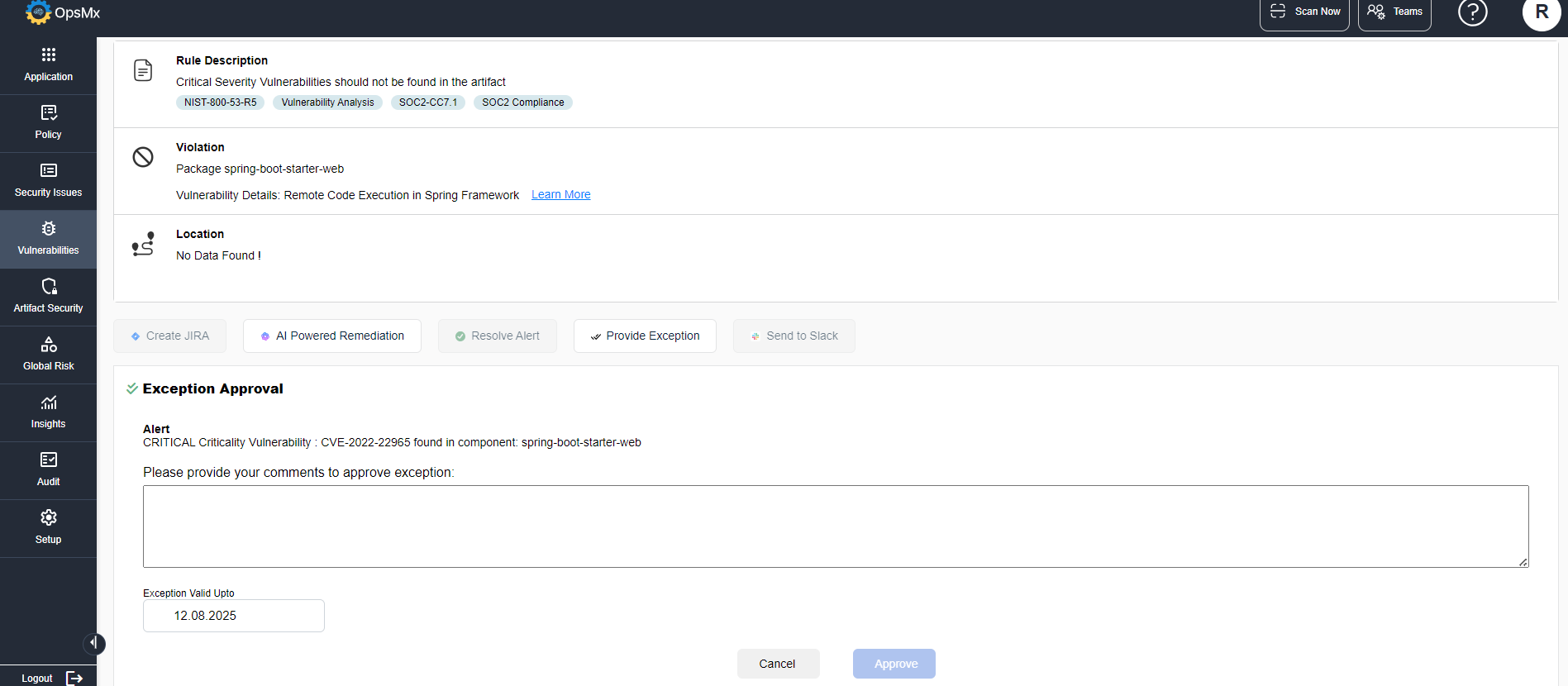
* An expanded view is displayed as shown:
* Enter your reason for marking this as a global exception in the **Please provide your comments to approve exception** box.
* Select the time range up to what date and time you want the exception to be active in the **Exception Valid Upto** drop down. The time range can be One Day, 7 Days, One Month, 6 Months or you can customize the date range by electing the Custom range option.
* Click **Approve**.
The vulnerability is added as a global exception, and all applications and services containing this vulnerability are automatically marked as exceptions.
### To Add an Alert as a Global Exception
Navigate to the **Security Issues** tab. In the alerts details panel, click on the alert that you want to mark as an exception.
* A popup is displayed as shown below:
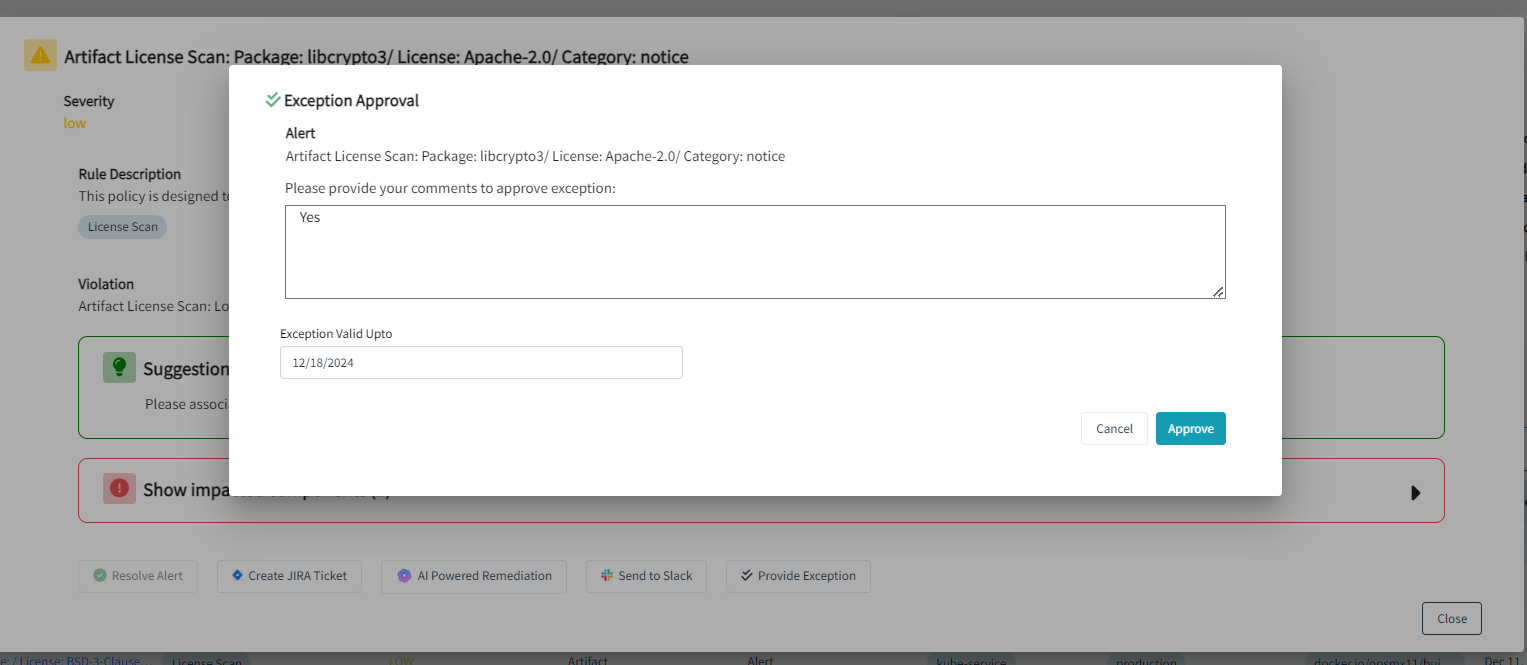
* Click **Provide Exception**. A dialog box is displayed as shown below:
* Enter your reason for marking this as a global exception in the **Please provide your comments to approve exception** box.
* Select the time range up to what date and time you want the exception to be active in the **Exception Valid Upto** drop down. The time range can be One Day, 7 Days, One Month, 6 Months or you can customize the date range by electing the Custom range option.
* Click **Approve**.
The alert is added as a global exception, and all applications and services containing this alert are automatically marked as exceptions.