# Approval Gate
A gate is an access point that allows you to stop the pipeline to automatically go to the next stage. A gate helps you to manually intervene and verify or approve a stage of the pipeline before moving on to the next stage in the sequence. Adding a Gate in ISD allows you to either automate your pipeline based on data from supported data sources.
There are four types of gates you can add:
* [**Approval** ](#approval-gate)
* [**Verification** ](https://docs.opsmx.com/opsmx-context-graph-and-data-fabric/user-guide/manage-pipelines/add-intelligent-gates-to-the-pipeline/verification-gate)
* [**Test Verification** ](https://docs.opsmx.com/opsmx-context-graph-and-data-fabric/user-guide/manage-pipelines/add-intelligent-gates-to-the-pipeline/test-verification-gate)
* [**Policy**](https://docs.opsmx.com/opsmx-context-graph-and-data-fabric/user-guide/manage-pipelines/add-intelligent-gates-to-the-pipeline/policy-gate)
### Approval Gate
An approval gate stops the pipeline and waits for approval either from a human user or from a computer based on data from a supported plugin.
You can add an Approval Gate after creating a pipeline to the application. To add an **Approval Gate** follow the steps below:
If you haven’t created an application yet, click [**here**](https://docs.opsmx.com/release-history/previous-releases/isd-4.0/knowledgebase/manage-application/create-an-application)**.**
If you haven’t created your pipelines yet, click [**here**](https://docs.opsmx.com/release-history/previous-releases/isd-4.0/knowledgebase/manage-pipelines/create-a-pipeline)**.**
1. From the [**Application dashboard**](https://docs.opsmx.com/user-guide/dashboard/application-dashboard), select your application name for which you need to edit a pipeline. Click **Three dots** at end of the application name and then select [**Edit Pipeline**](https://docs.opsmx.com/user-guide/manage-pipelines/edit-pipeline) as shown in the image below.

2\. The **Pipelines** page appears, where you need to add the Approval Stage. Click [**Add Stage**](https://docs.opsmx.com/user-guide/manage-pipelines/add-stage)**,** select **Approval** from the **Type** drop-down as shown in the image below.
3\. Select your pipeline, where you need to add the Approval Stage. Click [**Add Stage**](https://docs.opsmx.com/user-guide/manage-pipelines/add-stage) and then select the type **Approval** from the drop-down menu as shown in the image below.

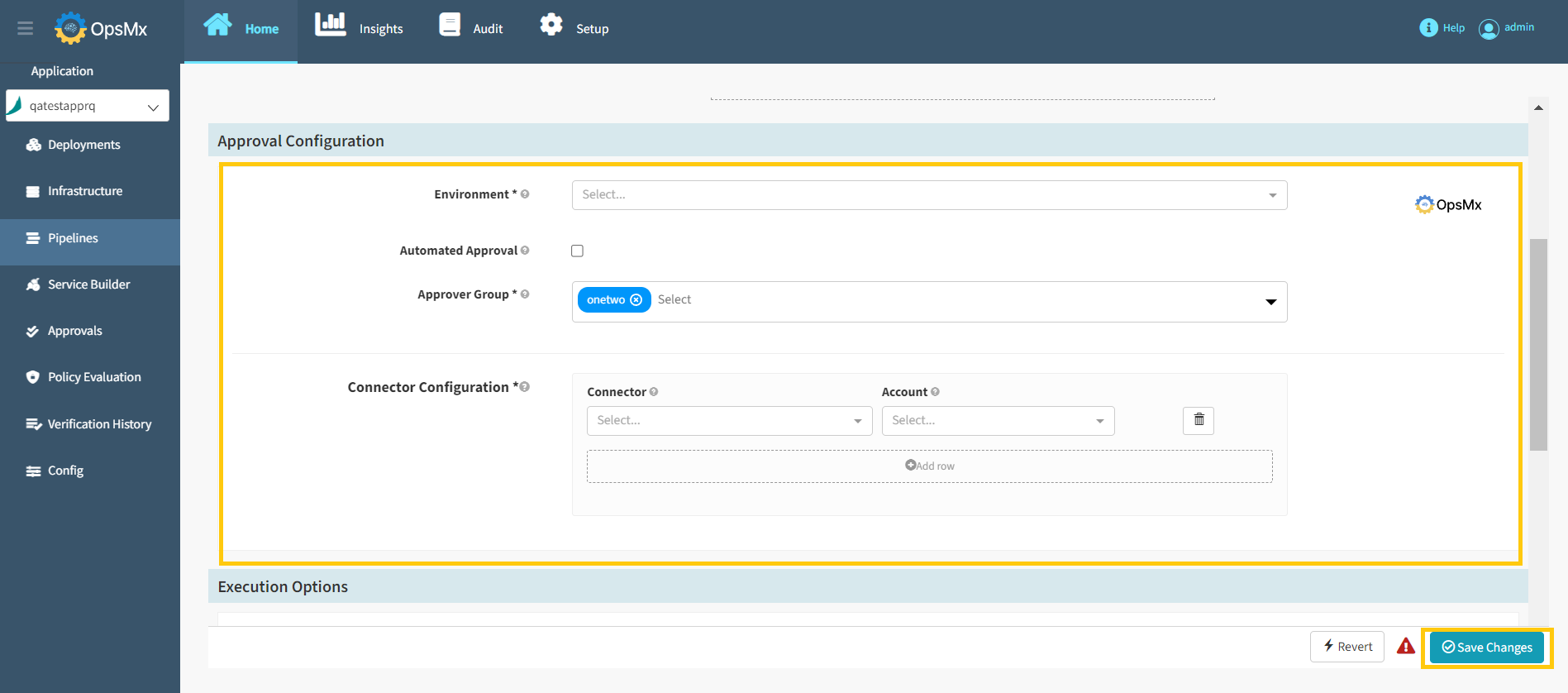
5\. Select the **Connector** from the drop-down.
{% hint style="info" %}
The option to add connectors in the Connector Configuration field is optional
{% endhint %}
The available connectors are:
* JIRA
* GITHUB
* VERIFICATION
* SONARQUBE
* JENKINS
* AQUAWAVE
* APPSCAN
* BAMBOO
* BITBUCKET
* BITBUCKET SERVER
* PRISMA CLOUD
* ARTIFACTORY
* JFROG XRAY SCANNING
* SERVICENOW
* Update the configuration details and select the **Account** from the drop-down and then click **Save Changes** as shown in the below image.