> For the complete documentation index, see [llms.txt](https://docs.opsmx.com/llms.txt). Markdown versions of documentation pages are available by appending `.md` to page URLs; this page is available as [Markdown](https://docs.opsmx.com/isd-spinnaker/opsmx-intelligent-software-delivery-isd-platform-spinnaker/user-guide/pipeline-templates.md).
# Pipeline Templates
The Pipeline Templates provides options to the user to create pipelines from pre-defined templates. Instead of adding the metadata, variables and pipeline definition you can include these from the predefined templates.
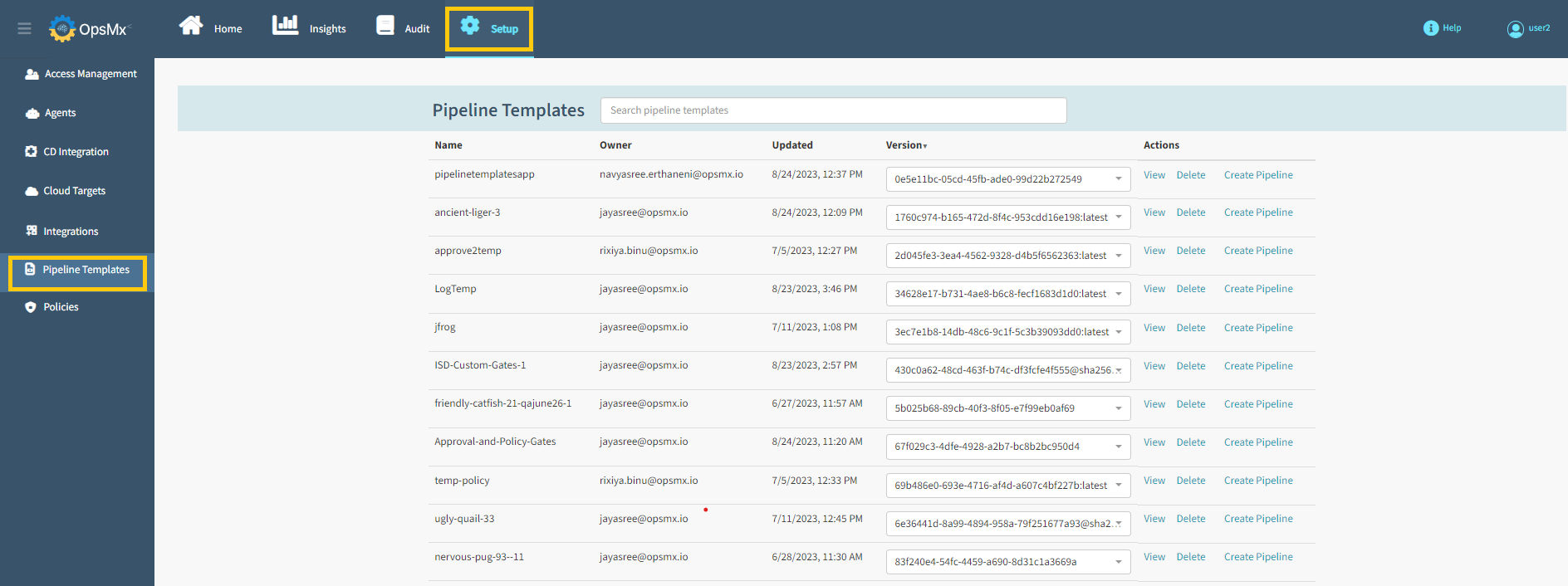
In the **Setup** tab, Click **Pipeline Templates** from the left menu to access the pipeline templates details page.
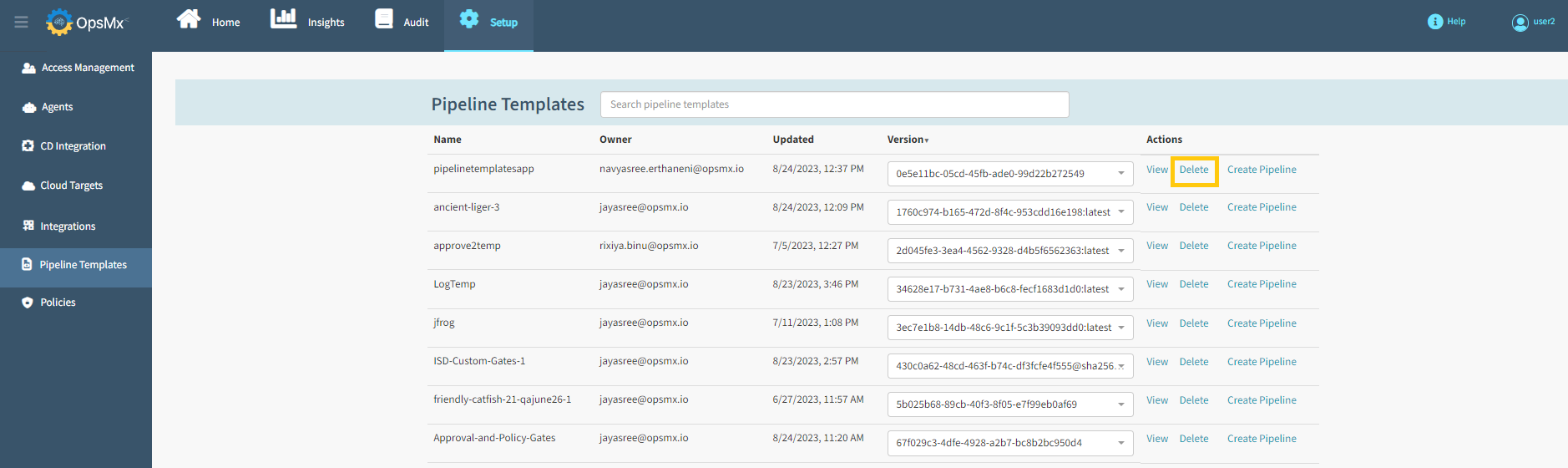
The following details of templates are displayed as shown below:
* **Name** - This indicates the name of the predefined template.
* **Owner** - This indicates the name of the person who created the template.
* **Updated** - This indicates the time the template was last updated.
* **Version** - This drop-down displays the different versions of the template from which you can select the required one.
* **Action** - This displays the various actions you can do with the template. You can View, Delete or Create Pipeline using the options provided.
#### To Create Pipeline
1. Choose the template which you want to use for creating the pipeline. You can use the pagination option provided below to go through all the available templates.
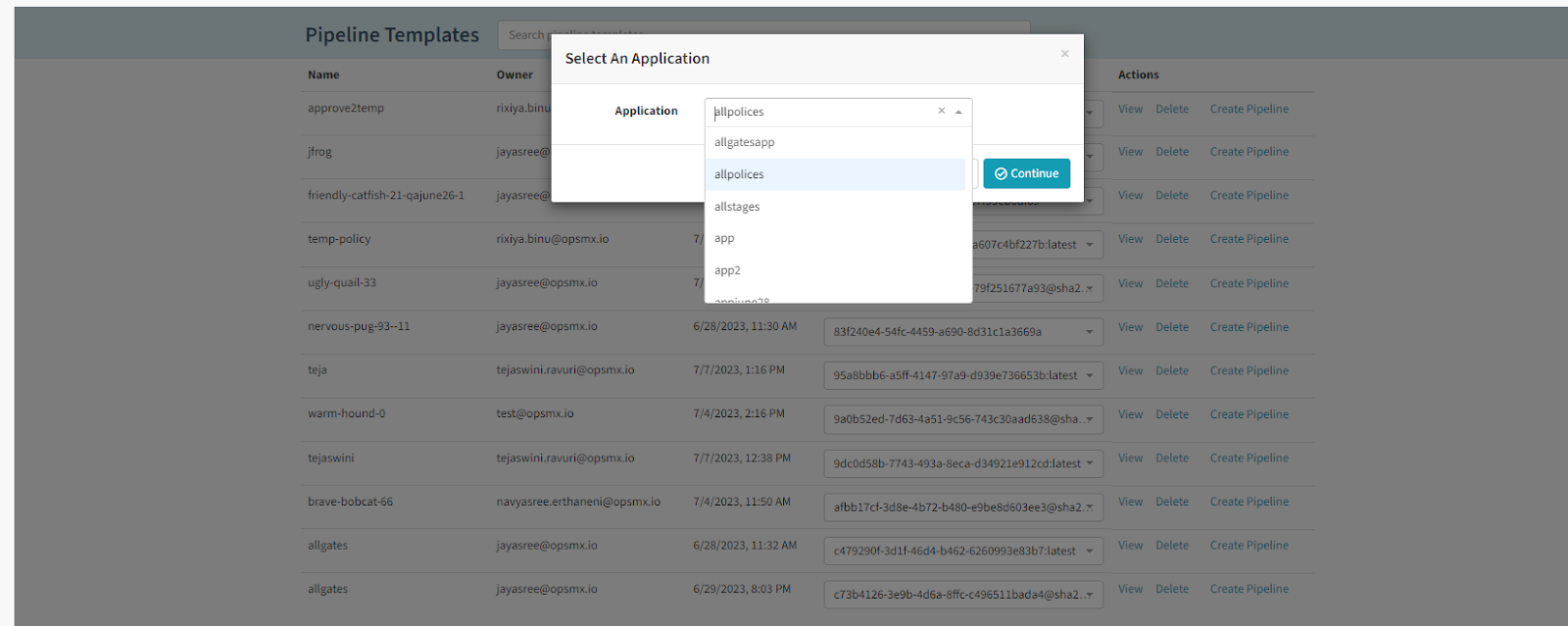
2. Click **Create Pipeline** from the **Actions** column of the selected template. A popup appears.
3. From the dropdown, select the application to which you need to add a new pipeline using this template.
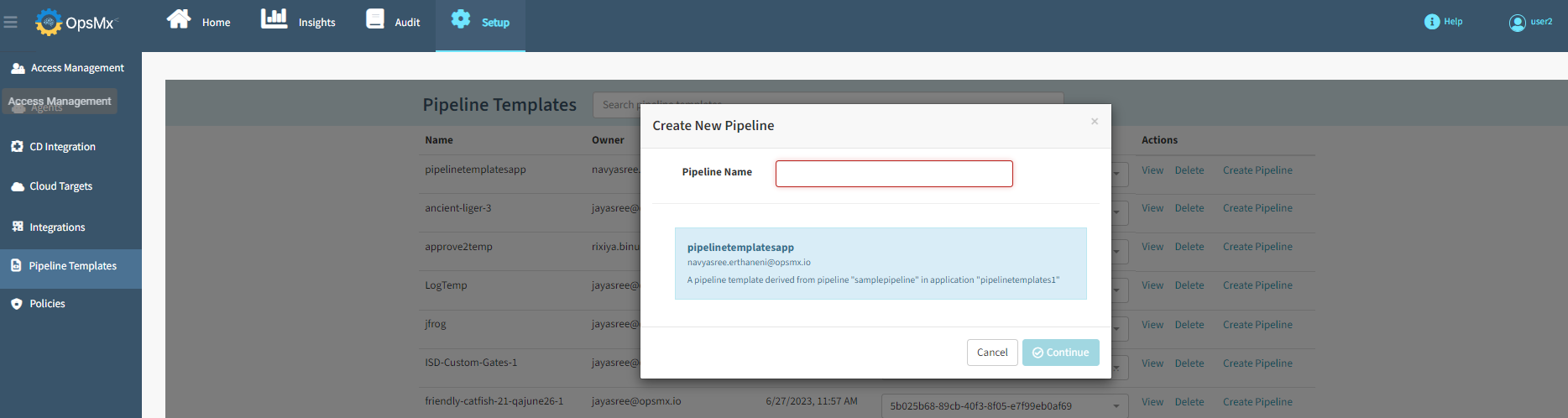
4. Click **Continue**. Another popup appears.
5. Enter a name for the pipeline in the **Pipeline Name** field.
6. Click **Continue**.
7. The new pipeline is created with the entered details.
8. You can now add new stages or copy existing stages to the pipeline.
9. Click **Save Changes**.
The pipeline is ready to be executed.
#### To View the Pipeline Template
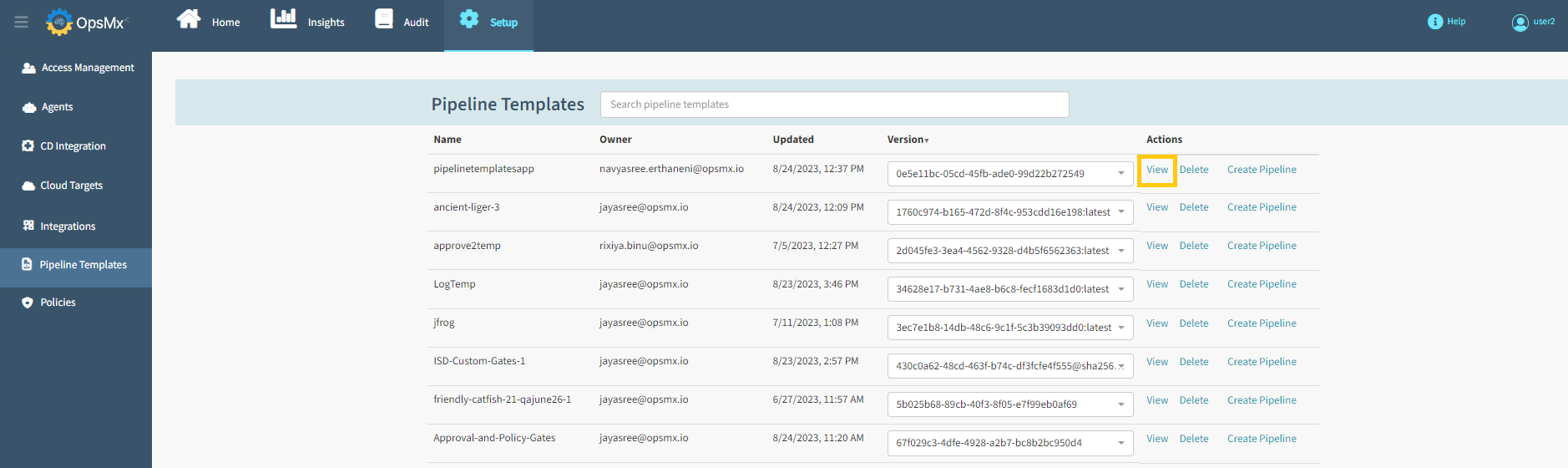
Click **View** from the Actions column. The predefined **Pipeline Template** is displayed. The JSON contains the metadata, variables and pipeline definition of the template.
#### To Delete the Pipeline Template
Click **Delete** from the Actions column to delete the selected template.