> For the complete documentation index, see [llms.txt](https://docs.opsmx.com/llms.txt). Markdown versions of documentation pages are available by appending `.md` to page URLs; this page is available as [Markdown](https://docs.opsmx.com/isd-spinnaker/opsmx-intelligent-software-delivery-isd-platform-spinnaker/user-guide/manage-pipelines/execute-pipelines-run-deployments/blue-green-deployment-using-manifest.md).
# Blue/Green deployment using Manifest
Blue/green strategy is a deployment strategy that is designed to minimize risk by gradually copying the contents of the old server group onto the new before disabling the old server group.
Using a Blue/Green (AKA a red/black) Deployment strategy is easy, as Spinnaker natively supports a Blue/green strategy.
To use a Blue green Strategy,
1. **Go to** [**Application Dashboard**](https://docs.opsmx.com/user-guide/dashboard/application-dashboard): When you log in to ISD the application dashboard is displayed with the list of applications. You can create a new application also as given in [**create a new application**](https://docs.opsmx.com/release-history/previous-releases/isd-4.0/knowledge-base/manage-application/create-an-application).
2. Click on the application for which you want to build this pipeline.

3. **Pipelines:** Once you click on an application, it will redirect you to the **Pipelines** page. Click **+Create** button to [**create a new pipeline**](https://docs.opsmx.com/release-history/previous-releases/isd-4.0/knowledge-base/manage-pipelines/create-a-pipeline). Users can also view the existing pipelines displayed on the left.
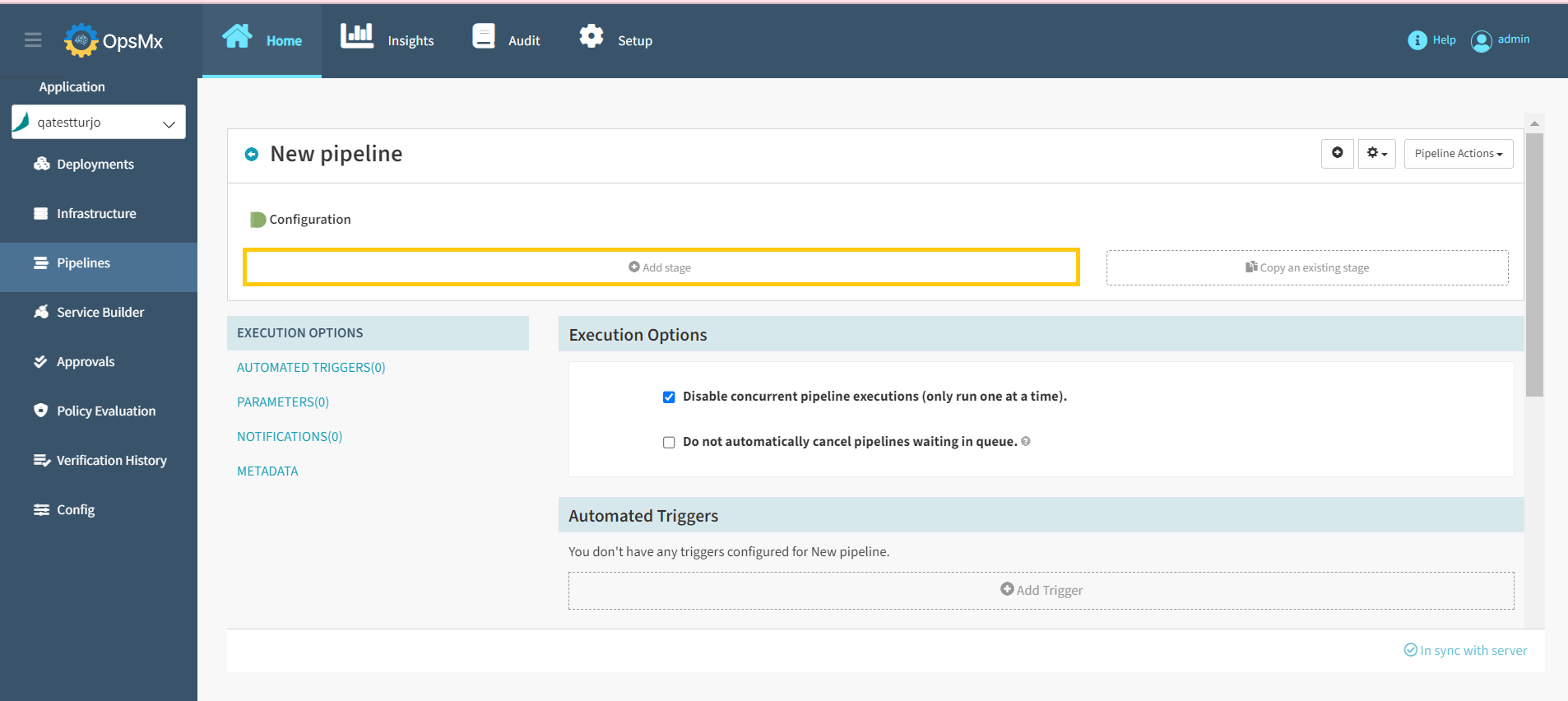
4. **Click on** [**Add stage**](https://docs.opsmx.com/user-guide/manage-pipelines/add-stage)**:** The add stage button is displayed below the diagrammatic representation of the created pipeline. When you click this button, you can select the different types of stages that ISD supports.
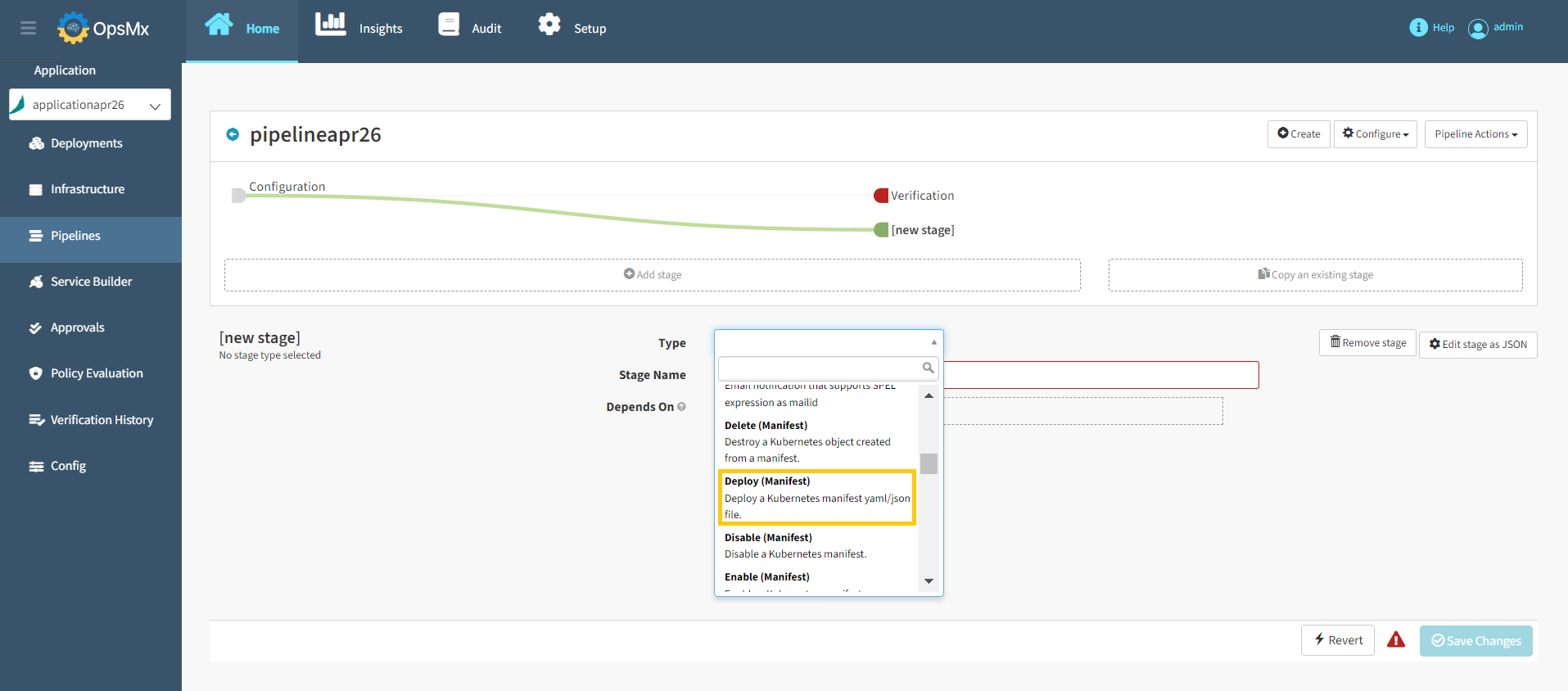
5. **Select Deployment**: You can add a host of different stages from the **Type** drop down menu. They are all alphabetically sorted. Scroll down and select **Deploy(Manifest).**
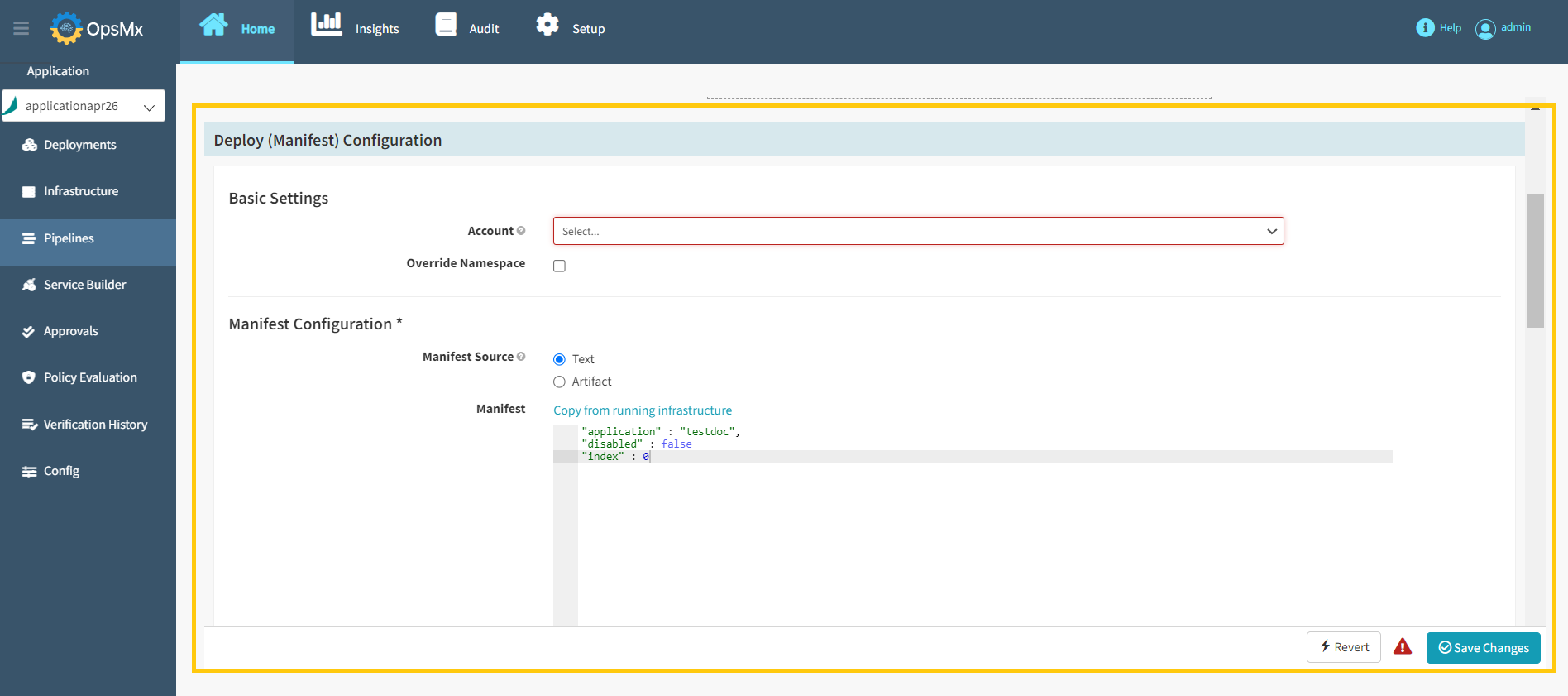
6. **Select your account**: An account is the name given to a kubernetes cluster.
7. **Select your namespace**: A namespace is a specific address within a Kubernetes cluster, select the checkbox that says override namespace and you will be able to select the namespace in which your manifest will deploy.
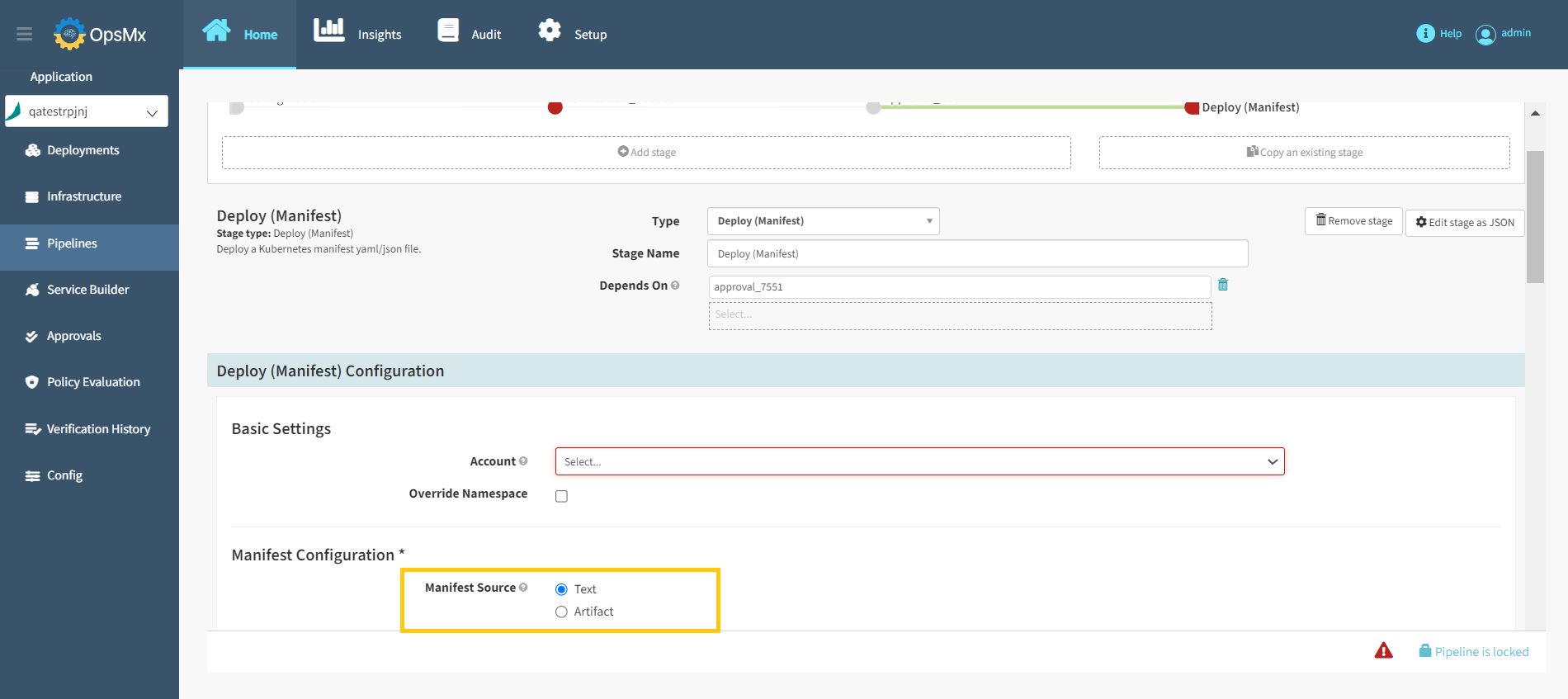
8. **Add your manifest object**: You can add your manifest as a [**text** ](https://docs.opsmx.com/release-history/previous-releases/isd-4.0/knowledge-base/manage-pipelines/execute-pipelines-run-deployments/deployment-to-kubernetes-namespace-with-manifest-file)or an [**artifact**](https://docs.opsmx.com/release-history/previous-releases/isd-4.0/knowledge-base/manage-pipelines/execute-pipelines-run-deployments/deployment-to-kubernetes-namespace-with-git-based-manifest)**.**
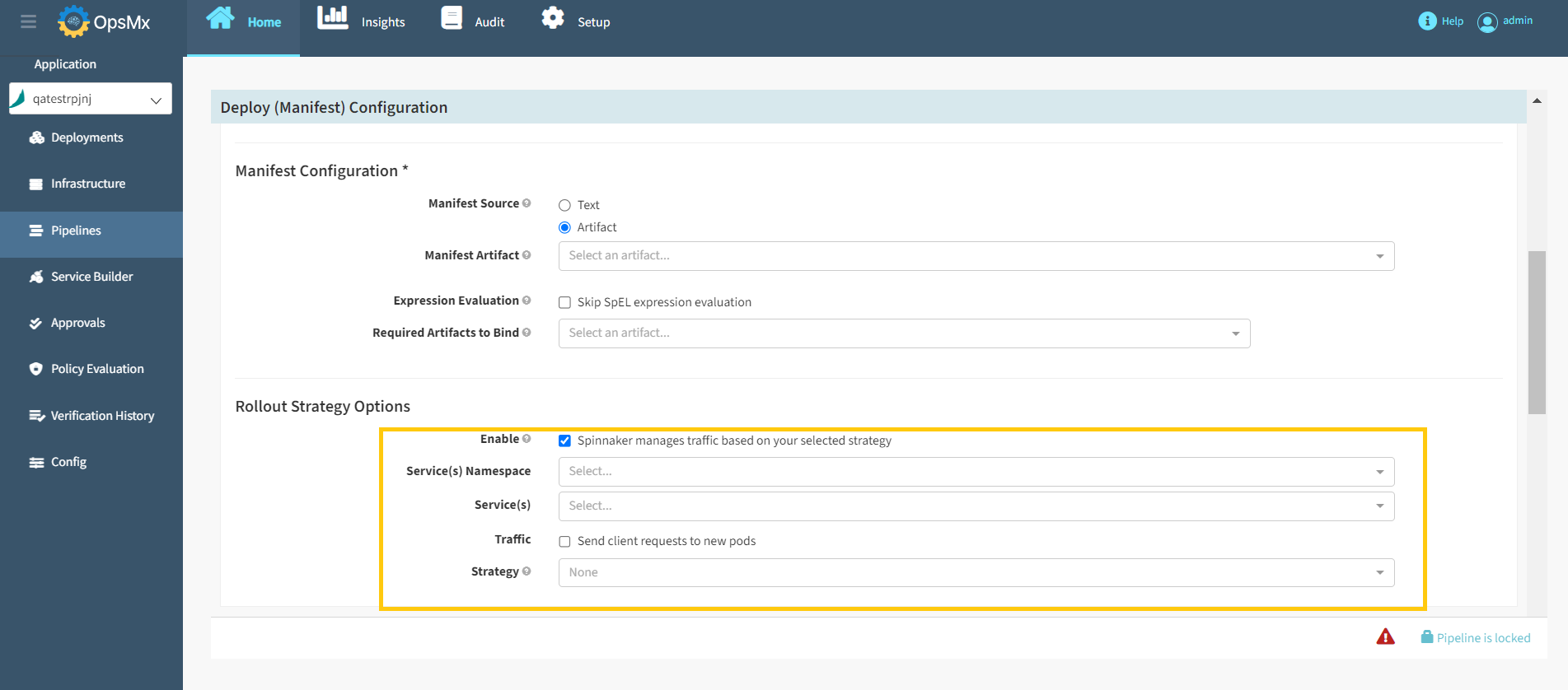
9. **Select rollout strategy options**: Click on the checkbox **Spinnaker manages your traffic based on your selected strategy**. Define the **Service(s) namespace** and **Service(s)** you are applying to this strategy as shown in below screen.
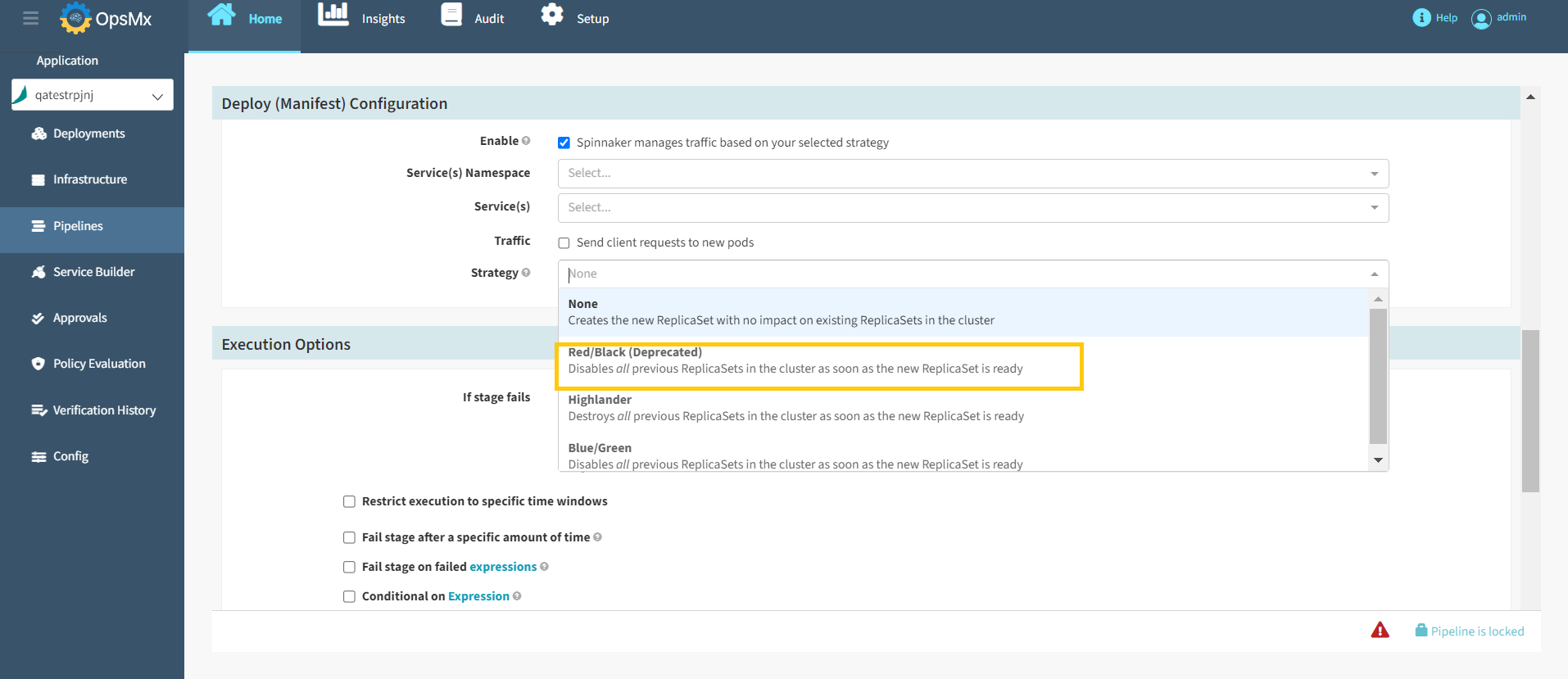
10. Select your strategy from the drop-down list, you will find the **Red/black strategy**.
11. **Add additional configurations**: Finalize your configurations and click **Save Changes**.