> For the complete documentation index, see [llms.txt](https://docs.opsmx.com/llms.txt). Markdown versions of documentation pages are available by appending `.md` to page URLs; this page is available as [Markdown](https://docs.opsmx.com/isd-spinnaker/opsmx-intelligent-software-delivery-isd-platform-spinnaker/user-guide/manage-pipelines/create-a-pipeline.md).
# Create a Pipeline
A pipeline is a series of sequential steps that are performed as part of a ISD application. ISD has a host of pre-built stages which you can use to perform fairly complex tasks.
### Create Pipeline
While we have guides to run specific tasks, here we are going to create a basic pipeline with a **Wait** stage. To do this, follow the steps below:
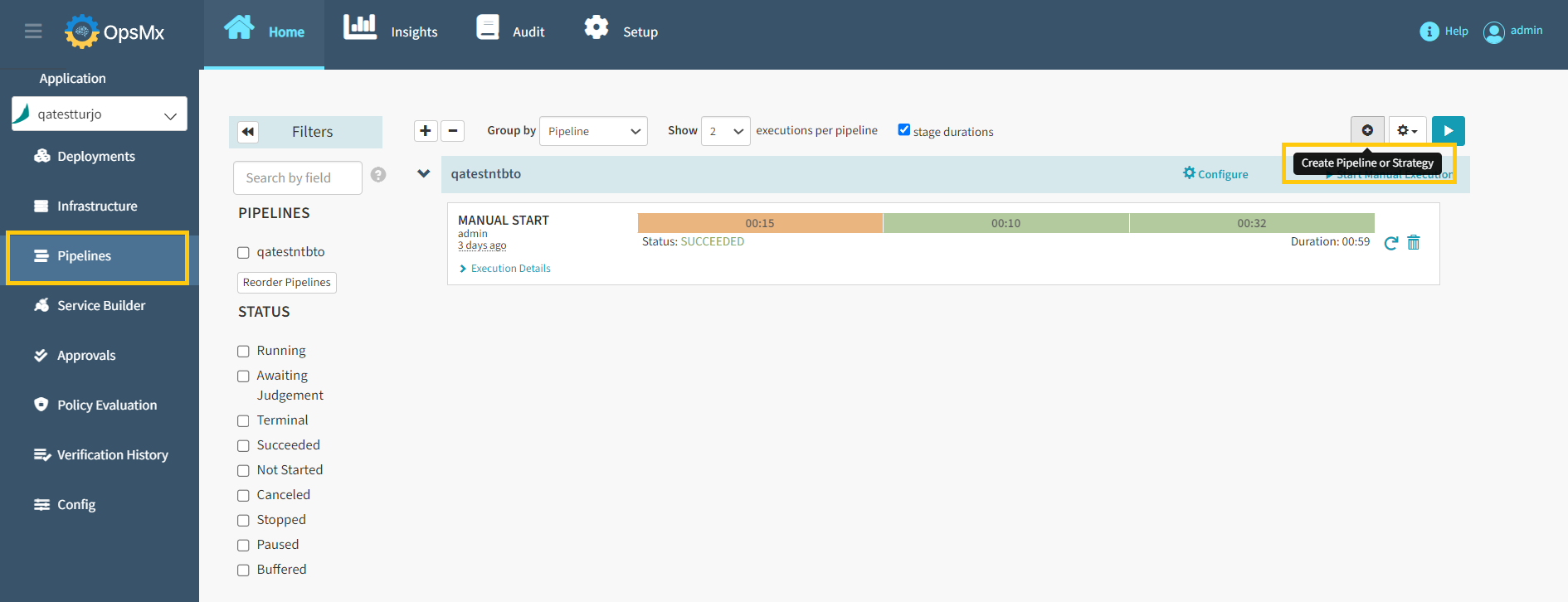
1. From the [**ISD application dashboard**](https://docs.opsmx.com/user-guide/dashboard/application-dashboard), click the application for which you want to create a pipeline. It will redirect you to the pipelines page.

2\. Click the **Create pipeline or Strategy** icon as shown in the image below. The **Create New Pipeline** dialog box appears.
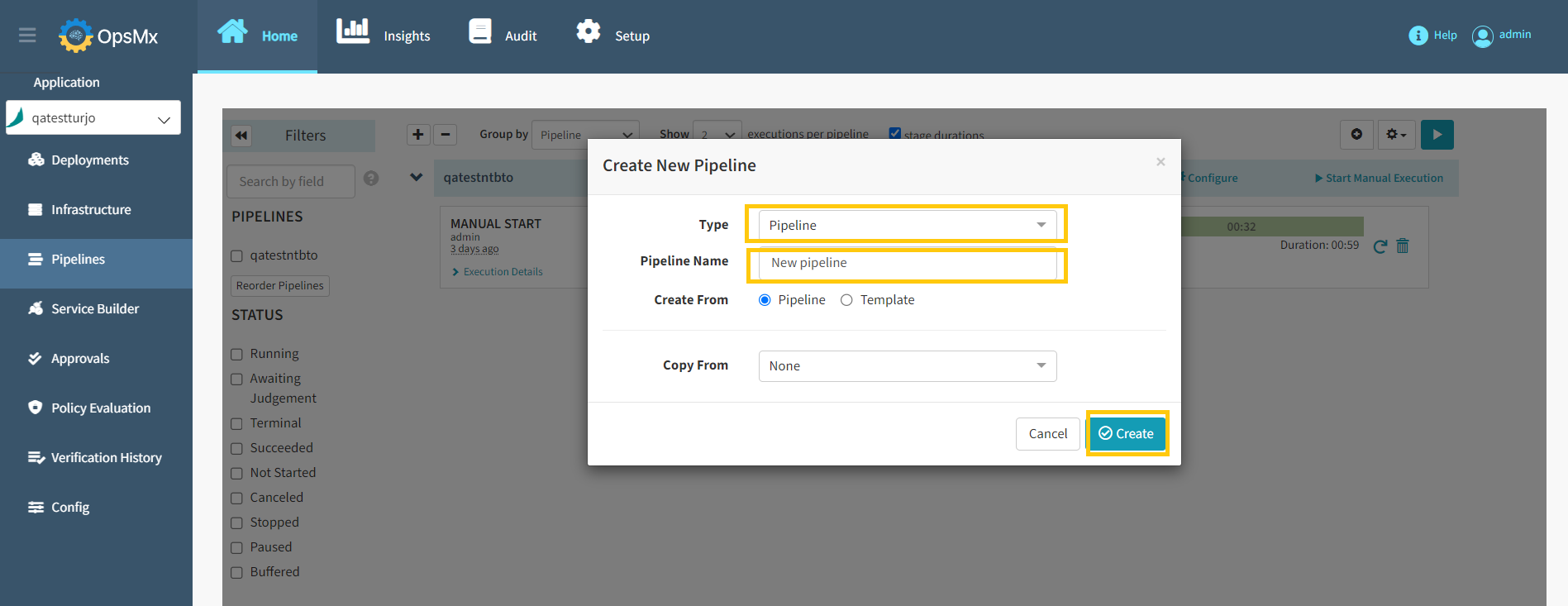
3\. Select the Pipeline type from the **Type** drop-down, enter the **Pipeline Name** and click **Create** as shown below:
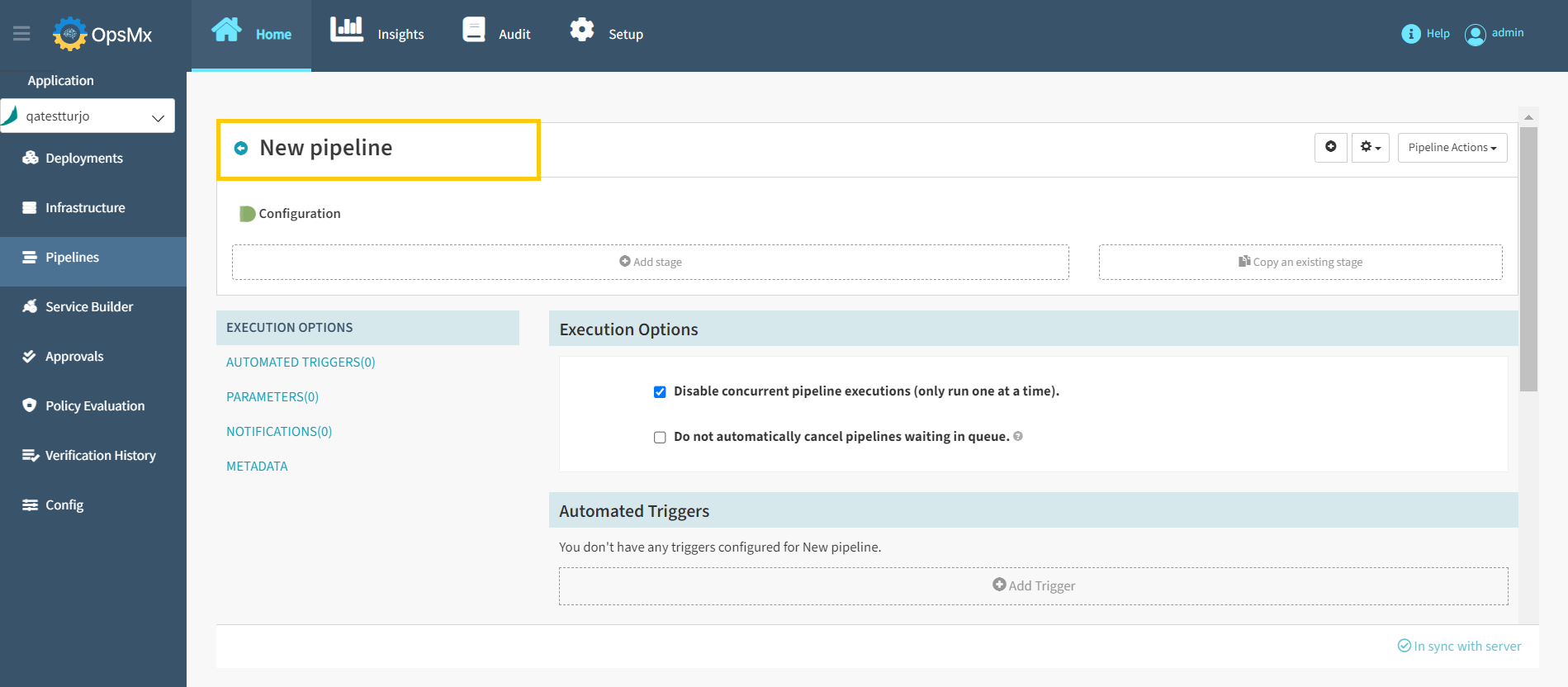
4\. New pipeline is created and is displayed as shown. You can view the pipelines you have within the application which allow you to either build a new pipeline or configure an existing one. You also can run the selected pipeline here and add a stage to it.