> For the complete documentation index, see [llms.txt](https://docs.opsmx.com/llms.txt). Markdown versions of documentation pages are available by appending `.md` to page URLs; this page is available as [Markdown](https://docs.opsmx.com/isd-spinnaker/opsmx-intelligent-software-delivery-isd-platform-spinnaker/user-guide/manage-pipelines/add-intelligent-gates-to-the-pipeline/policy-gate.md).
# Policy Gate
### Policy Gate
An approval gate stops the pipeline and waits for approval either from a human user or from a computer based on data from a supported plugin.
You can add a **Policy** Gate after creating a pipeline to the application. To add a **Policy Gate** follow the steps below:
If you haven’t created an application already, click [**here**](https://docs.opsmx.com/release-history/previous-releases/isd-4.0/knowledgebase/manage-application/create-an-application)**.**
If you haven’t created your pipelines yet, click [**here**](https://docs.opsmx.com/release-history/previous-releases/isd-4.0/knowledgebase/manage-pipelines/create-a-pipeline).
1. From the [**Application dashboard**](https://docs.opsmx.com/user-guide/dashboard/application-dashboard), select your application name which you need to edit a pipeline. Click **Three dots** at end of the application name and then select [**Edit Pipeline**](https://docs.opsmx.com/user-guide/manage-pipelines/edit-pipeline) as shown in the image below.

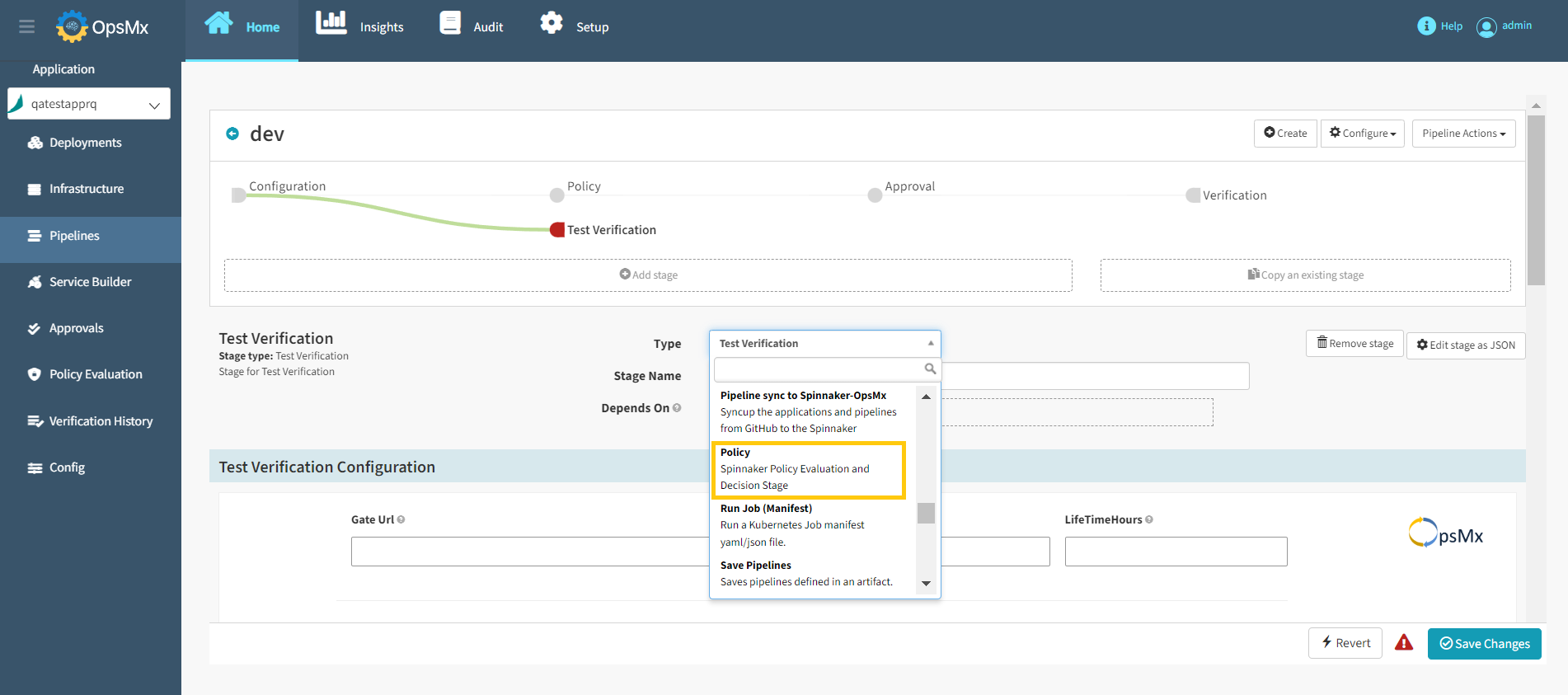
2\. The **Pipelines** page appears, where you need to add the Approval Stage. Click [**Add Stage**](https://docs.opsmx.com/user-guide/manage-pipelines/add-stage)**,** select **Policy** from the **Type** drop-down as shown in the image below.
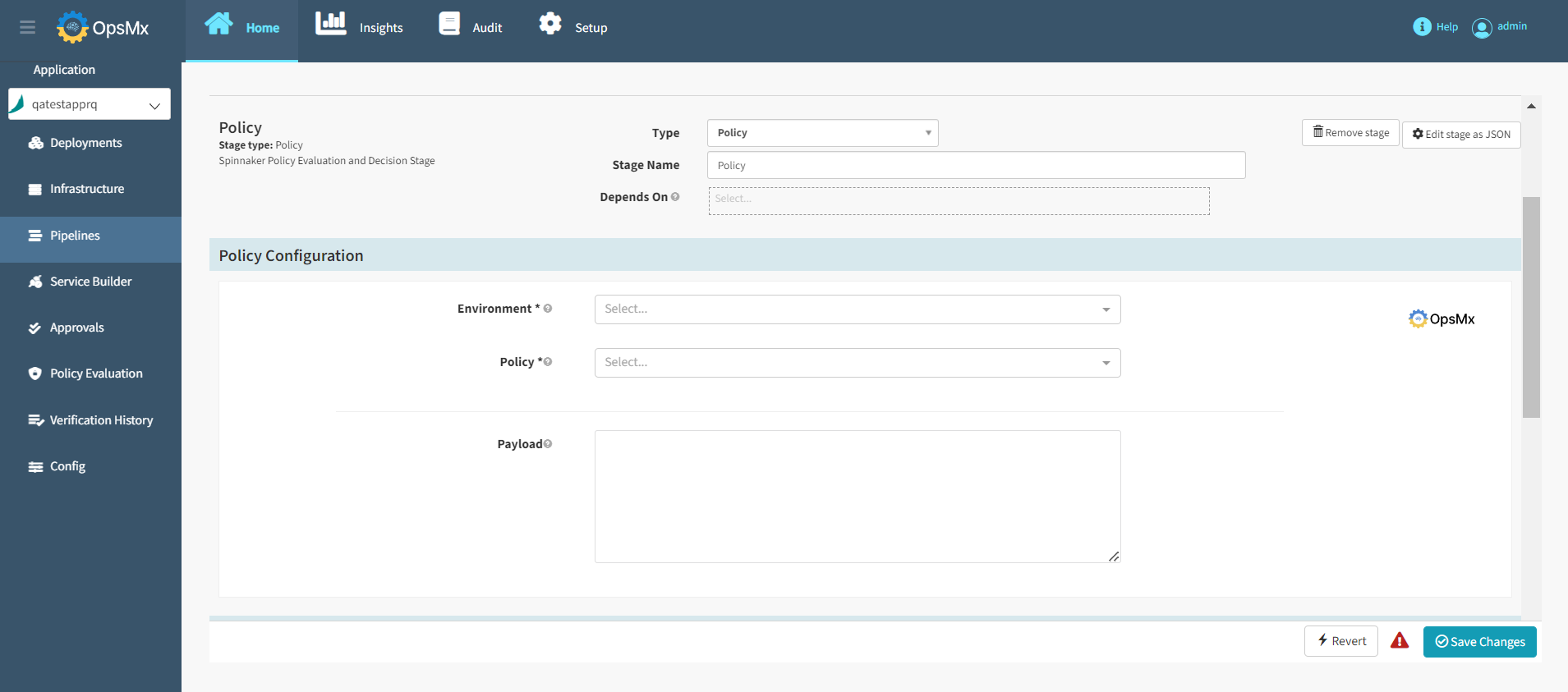
3. The **Policy Configuration** page appears. You need to configure the policy configuration attributes as shown in the image below.
**Policy configuration attributes**
* **Environment**: Select the environment relevant to this stage from the drop-down menu
* **Policy:** Select the policy you want to evaluate. You can manage policies from Setup > Policies
* **Payload:** You may pass an additional payload for the policy evaluation
4. Click **Save changes** and the Policy Gate is added to your pipeline.