> For the complete documentation index, see [llms.txt](https://docs.opsmx.com/llms.txt). Markdown versions of documentation pages are available by appending `.md` to page URLs; this page is available as [Markdown](https://docs.opsmx.com/isd-spinnaker/opsmx-intelligent-software-delivery-isd-platform-spinnaker/user-guide/manage-application/configure-an-application.md).
# Configure an Application
Follow the steps below to configure the created application:
1. From the [**Application dashboard**](https://docs.opsmx.com/user-guide/dashboard/application-dashboard), select the application name that you need to edit. Click the **Three dots** at the end of the application name, select **Edit Application** as shown in the image below.

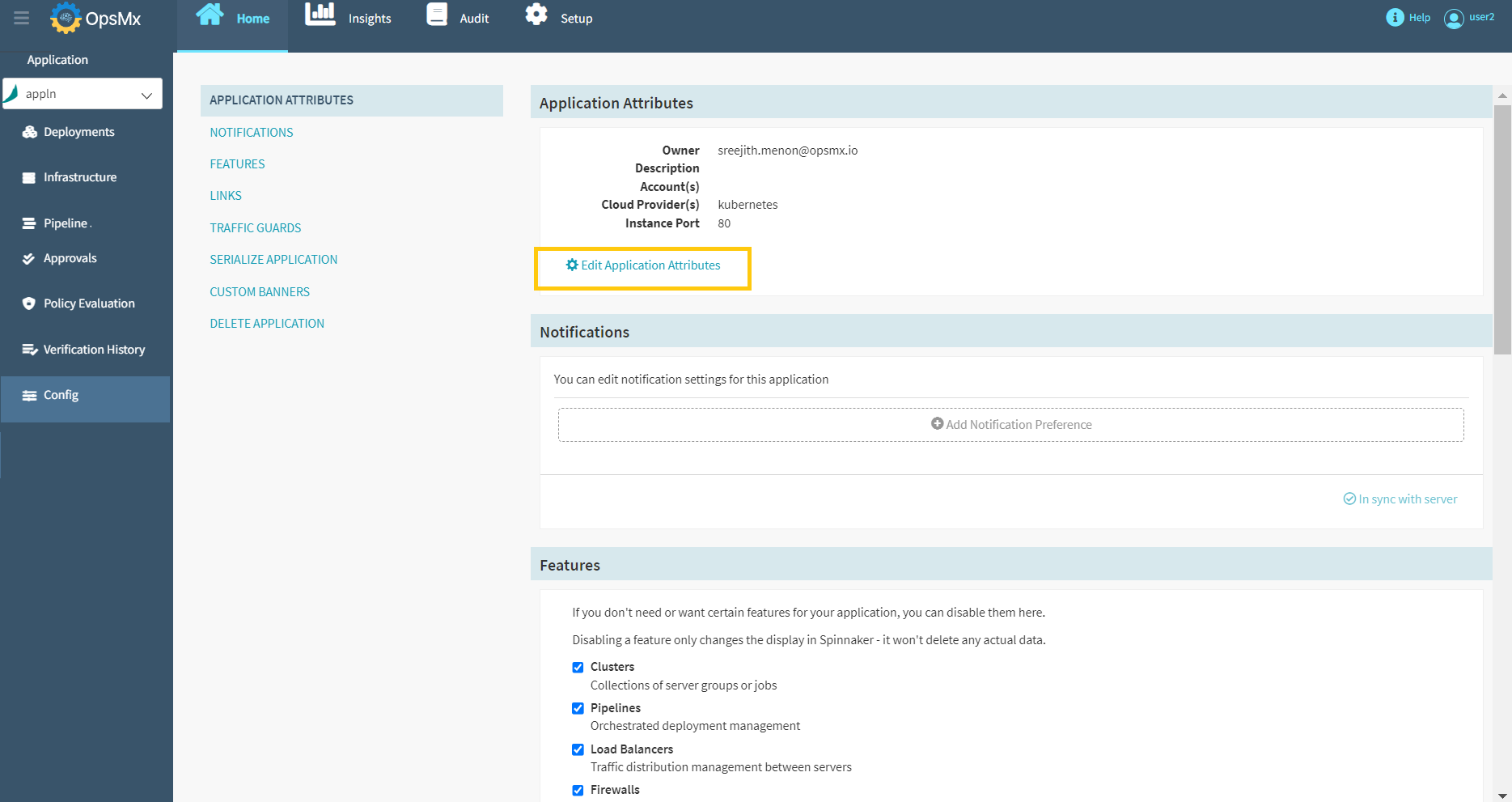
2\. The **Config page is** displayed, where you can modify the application's attributes. Click on **Edit Application Attributes** to edit the application attributes.
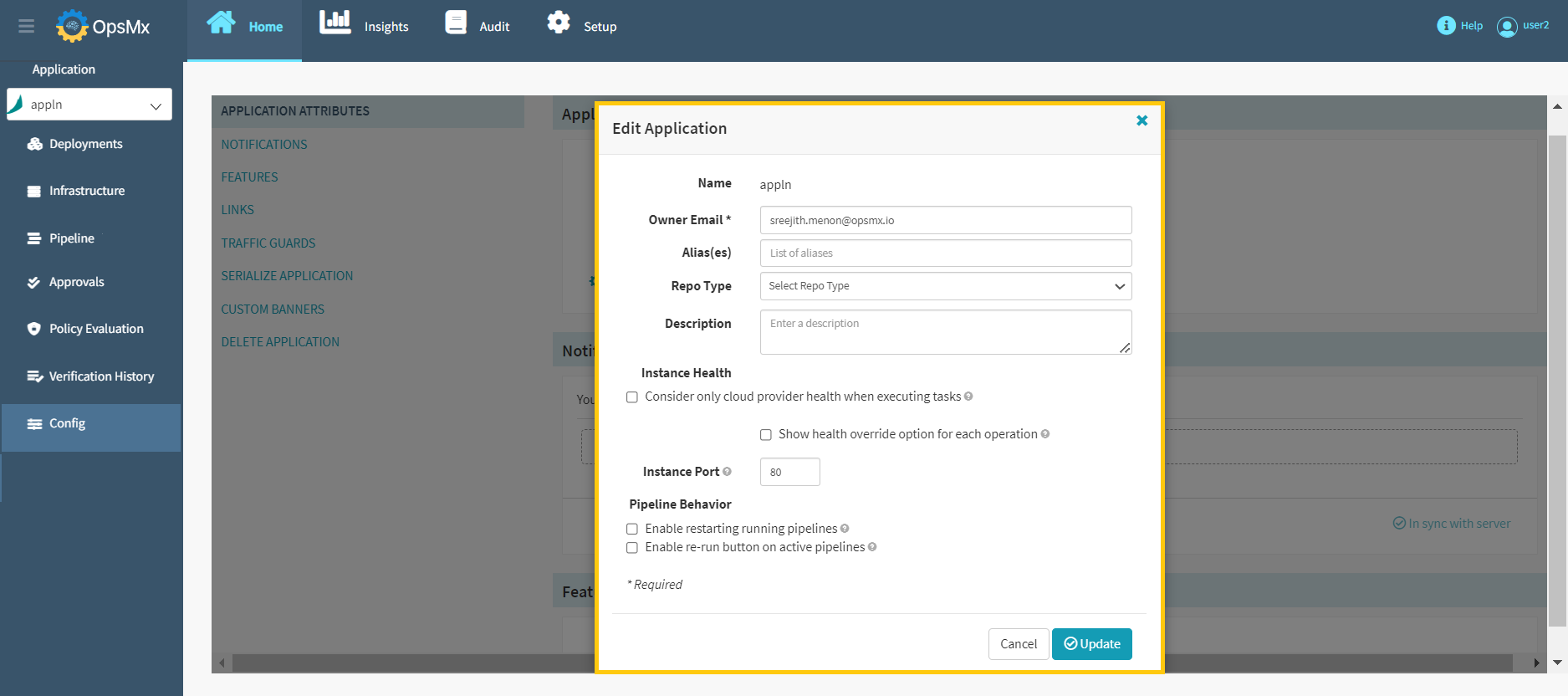
3\. The application attributes that you specified during the creation process will be displayed as shown below. Make the necessary changes and click **Update.**
Editing an application allows you to add various features to Spinnaker like
* [**Configuring Notifications** ](#create-pipeline-notifications)
* [**Enable or disable certain features**](#enable-or-disable-application-features)
* [**Add Custom Instance Links**](#add-custom-instance-links)
* [**Create a traffic guard**](#designate-a-traffic-guard-cluster)
* [**Add Custom banners**](#add-custom-banners)
* [**Delete the application entirely**](https://docs.opsmx.com/user-guide/manage-application/delete-an-application)
### **Create Pipeline Notifications**
You can send notifications after the pipeline activities are completed. Follow the steps given below to do so:
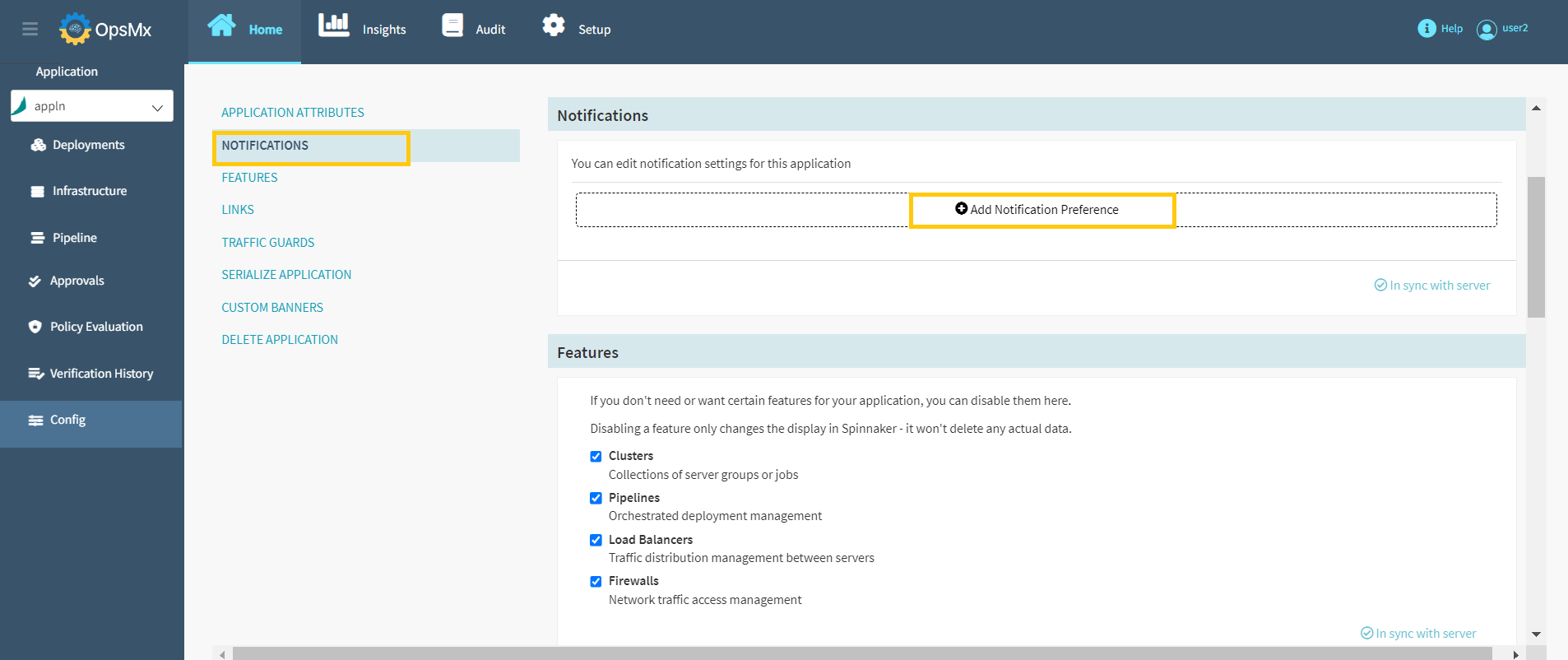
1. From the Config page, Click **Notifications** > **Add Notification Preference** to create pipeline notifications.
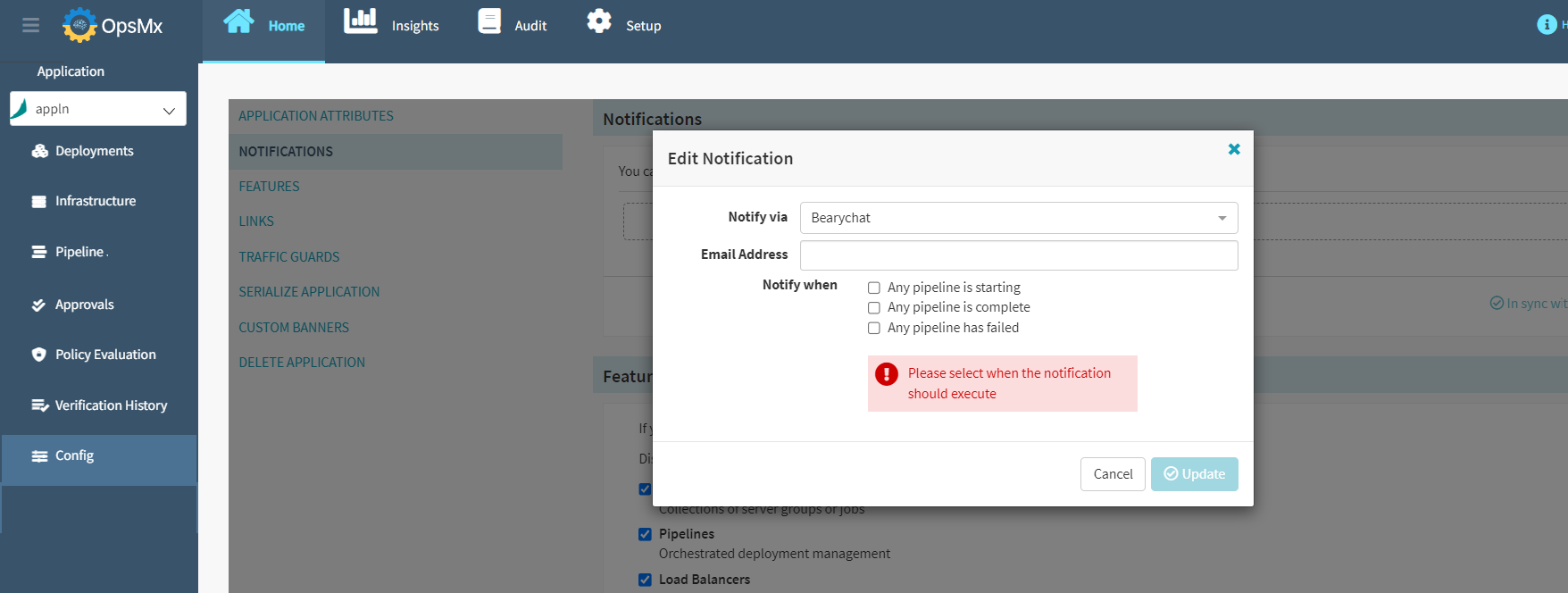
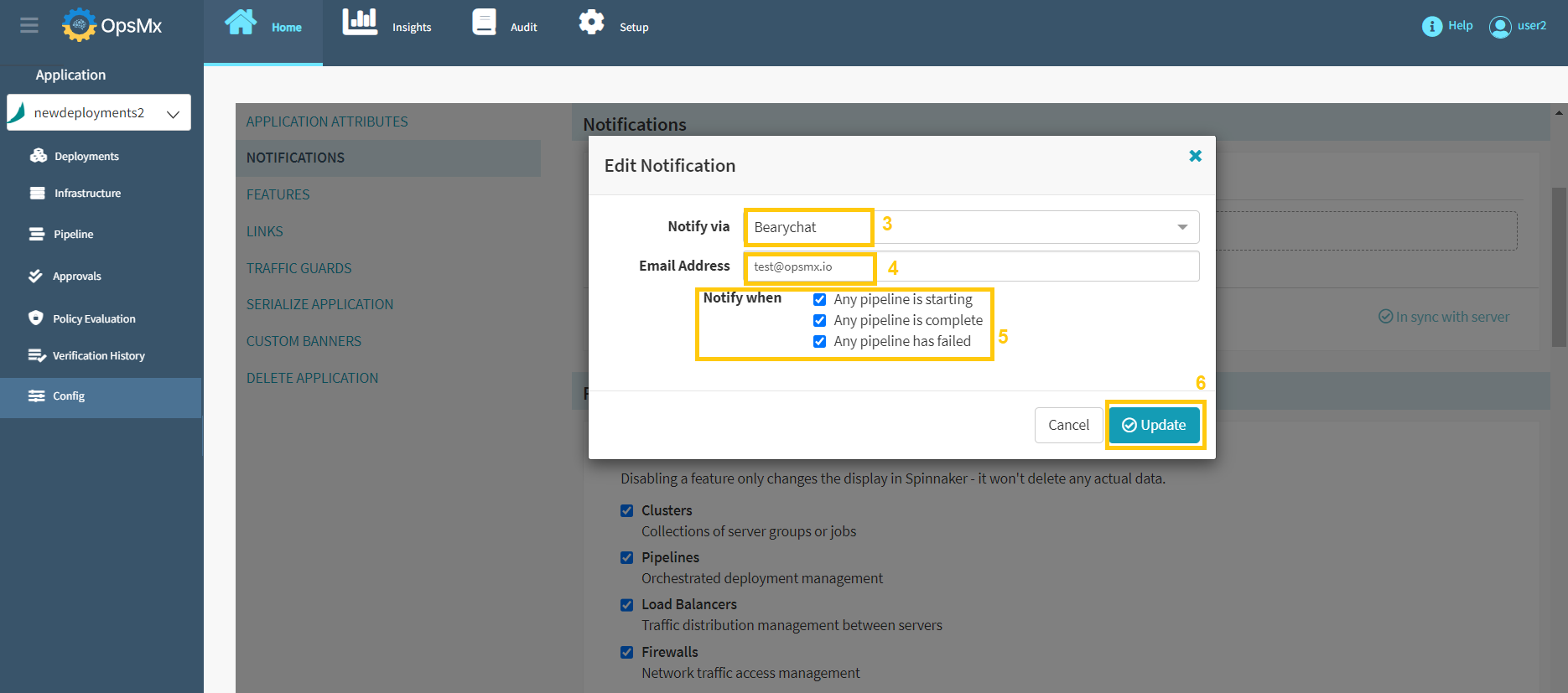
2\. **Edit Notification** pop-up window will appear, allowing you to update the necessary columns as described in the following steps.
Follow the sequence as shown in the image below for steps 3 to 6.
3\. Select a notification method from the **Notify via** drop-down box. The options are:
* Bearychat
* Email
* GoogleChat
* Pubsub
* Slack
4\. Provide the following information based on the selected notification type:
* Email address
* Chat/Team webhook URL
* Publisher name
5\. Select the pipeline event that will trigger this notification:
* When a pipeline started
* When a pipeline finished
* When a pipeline failed
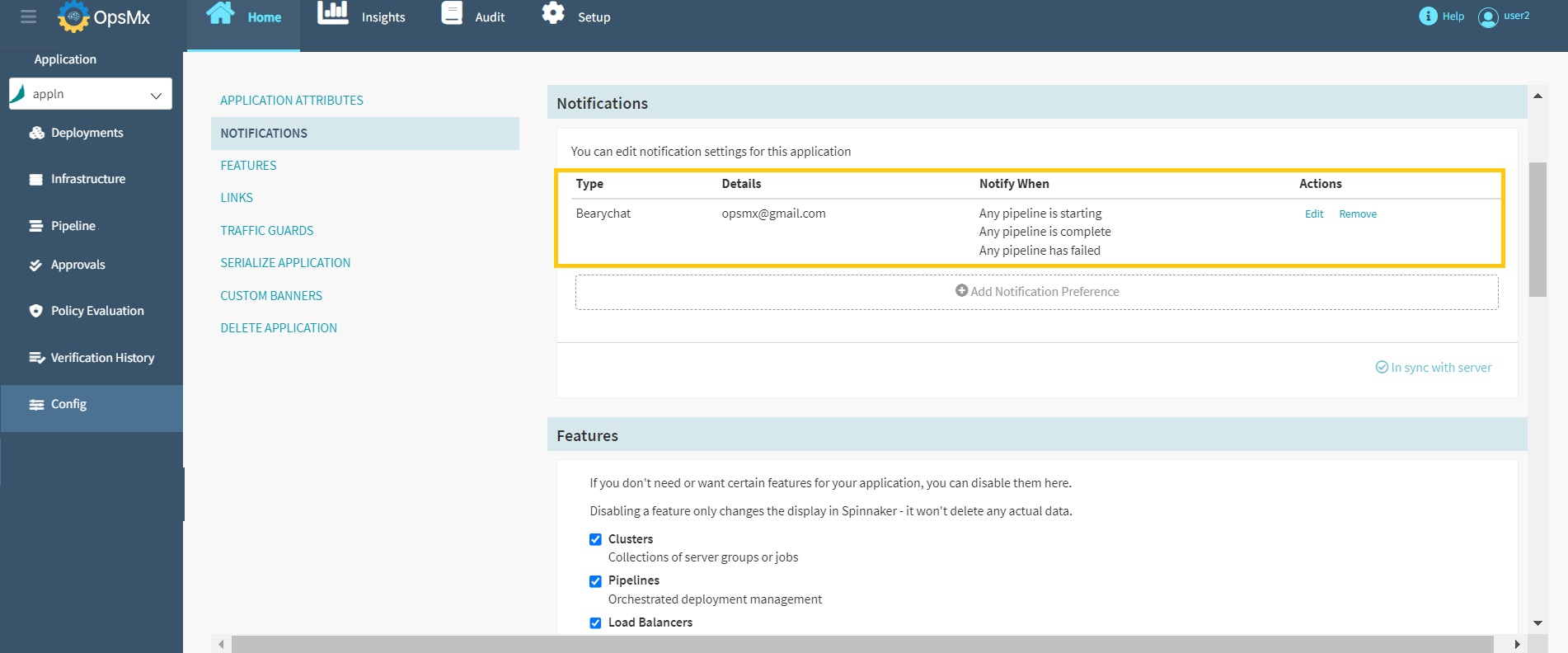
6\. Click **Update** and the newly added Pipeline Notifications appear as shown below:
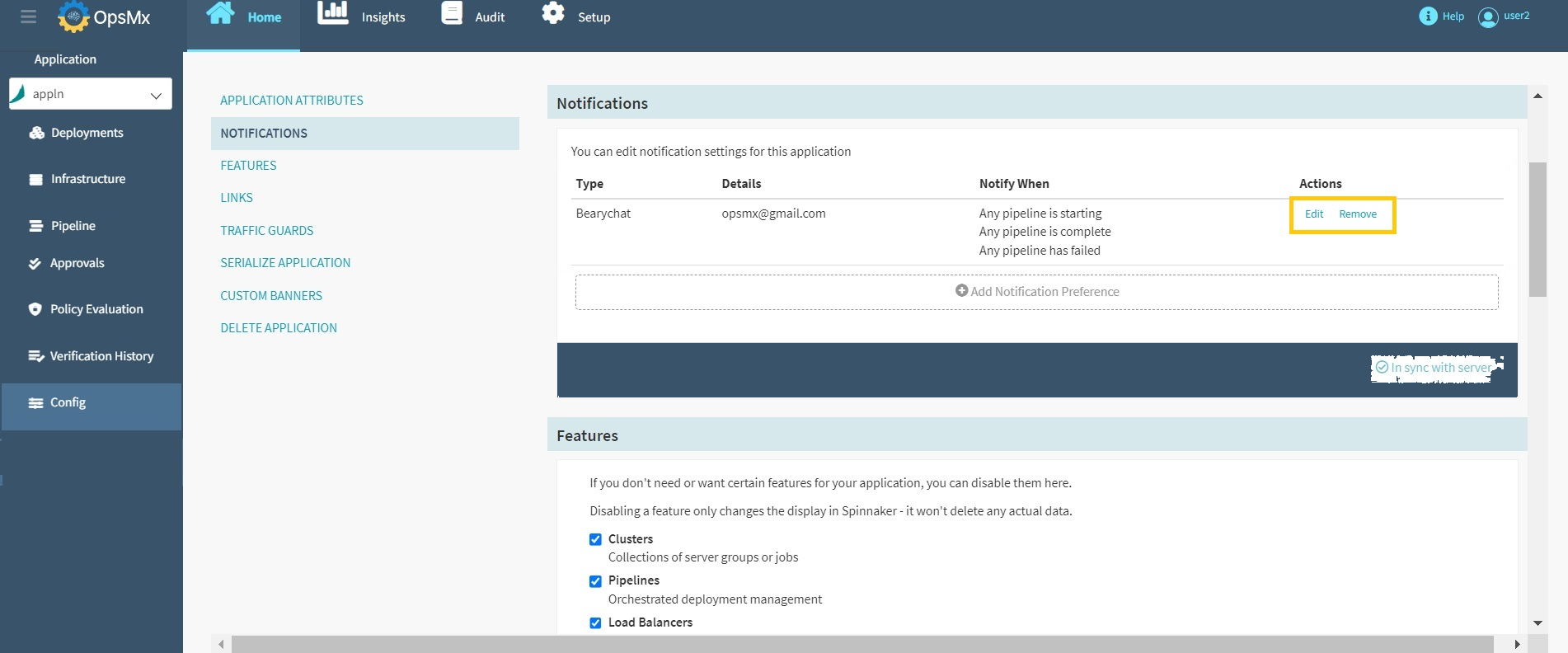
7\. Users can edit or remove the pipeline notifications by clicking the **Edit/Remove** options**.**
### **Enable or Disable Application Features**
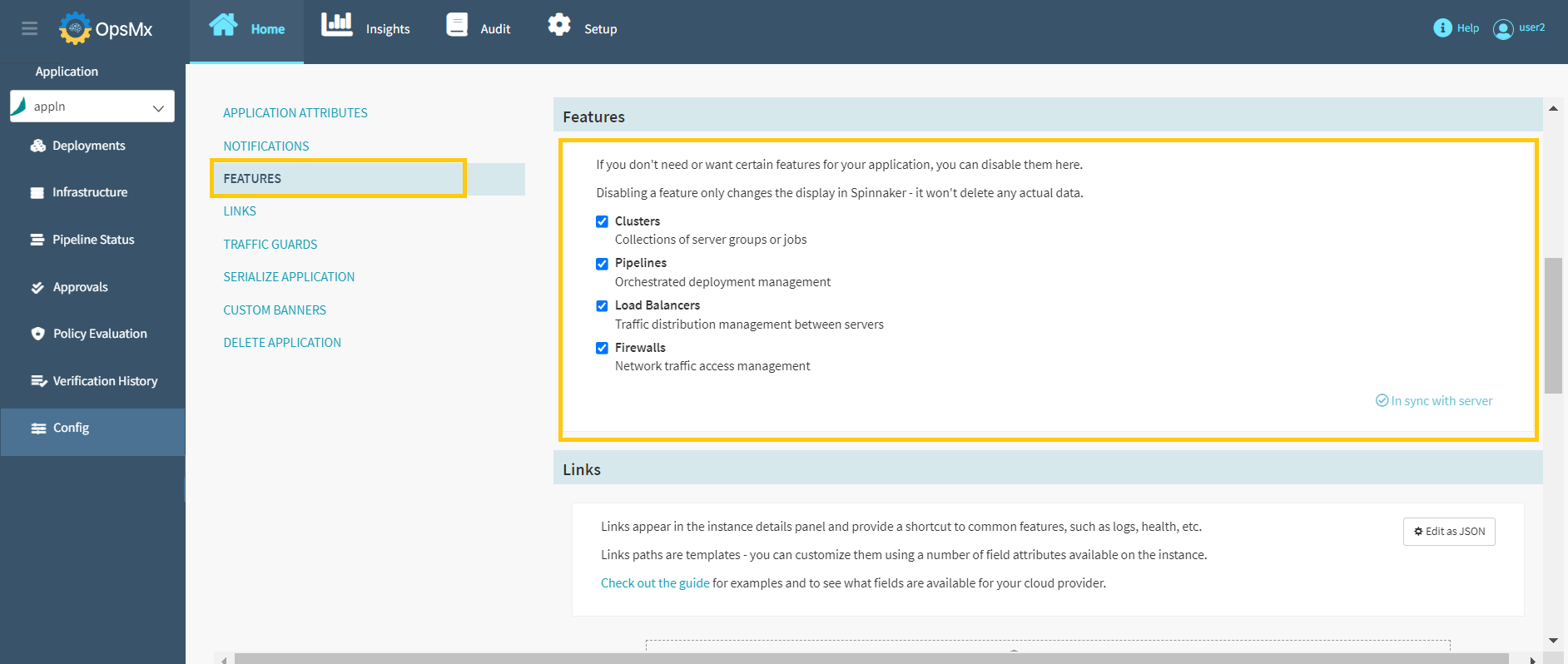
Users can disable any of the application's main features if they don't need them. Existing data will not be deleted if they are disabled.
1. Click **Features** and **check/uncheck** the checkbox to enable/disable any of the features as shown in the below image**:**
### **Add Custom Instance Links**
Custom links can also be added to the instance details panel. This will help you to provide shortcuts to information about the instance, such as health, logs, etc.
**Note**: Custom instance links are currently not supported for Kubernetes resources. If the public IP address of the instance is available, it is used to resolve these links. Otherwise, a private IP is used. The default port is 80 and to change the port follow the instructions below:
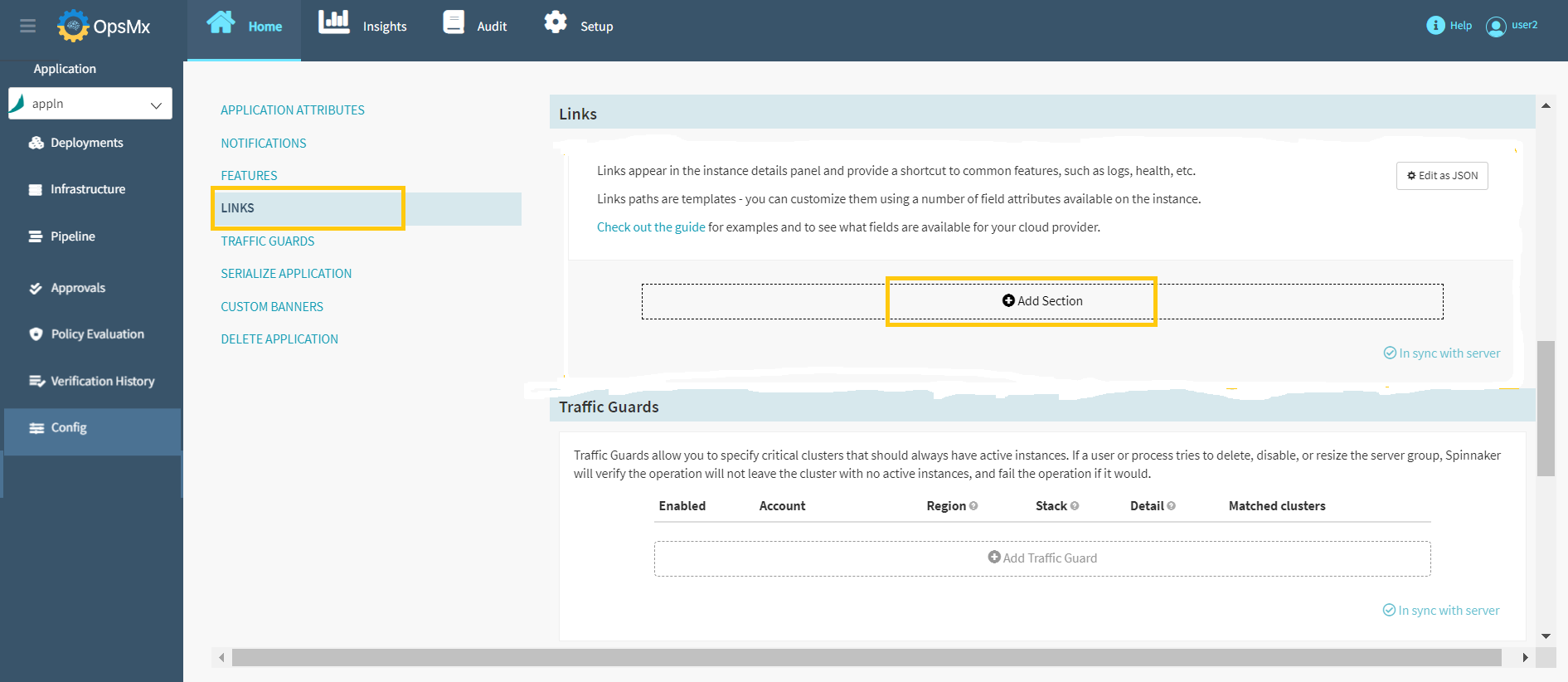
1. Click **Links** > **Add Section** button to add custom instance links.
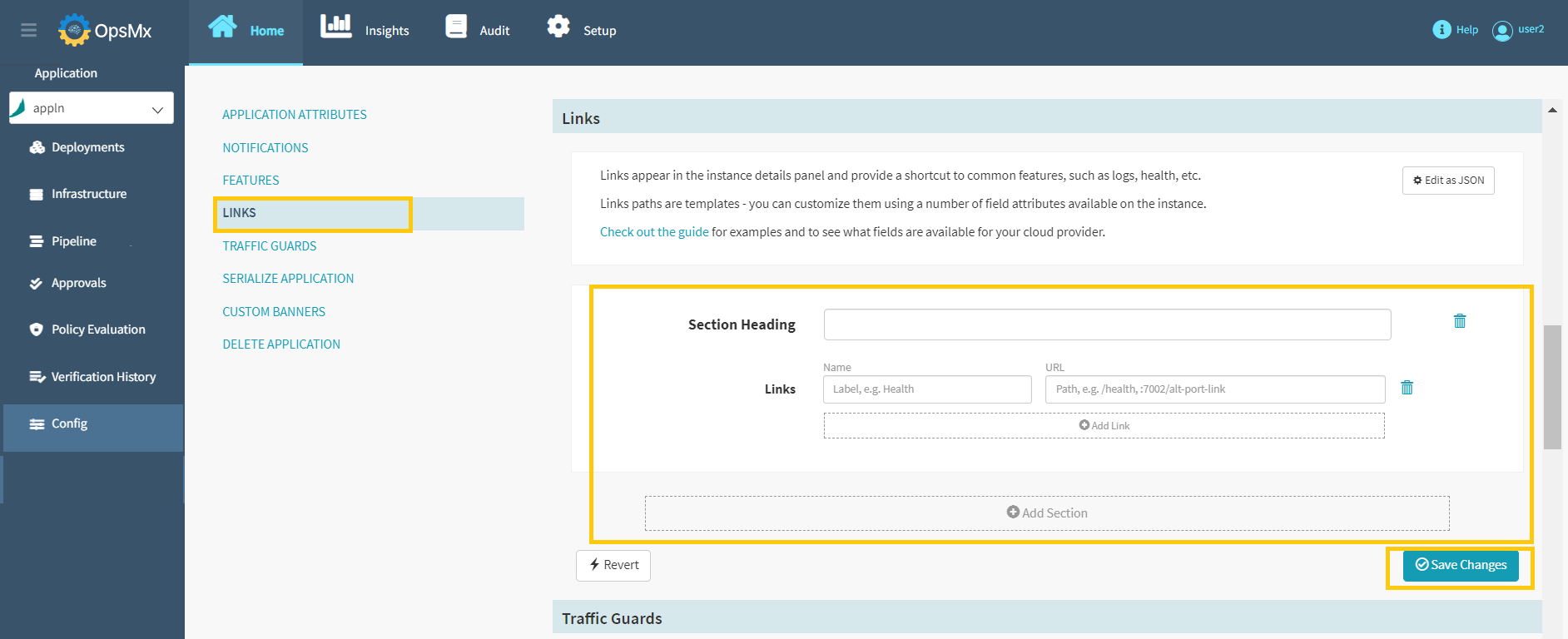
2. Below screen will appear after you click the **Add Section** button.
Update the details in the above screen as described below.
* Enter text for the new **Section heading** in the given text box.
* In the **Links** text box, enter the text that you want to display.
* In the **URL** text box, enter the path to the link target. References to these specific instance attributes can also be added. Wrap them in curly braces to accomplish this. For example, use {region}.
* Click **Add Link** to add additional links that you want to display.
* Click **Add Section** to add any additional sections.
* Click **Save Changes** after adding all the details.
### **Designate a Traffic Guard Cluster**
You can also create a traffic guard cluster and designate it to have at least one active instance. When enabled, this traffic guard cluster allows Spinnaker to verify if a user or process is trying to disable, resize, or delete the server group.
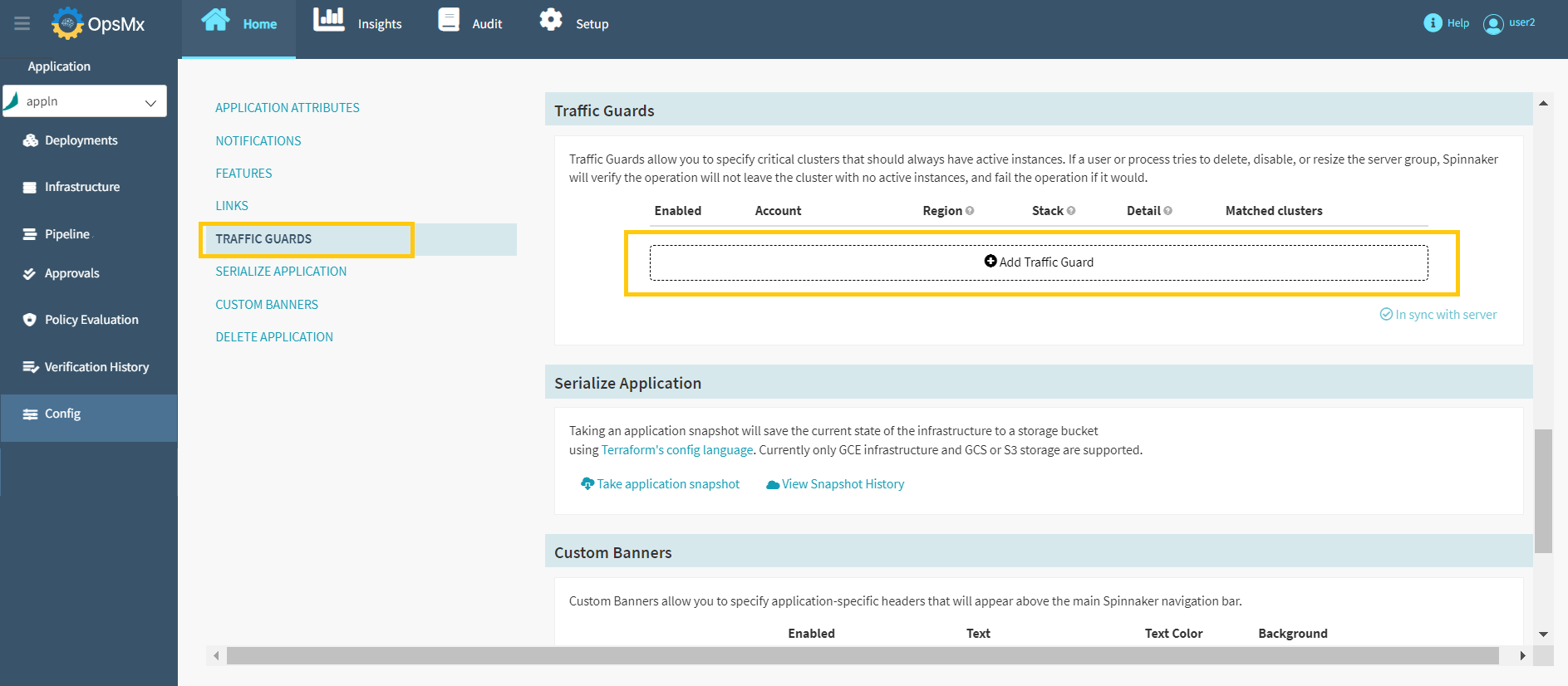
1. Click **Traffic Guards** > **Add Traffic Guard,** to designate a traffic guard cluster as shown in the below image:
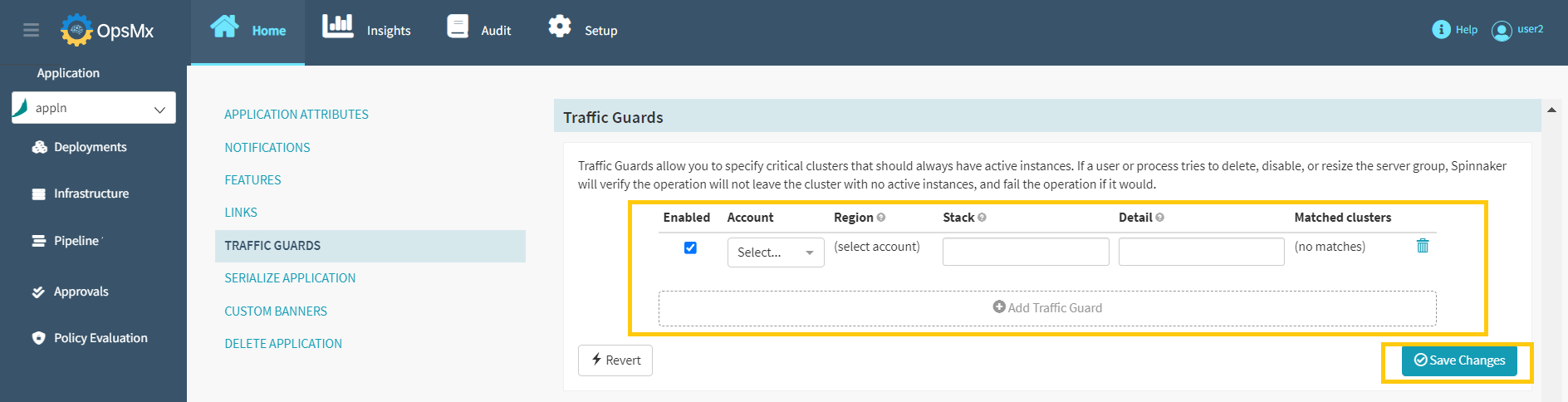
2\. On clicking **Add Traffic Guard**, the following options will appear:
3\. Update the above **Traffic Guards** section with the details as described below, and click **Save Changes**.
* **Account** - The account for which you’re setting up the traffic guard
* **Region** - The applicable region from the list, or select the wildcard (\*) to include all stacks
* **Stack** - The stack to which to apply this traffic guard. Leave blank to apply the guard only to a cluster that has no stack. You can use the wildcard (\*) to include all stacks (including no stack).
* **Detail** - The detail string necessary to identify this cluster via the application stack-detail naming convention.
### Add Custom Banners
Custom Banners allow you to specify application-specific headers that will appear above the main Spinnaker navigation bar. You can add a new banner by clicking the **Custom Banners** option.
**To Add a new banner**
Click **Custom Banners** > **Add banner**, to customize the banner.
1. Enter the required text in the **Text** column.
2. Select the text color from the **Text Color** dropdown.
3. Select the background from the **Background** dropdown. A preview of the added banner is displayed in the **Preview** column.
4. Click **Save Changes** to save the banner.
5. Check the **Enabled** checkbox to enable the created banner.
6. To delete the banner click the **Delete** icon provided near the Background dropdown.
7. You can revert the changes made by clicking the **Revert** button.