> For the complete documentation index, see [llms.txt](https://docs.opsmx.com/llms.txt). Markdown versions of documentation pages are available by appending `.md` to page URLs; this page is available as [Markdown](https://docs.opsmx.com/isd-spinnaker/opsmx-intelligent-software-delivery-isd-platform-spinnaker/user-guide/data-sources/available-integrations/sast-dast.md).
# SAST/DAST
### AquaWave
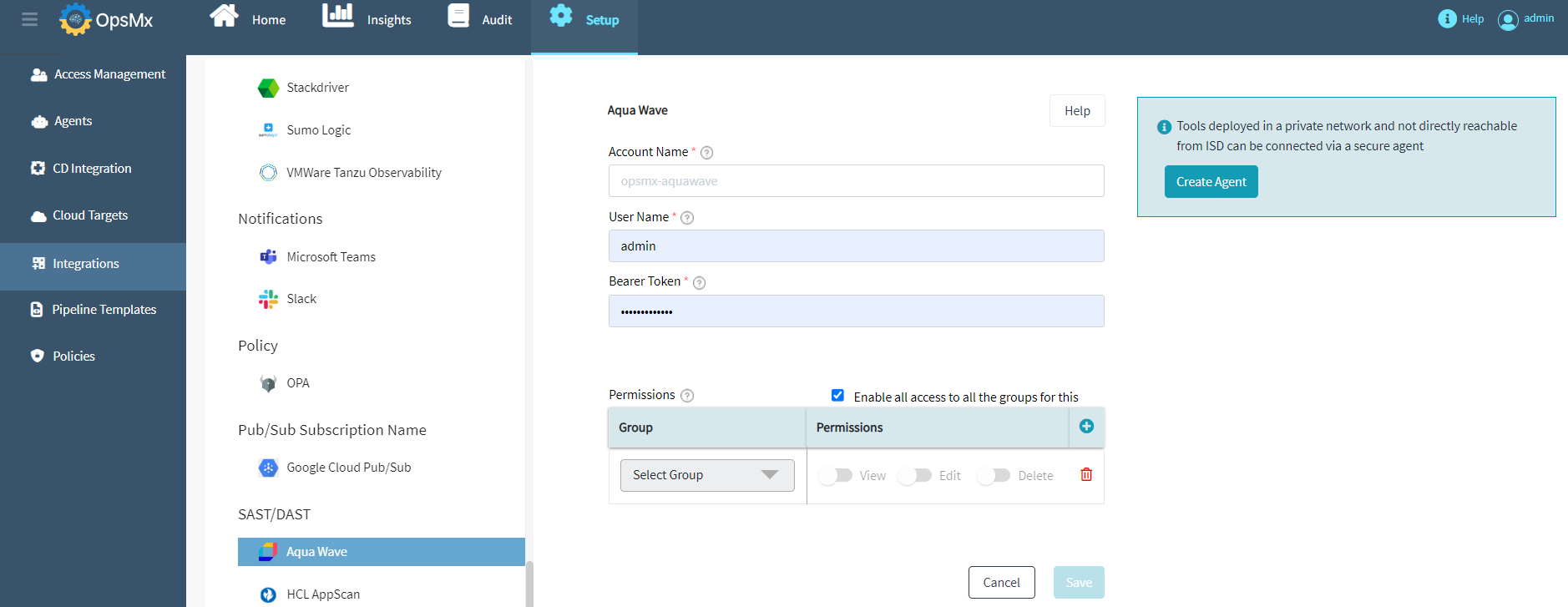
The following figure depicts the information to be provided to add AquaWave as an integration.
Following are the fields:
* **Account Name**: The name of your Aquawave user account
* **User Name**: Provide the username for Aqua wave
* **Bearer Token**: Provide the bearer token for Aqua wave
* **Group and Permissions**: To enable access to all user groups, check the **Enable all access to all the groups for this** checkbox. To provide access to only selected user groups, uncheck this checkbox and select the required users from the **Select Group** drop down and enable the needed permissions like **Edit**, **View** or **Delete**.
### HCL AppScan
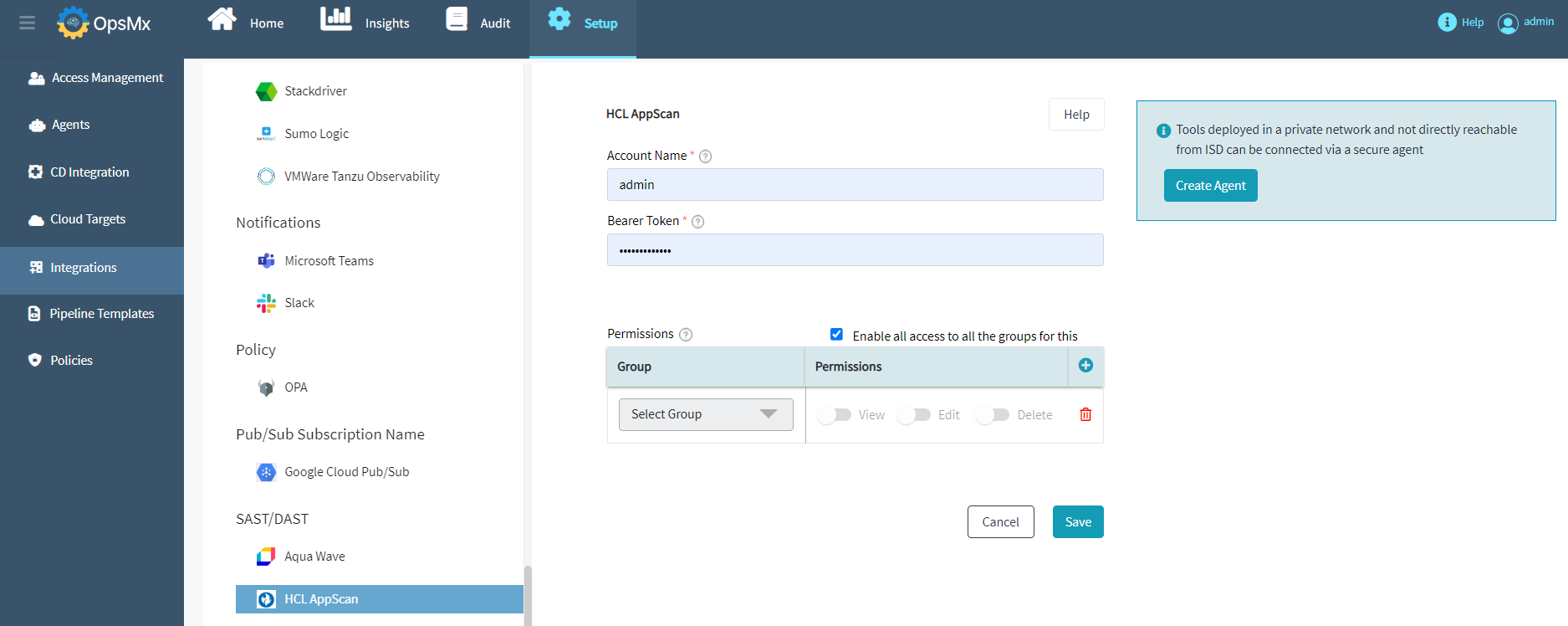
The following figure depicts the information to be provided to add HCL AppScan as an integration.
Following are the fields:
* **Account Name**: The name of your HCL Appscan user Thaccount
* **Bearer Token**: Provide the bearer token for HCL Appscan
* **Group and Permissions**: To enable access to all user groups, check the **Enable all access to all the groups for this** checkbox. To provide access to only selected user groups, uncheck this checkbox and select the required users from the **Select Group** drop down and enable the needed permissions like **Edit**, **View** or **Delete**.
### JFrog Xray Scanning
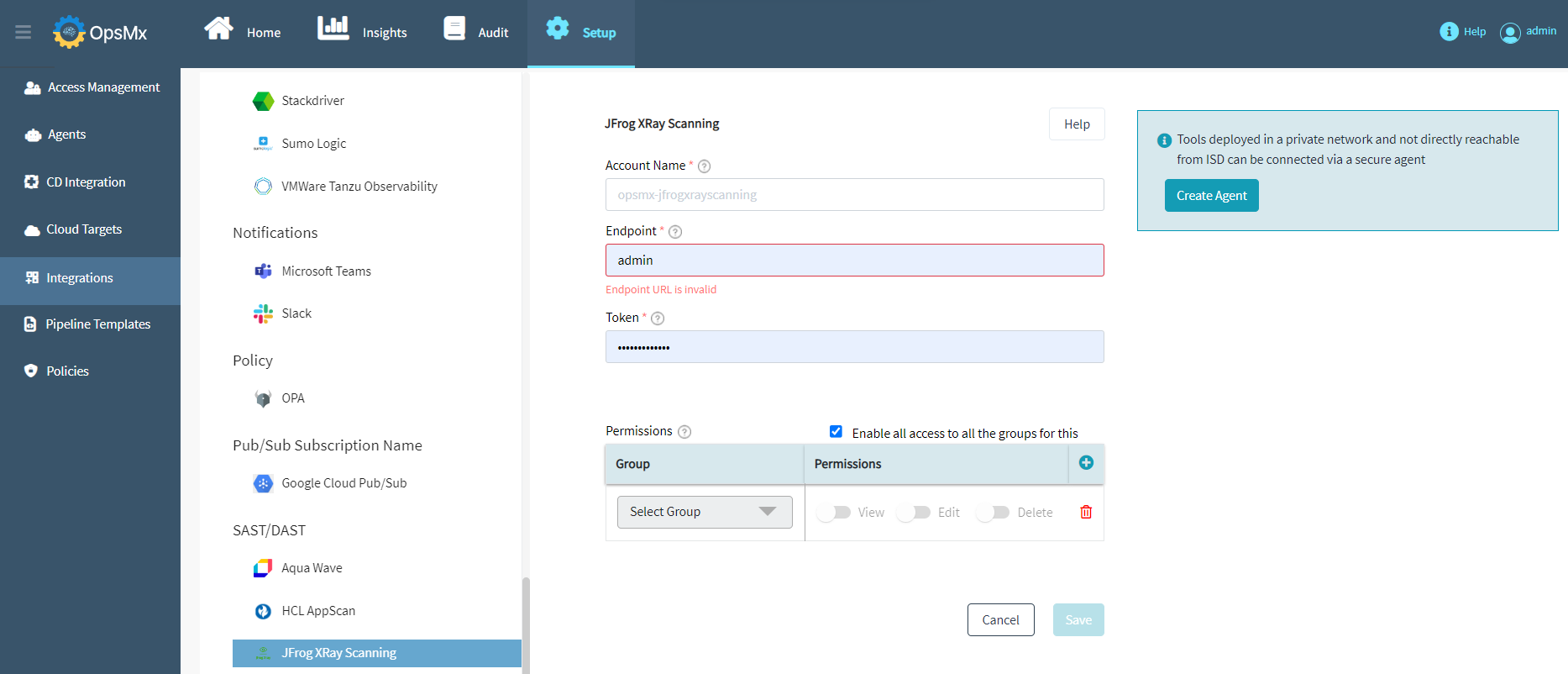
The following figure depicts the details to be provided to add JFrog Xray Scanning as an integration.
Enter the information for the following fields:
* **Account Name**: The name of the user account
* **Endpoint**: Jfrog Xray host address from which Jfrog Xray instance is accessed
* **Token**: User token from Jfrog Xray to authenticate
* **Group and Permissions**: To enable access to all user groups, check the **Enable all access to all the groups for this** checkbox. To provide access to only selected user groups, uncheck this checkbox and select the required users from the **Select Group** drop down and enable the needed permissions like **Edit**, **View** or **Delete**.
### Prisma Cloud
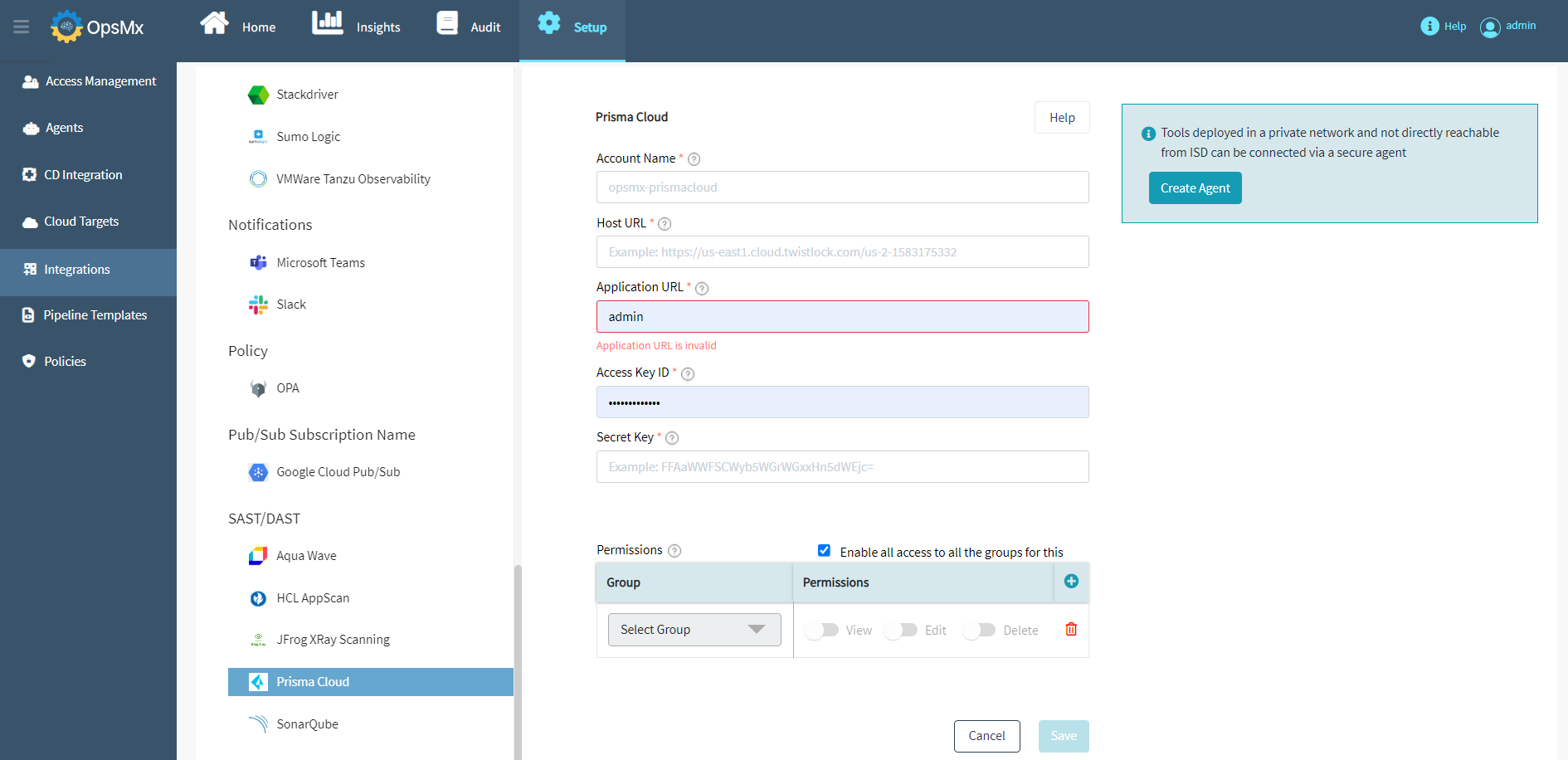
The following figure depicts the details to be provided to add Prisma Cloud as an integration.
Enter the information for the following fields:
* **Account Name**: The name of your Prisma Cloud user account
* **Host URL**: Host address from which you access the Prisma Cloud instance.
* **Application URL**: The application URL
* **Access Key ID**: User's access key who has access to the Prisma Cloud
* **Secret Key**: User's secret key
* **Group and Permissions**: To enable access to all user groups, check the **Enable all access to all the groups for this** checkbox. To provide access to only selected user groups, uncheck this checkbox and select the required users from the **Select Group** drop down and enable the needed permissions like **Edit**, **View** or **Delete**.
### SonarQube
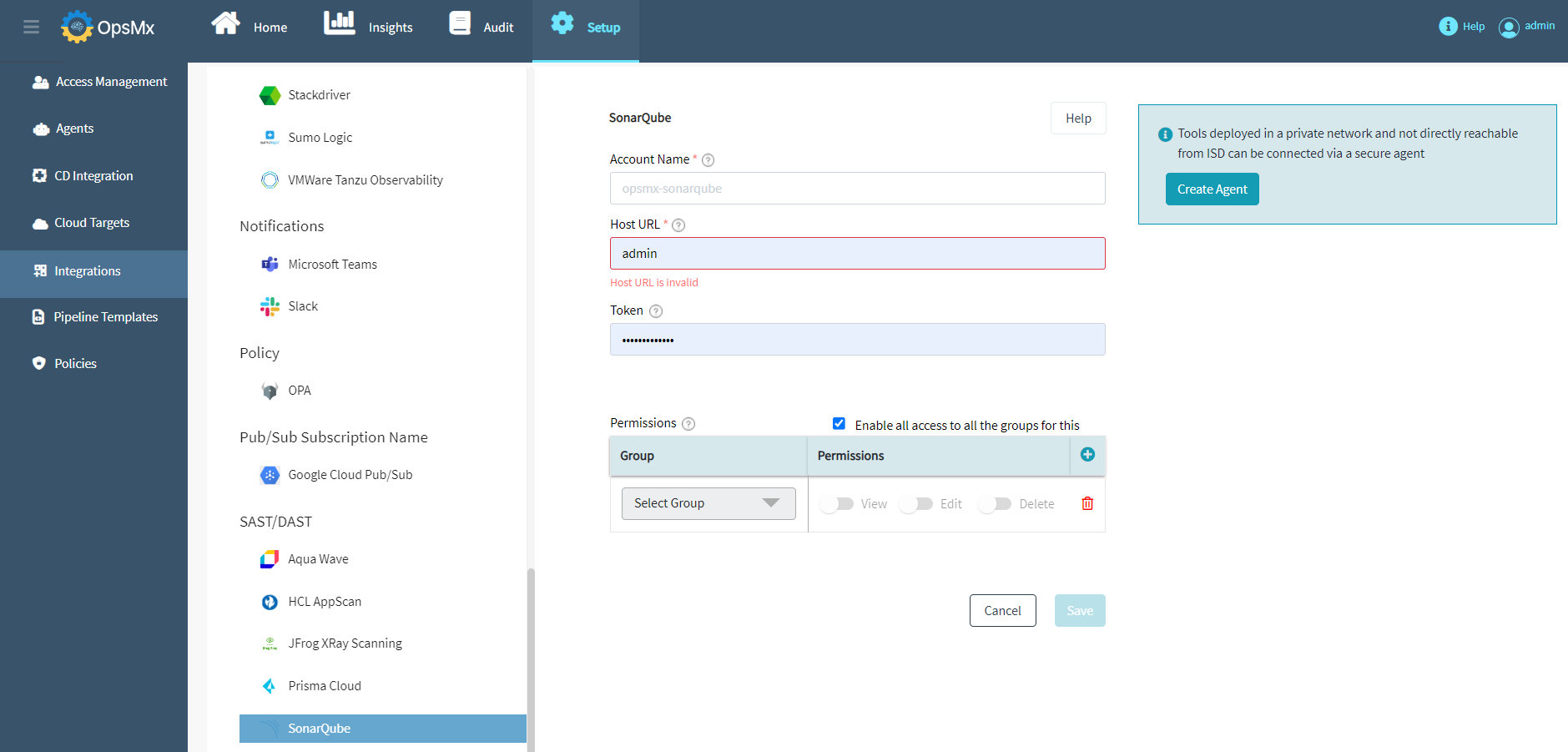
The following figure depicts the information to be provided to add SonarQube as an integration.
Following are the fields:
* **Account Name**: The name of your Sonarqube user account
* **Host URL**: Provide the host URL of the SonarQube Server
* **Token**: Provide the token to access the SonarQube server
* **Group and Permissions**: To enable access to all user groups, check the **Enable all access to all the groups for this** checkbox. To provide access to only selected user groups, uncheck this checkbox and select the required users from the **Select Group** drop down and enable the needed permissions like **Edit**, **View** or **Delete**.