> For the complete documentation index, see [llms.txt](https://docs.opsmx.com/llms.txt). Markdown versions of documentation pages are available by appending `.md` to page URLs; this page is available as [Markdown](https://docs.opsmx.com/integrations/integrating-other-tools-in-delivery-shield/jira.md).
# JIRA
### Usage of JIRA in Delivery Shield
* Delivery Shield allows users to generate JIRA tickets directly from the Security Issues screen.
* The **Create JIRA Ticket** button will be available for each security Issue, enabling the creation of a JIRA ticket for the specific issue. The ticket will include all relevant details, allowing developers to address and resolve the issue efficiently.
### To Manage JIRA:
1. Navigate to **Setup** > **Integrations**.
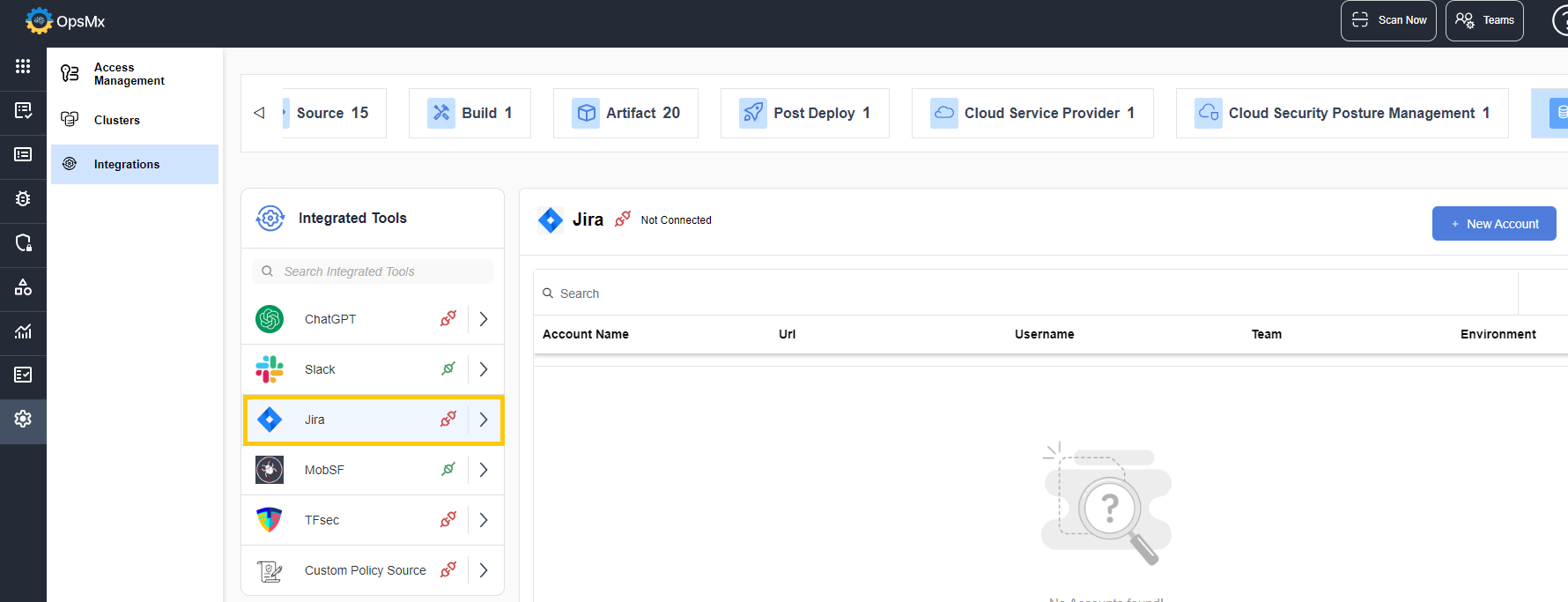
2. In the **Others** panel, click **JIRA**. The JIRA integration page is displayed.
3. Click **+New Account**. The JIRA integration page opens.
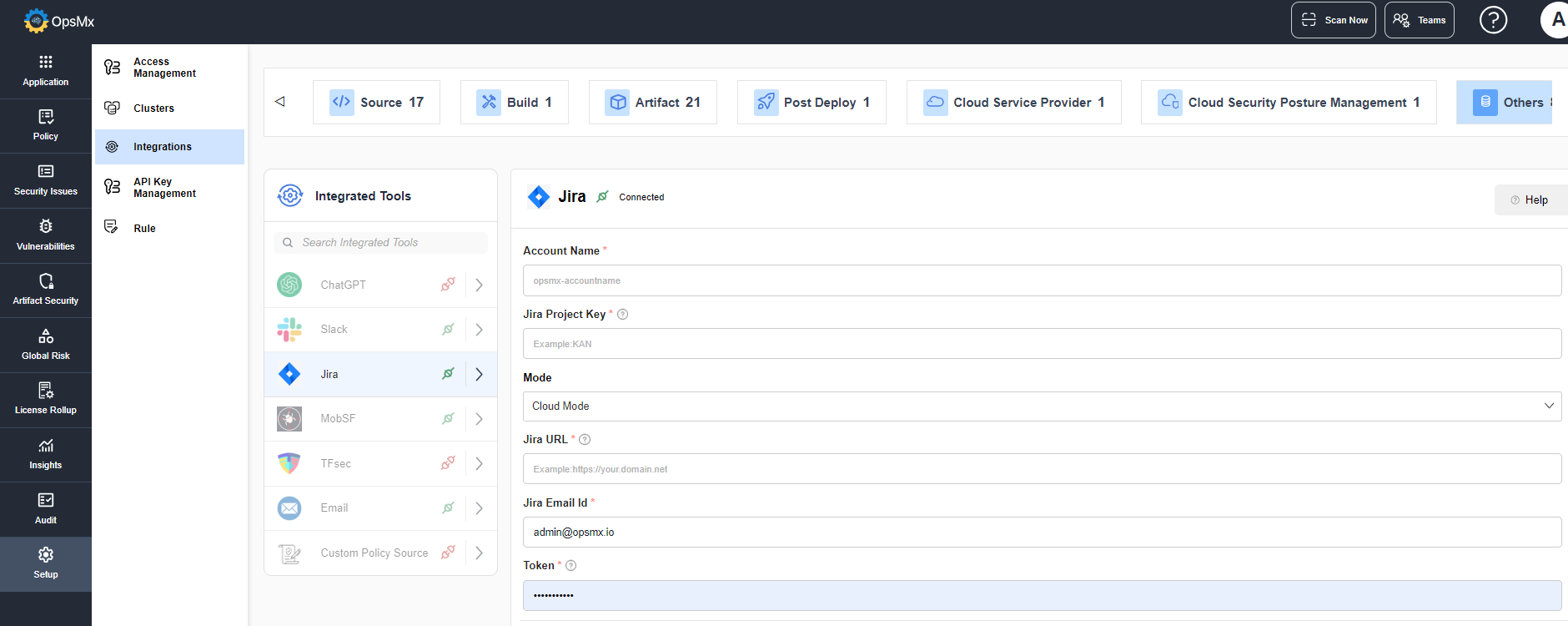
3. Enter the values for the following fields:
* **Account Name -** Enter the JIRA account name.
* **Jira Project Key -** Enter the name of your Jira project.
* **Jira** **URL -** Enter your Jira host Url
* **Jira Email Id -** Enter the username to access Jira.
* **Token -** Enter the password / token for the Jira account.
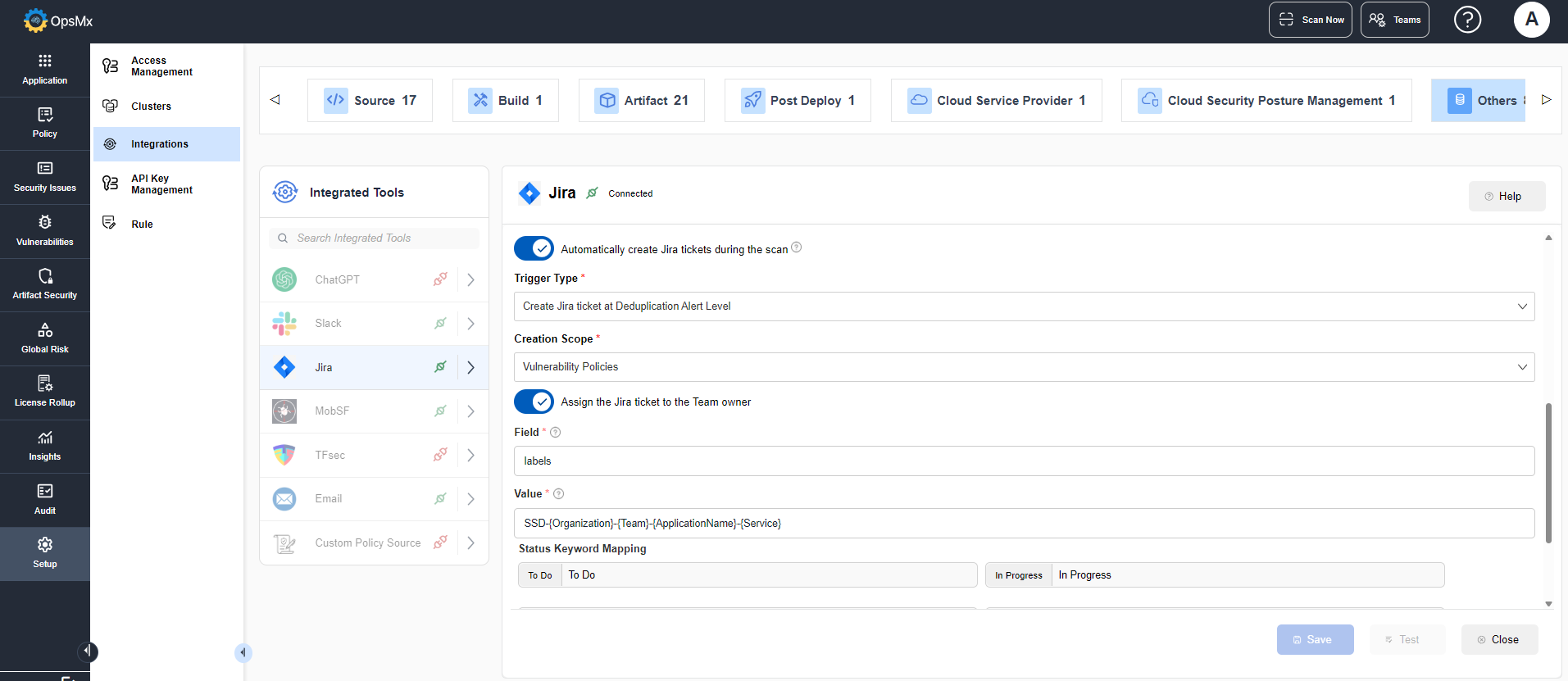
* Enable **Automatically create Jira tickets during the scan** to create JIRA ticket to the team owner when the alerts are identified.
* **Trigger Type** - Indicates at which level Jira tickets should be created.
* **Create Jira ticket at the Component Alert level** - Jira tickets will be created for each individual impacted component.
* **Create Jira ticket at the Deduplication Alert level** - One Jira ticket will be created for all the impacted components.
* **Create Jira ticket at the Severity Group level** - One Jira ticket each will be created per severity level (Critical, High, Medium) of the vulnerabilities.
* **Creation Scope** - If Vulnerabilities is selected, Jira is created only for Critical and High alerts. If All Policies is selected Jira is created for all alerts.
* Enable **Assign the Jira ticket to the Team owner** if you want to assign the ticket to the team owner.
* **Fields -** Enter the labels that need to be added in the created Jira ticket.
* **Values -** Enter the values that need to be given in the Jira ticket. The given variables are replaced with actual values when the tickets are created.
* **Status Keyword Mapping** - You can set the keywords for the status.
4. Click **Test** to check if the entered values are valid.
5. Once validated, click **Save**. The tool is connected.