> For the complete documentation index, see [llms.txt](https://docs.opsmx.com/llms.txt). Markdown versions of documentation pages are available by appending `.md` to page URLs; this page is available as [Markdown](https://docs.opsmx.com/code-to-cloud-security-and-scanners/cloud-security/iac-scanning/how-to-do-iac-scan.md).
# How to do IAC Scan
The IAC scan option is added as part of the Adhoc scan. The ability to scan AI/ML Models published on HuggingFace using NBDefence and Garak tools is added as part of this scan option.
### To Access IAC Scan
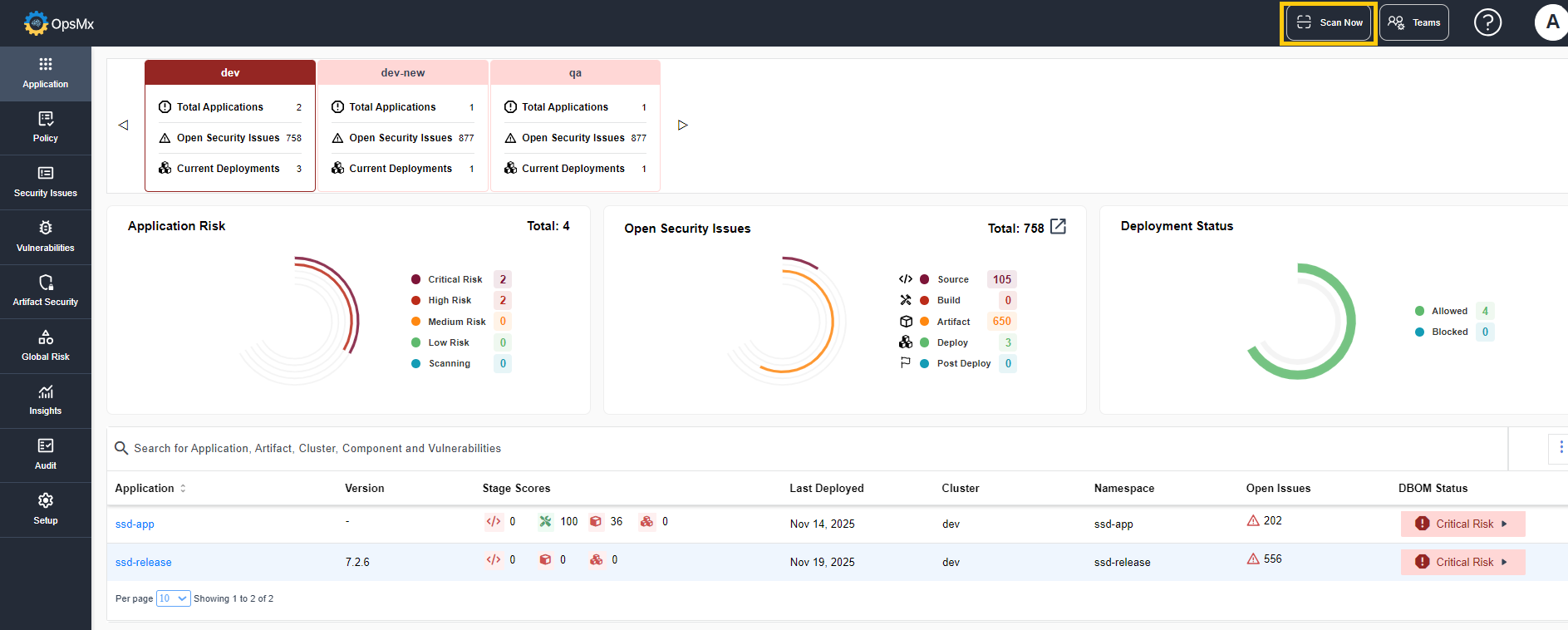
* Click on **Scan Now** button at the top right corner of the screen.
* In the screen that appears, select **IAC Scan** from the left panel.
### To Add a Project
* To add or update a new project with IAC scan configurations, for scanning, click **Add Project**.
* The **Create Project** details page is displayed as shown below. Enter the details for the following fields:
* **Name** : Enter a name for the project.
* **Team** : Select the team for which you want to create the project.
* **Scan Type** : The default type is IAC Scan.
* **Platform** : Select the platform type, the platform where the code resides (Github, Gitlab Server, Bitbucket, Bitbucket Server, Azure, Azure Server) for the project.
* **Account** : Choose the needed account that has been integrated for the selected platform. If no account is available for the selected platform then click **Add Account**.
* The integration page is displayed. You can add a new account.
* **Organization / Workspace** : Choose the organization or workspace that the selected account has access to.
* **Scan Level** : Select the scan level; either organization level or repository level that needs to be scanned.
* **Configuration** : Set the configuration details, and schedule the auto scan time.
* **Repo /Project** : Select the repo or project name for which the scan needs to be executed.
* **Branch** : Select the branch name for which the scan needs to be executed.
* **Branch Pattern** : Select the branch pattern for which the scan needs to be executed.
* **Scan Upto** : Select the branch limit for which the scan needs to be executed. (number of branches to be scanned)
* **Schedule Auto Scan** : Select the time range during which the scan needs to be rerun automatically.
* Click Save.
The project gets added for scanning.
### Saving Configuration
* After adding the configuration details you can click the **Save Configuration** option to save the adding details and trigger the scan at a later period.
* The added project displays in the list with a **Paused** scan status.
* When you want to scan the saved project you can click the Trigger Scan option to initiate the scan.
### To Upload a Project
* To upload a project from your local, for scanning, click **Upload Project**.
* Click **Upload File** and select the json file that you want to add for scanning.
* Click **Save**.
The file gets added for scanning.
### To View and Interpret Scan Results
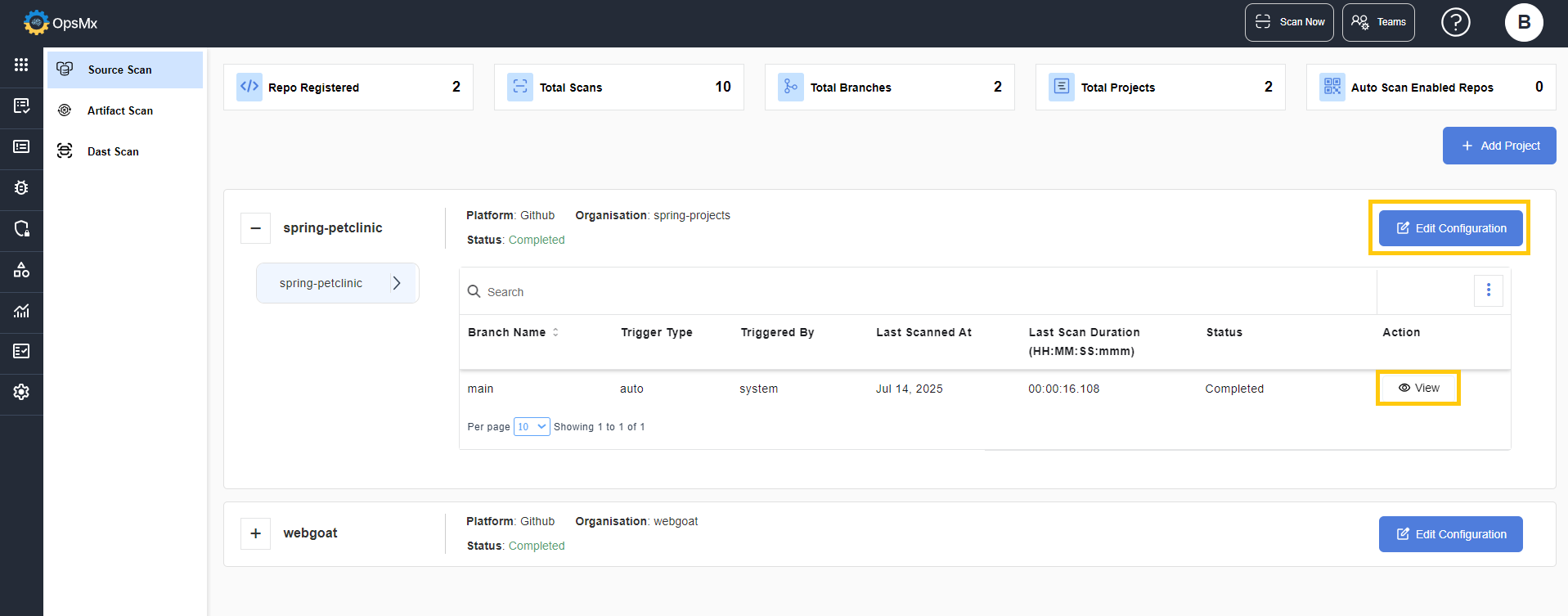
Once the scan is complete, OpsMx generates the overall results and they are displayed as shown below:
* Repos Registered
* Total Branches
* Total Scans
* Total Projects
* Auto Scan Enabled Repos
The panel at the bottom displays the project details. On expanding each project you can view the complete details of it.
{% hint style="info" %}
The current status of the scan (completed, pending or failed) is displayed to notify the status of the project.
{% endhint %}
* Click the **View** option in the **Action** button, to view the IAC scan results of the project.
* The results page displays the complete data of the scan details.
* On clicking the **Download** button, the scan results are downloaded in .json or .csv format.
* On clicking Report, the scan results are downloaded in a report format.
* On clicking **Go to Artifact Page**, you are redirected to the [IAC Scan Artifact](https://docs.opsmx.com/code-to-cloud-security-and-scanners/artifact-security/iac-scan-artifacts) page.
### Quick Actions
Each project displays 5 quick action buttons as shown:
1. **Trigger Scan** – Initiates a new scan for the project or runs a scan using a previously saved configuration.
2. **Integrations** – Opens the project's **Integrations** page, where all available integrations for the project are listed.
3. **Policies** – Displays the list of policies that have been configured for the project.
4. **Edit Project** – Opens the project configuration settings, allowing you to modify the project's details and scan settings.
5. **Delete** – Removes the project from the system.