> For the complete documentation index, see [llms.txt](https://docs.opsmx.com/llms.txt). Markdown versions of documentation pages are available by appending `.md` to page URLs; this page is available as [Markdown](https://docs.opsmx.com/code-to-cloud-security-and-scanners/ai-security/how-to-do-a-model-scan.md).
# How to do a Model Scan
The AI Model scan option is added as part of the Adhoc scan. The ability to scan AI/ML Models published on HuggingFace using NBDefence and Garak tools is added as part of this scan option. This gives teams visibility into AI components, their dependencies, and lifecycle details (including versioning), while capturing all mandatory metadata fields.
### To Access Model Scan
* Navigate to **Scan Now** > **Model Scan**.
### To Add a Project
* Navigate to Scan Now > Source Scan.
* Click Add Project. In the Create Project page, enter the following details:

* Name : Enter a name for the project.
* Team : Select the team for which you want to create the project.
* Scan Type : The default type is Source Scan.
* Platform : Select the platform type, the platform where the code resides (Github, Gitlab Server, Bitbucket, Bitbucket Server, Azure, Azure Server) for the project.
* Account : Choose the AI-BOM account that you have added.
* Organization / Workspace : Choose the organization or workspace that the selected account has access to.
* Scan Level : Select the scan level; either organization level or repository level that needs to be scanned.
* Configuration : Set the configuration details, and schedule the auto scan time.
* Repo /Project : Select the repo or project name for which the scan needs to be executed.
* Branch : Select the branch name for which the scan needs to be executed.
* Branch Pattern : Select the branch pattern for which the scan needs to be executed.
* Code Path : The specific directory or file path within the repository that the scanner should analyze.
* Provider Name : The Artificial Intelligence provider being used to perform the analysis. The dropdown includes options like Anthropic, Google, IBM, Meta, and OpenAI.
* Model Name : The specific AI model from the chosen provider that will execute the scan (e.g., Claude Fable 5).
* Scan Upto : Select the branch limit for which the scan needs to be executed. (number of branches to be scanned)
* Schedule Auto Scan : Select the time range during which the scan needs to be rerun automatically.
* Click Save.
The project gets added for scanning.
### To Upload a Project
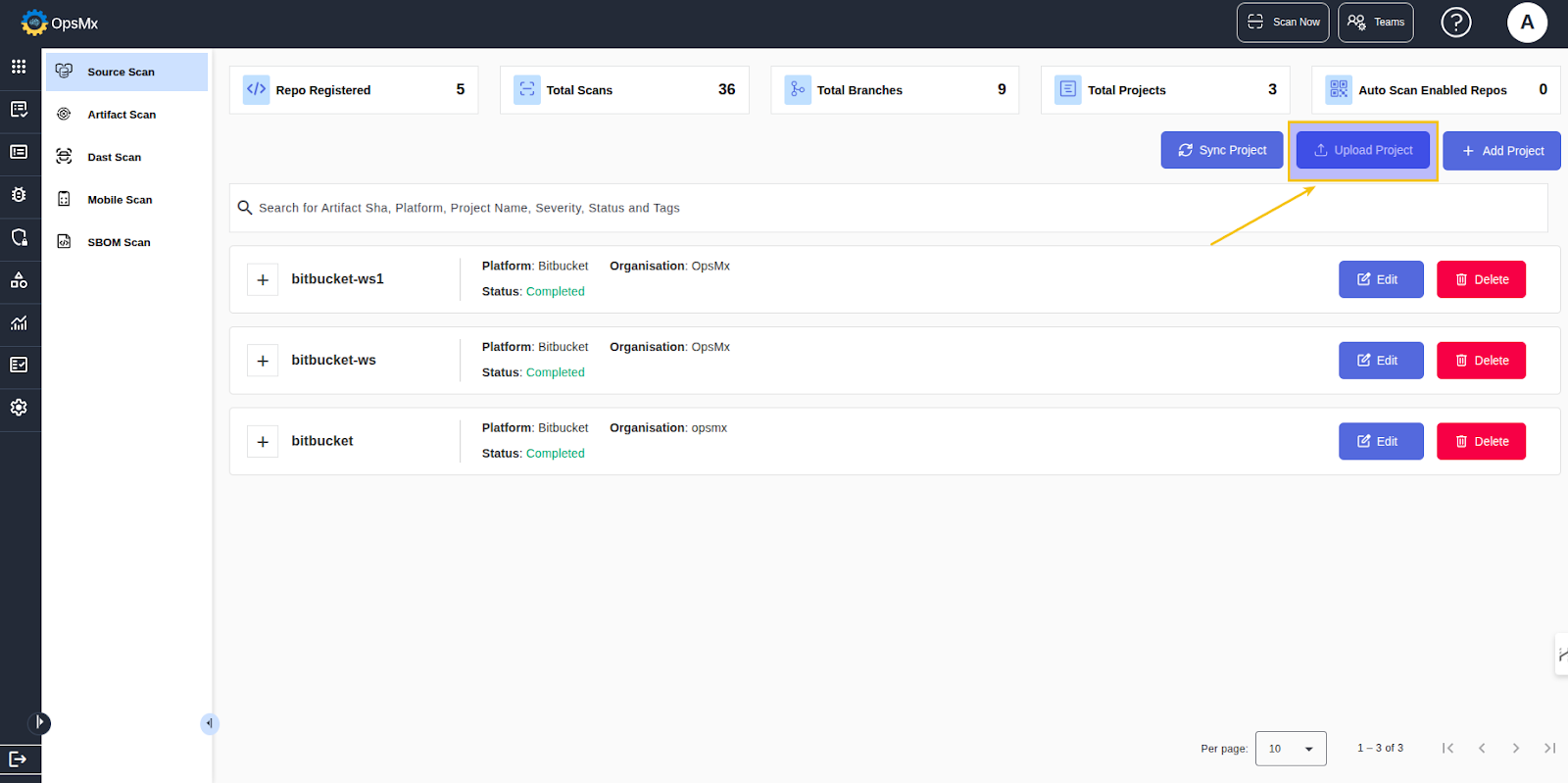
* To upload a project from your local, for scanning, click **Upload Project**.
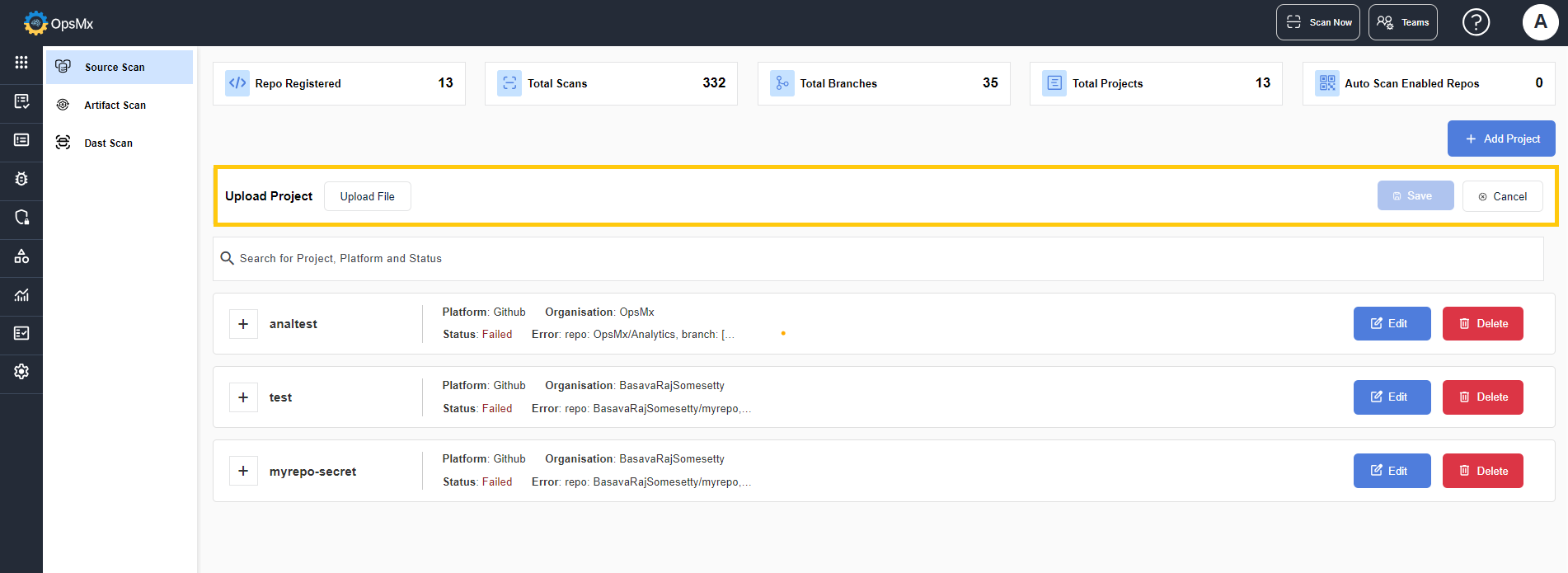
* Click **Upload File** and select the json file that you want to add for scanning.
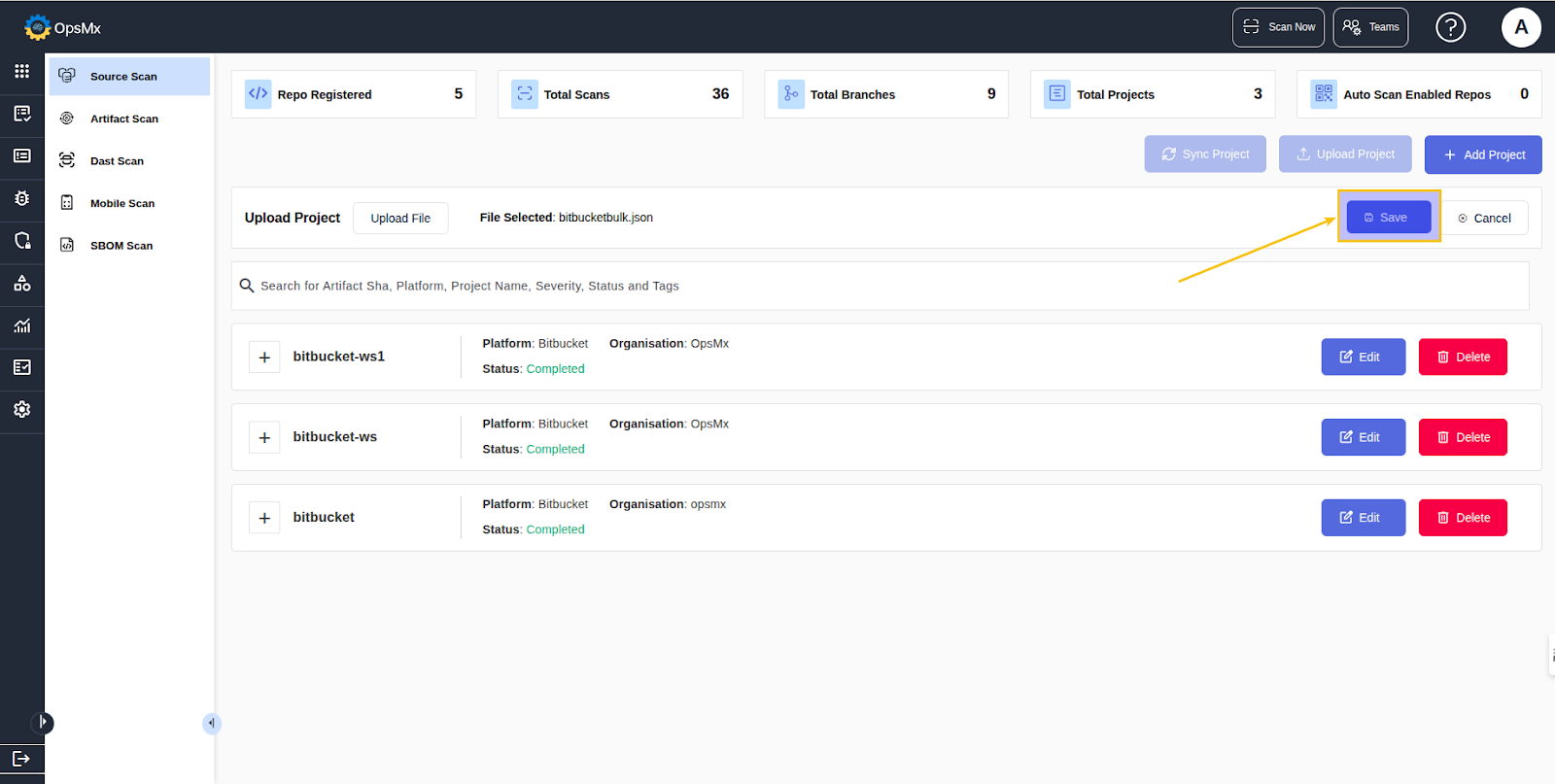
* Click **Save**.
The file gets added for scanning.
### To Integrate JIRA at Project Level
JIRA can be integrated at project level to create tickets whenever an alert is identified.
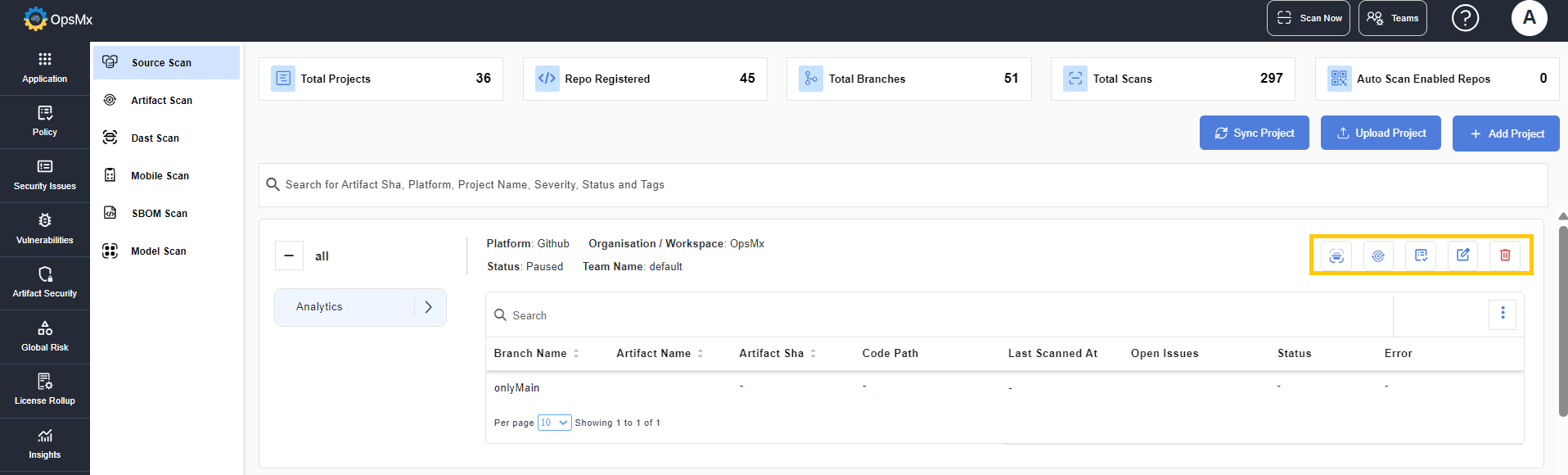
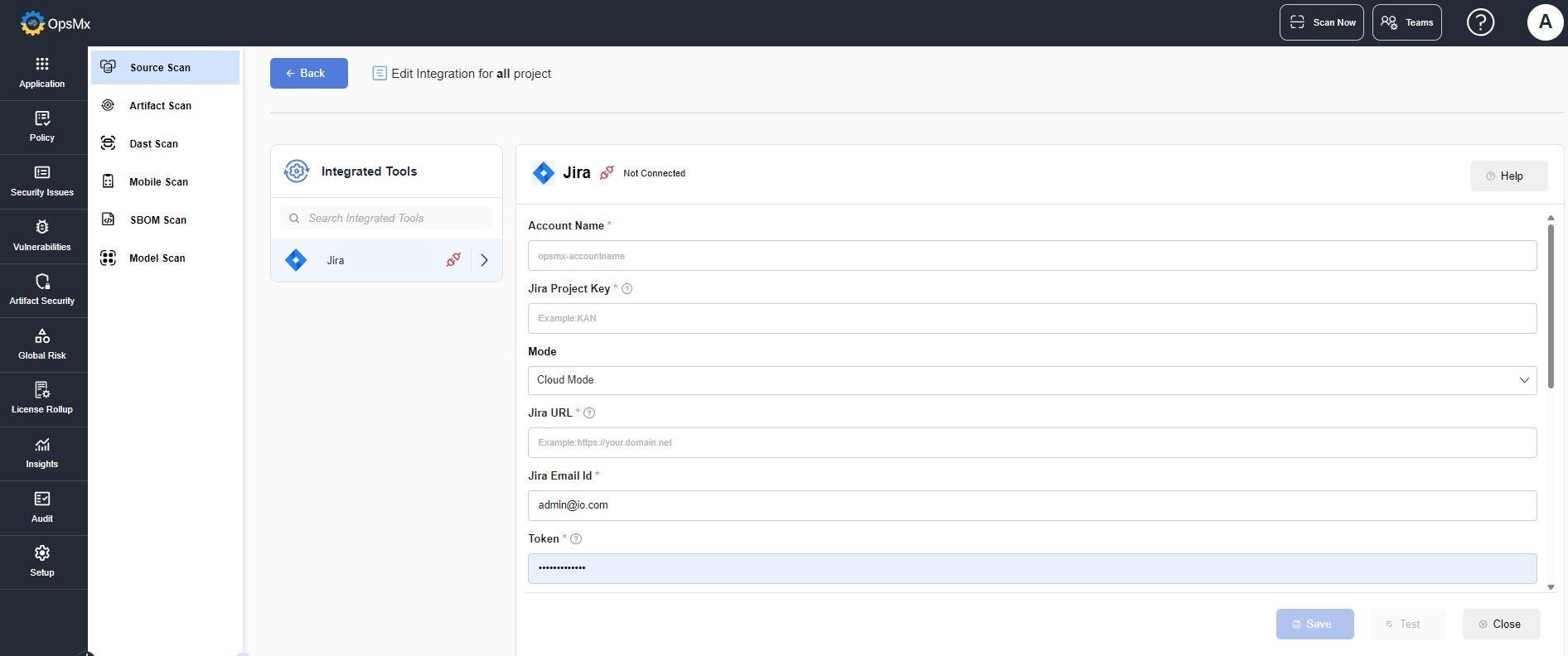
* To integrate JIRA, click the Integrations icon on expanding the project.
* The JIRA integration page is displayed. Click **Add Account** and enter the details.
* Enter the values for the following fields:
* **Account Name -** Enter the JIRA account name.
* **Jira Project Key -** Enter the name of your Jira project.
* **Jira** **URL -** Enter your Jira host Url
* **Jira Email Id -** Enter the username to access Jira.
* **Token -** Enter the password / token for the Jira account.
* Enable **Automatically create Jira tickets during the scan** to create JIRA ticket to the team owner when the alerts are identified.
* **Trigger Type** - Indicates at which level Jira tickets should be created.
* **Create Jira ticket at the Component Alert level** - Jira tickets will be created for each individual impacted component.
* **Create Jira ticket at the Deduplication Alert level** - A single Jira ticket will be created for all the impacted components.
* **Creation Scope** - If Vulnerabilities is selected, Jira is created only for Critical and High alerts. If All Policies is selected Jira is created for all alerts.
* Enable **Assign the Jira ticket to the Team owner** if you want to assign the ticket to the team owner.
* **Fields -** Enter the labels that need to be added in the created Jira ticket.
* **Values -** Enter the values that need to be given in the Jira ticket. The given variables are replaced with actual values when the tickets are created.
* **Status Keyword Mapping** - You can set the keywords for the status.
* Click **Test** to check if the entered values are valid.
* Once validated, click **Save**. The tool is connected.
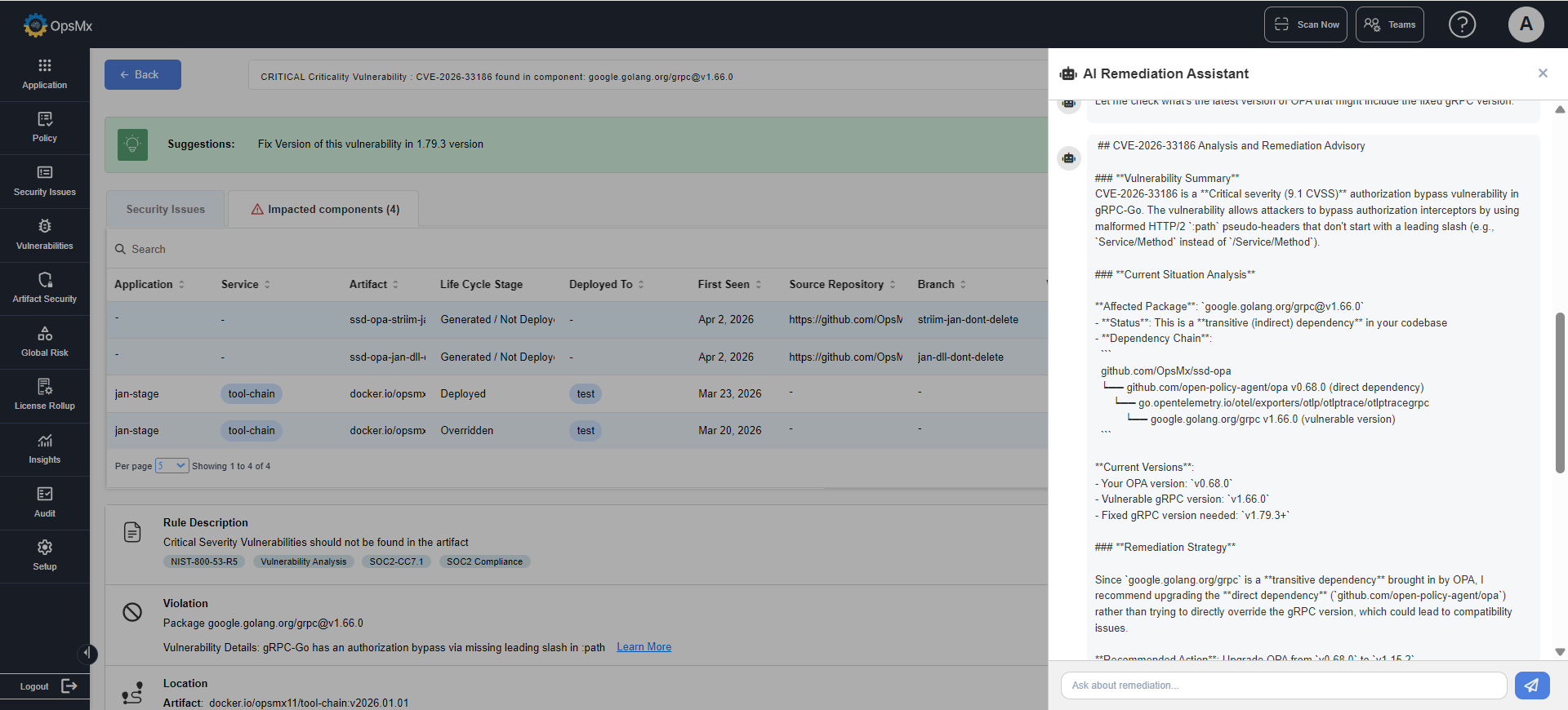
### To View AI-Based Remediation Details
AI Remediation is integrated in the Scan Now option.
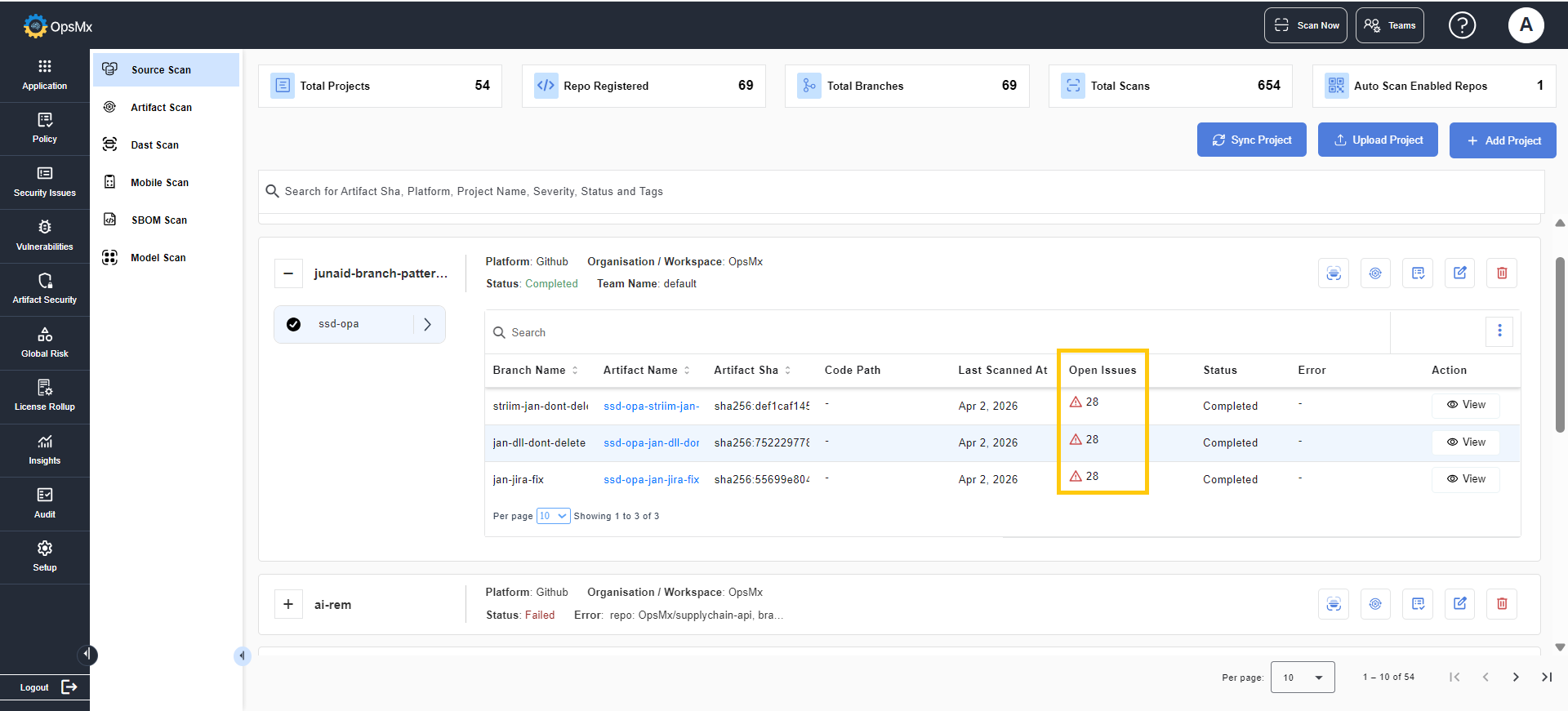
1. Expand the project for which you want to view the remediation details.
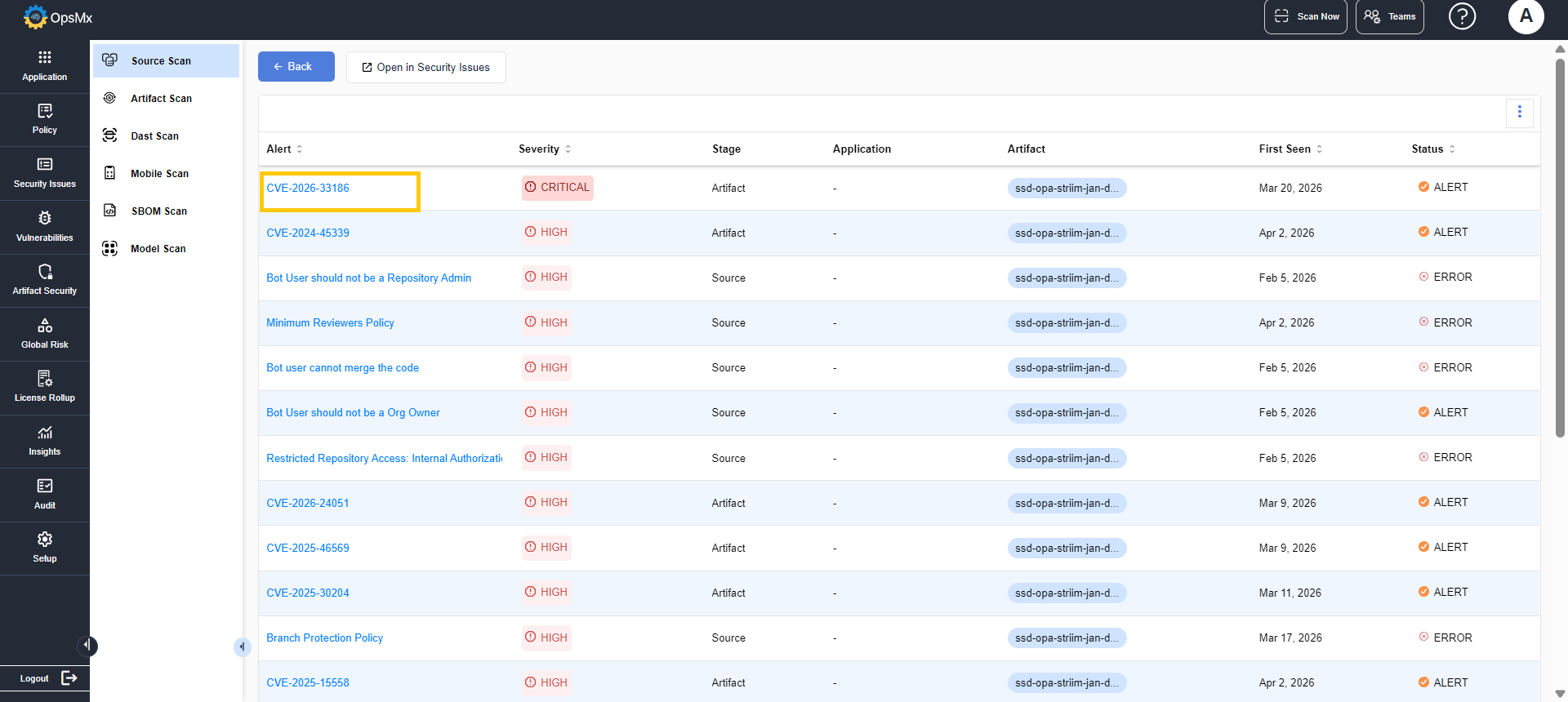
2. Click **Open Issues** to view the list of alerts.
3. From the alerts list, select the required alert.
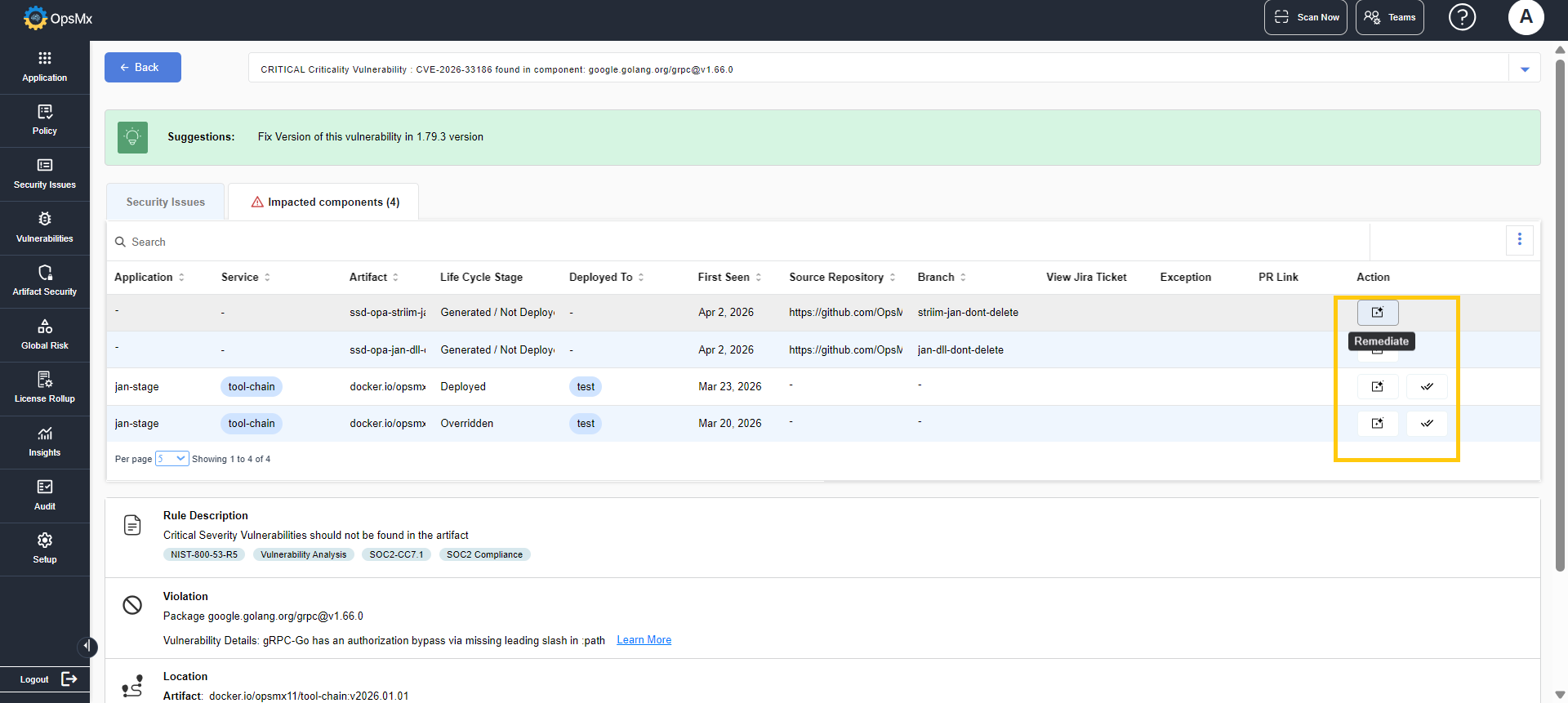
4. Navigate to the **Impacted Components** section and click on it.
5. In the list of applications, identify the relevant application and click **Remediate**.
The AI Remediation window is displayed. It analyzes the selected alert and provides a detailed summary of the issue, recommended remediation steps and possible workarounds.
{% hint style="info" %}
AI Remediation is supported only for repositories hosted on GitHub Cloud. Remediation is performed only when the source details of the associated artifacts or projects are available.
{% endhint %}
### To View and Interpret Scan Results
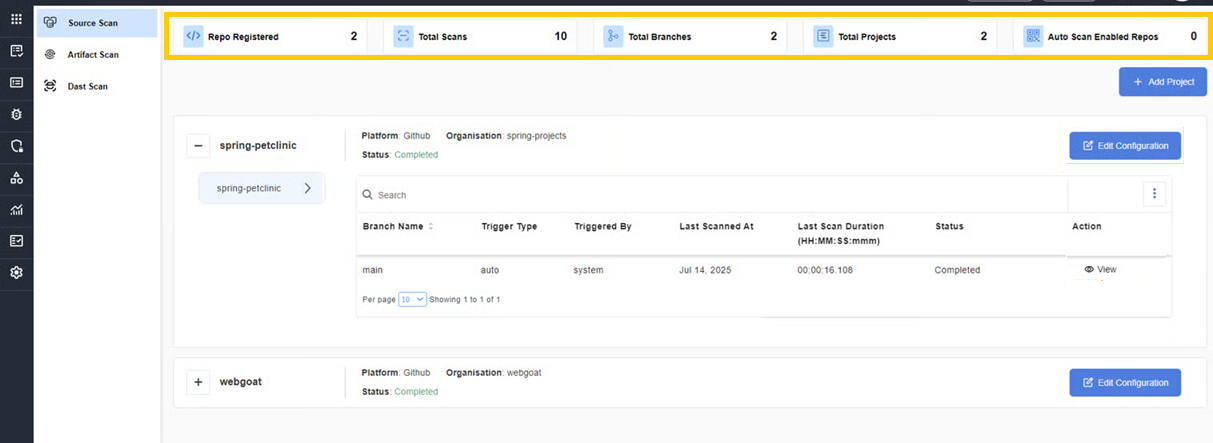
Once the scan is complete, OpsMx generates the overall results and they are displayed as shown below:
* Repos Registered
* Total Branches
* Total Scans
* Total Projects
* Auto Scan Enabled Repos
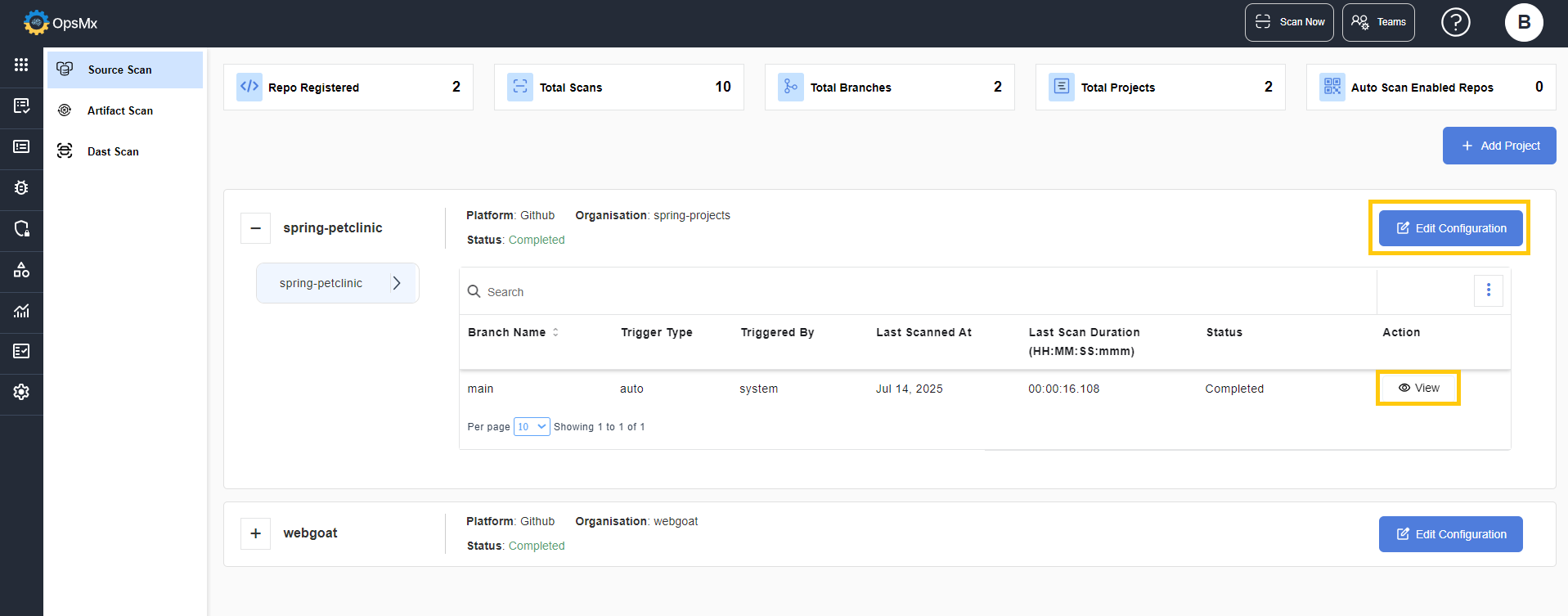
The panel at the bottom displays the project details. On expanding each project you can view the complete details of it.
{% hint style="info" %}
The current status of the scan (completed, pending or failed) is displayed to notify the status of the project.
{% endhint %}
* To edit the configuration details of the project, click the **Edit Configuration** button.
* Click the **View** option in the **Action** button, to view the SAST and SCA scan results of the project.
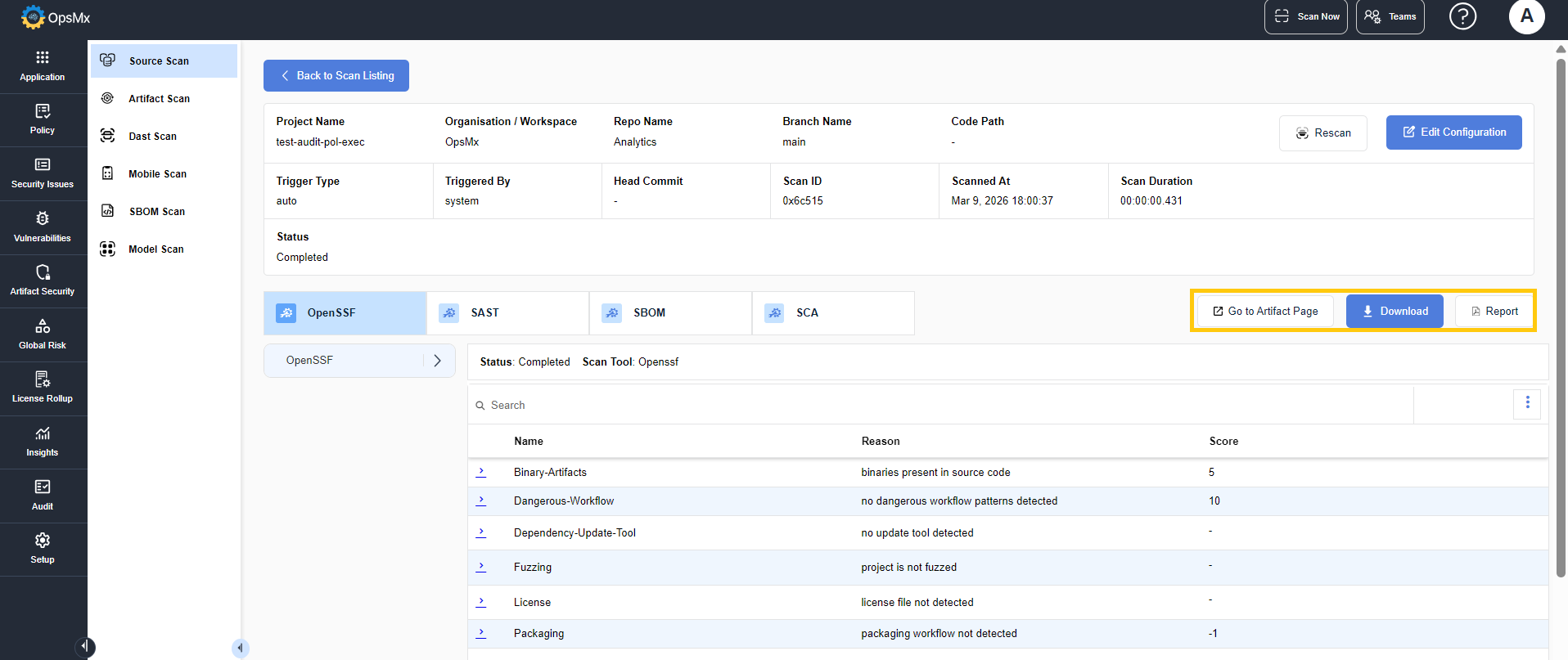
* The results page displays the complete data of the scan details.
* On clicking the **Download** button, the scan results are downloaded in .json or .csv format.
* On clicking **Report**, the scan results are downloaded in a report format.
* On clicking **Go to Artifact** Page, you are redirected to the [Model Scan Artifact](https://docs.opsmx.com/code-to-cloud-security-and-scanners/artifact-security/model-scan-artifacts) page.